How Can I See Where My Team Is In Real Time?
This guide explains how to use Live to see your team’s location and current status in real time.
In Live, you can:
- see your team on the map in real time
- check who is active and who is offline
- view where a team member is currently located
- identify who may be available to take an extra Job
You see your team's position in real time — locations update every second while moving, and pause when stationary to save battery.
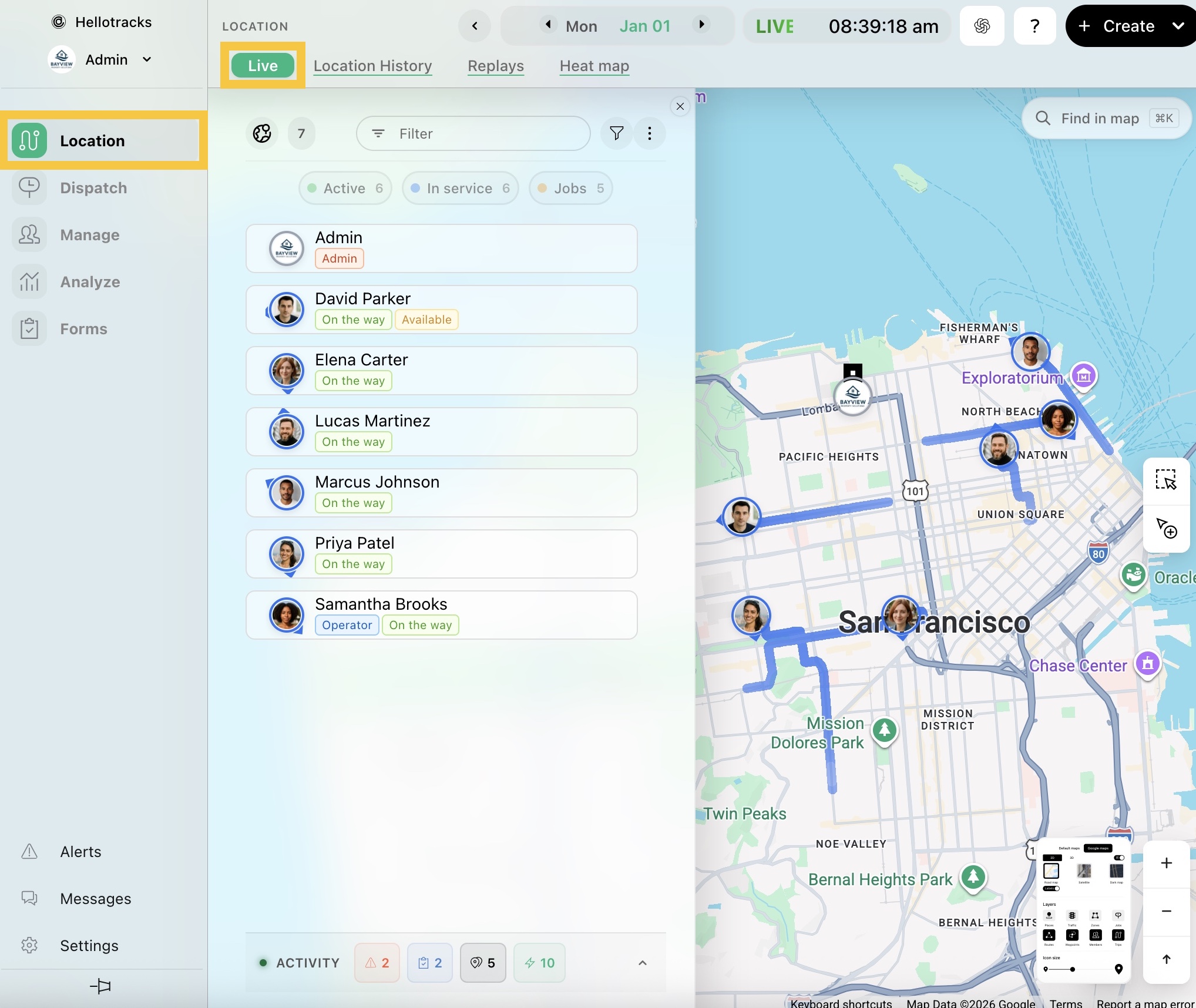
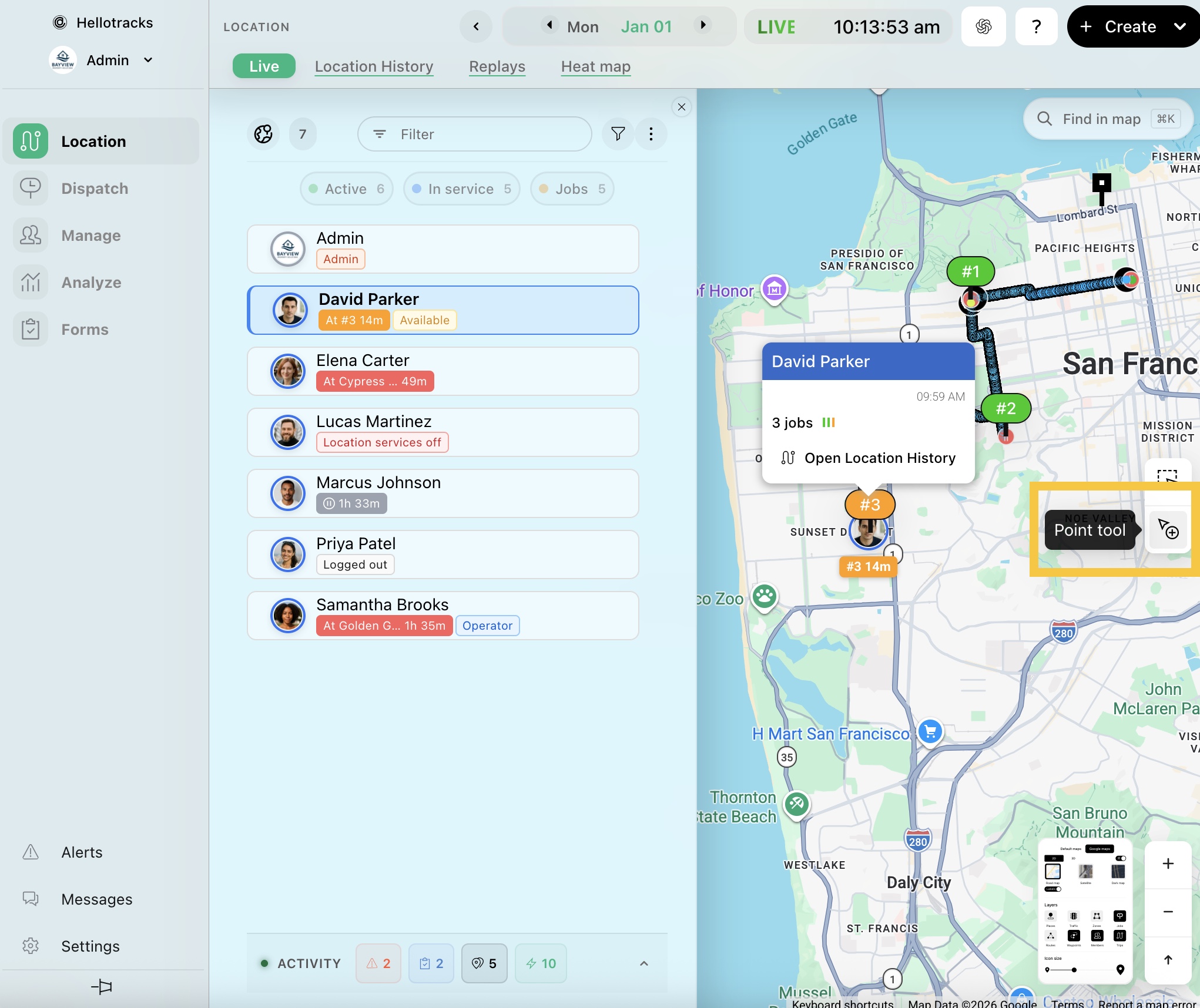
Step 1: Go to Location, then select Live.
This opens the real-time map and member list. If a member has moved recently, a blue line may appear on the map showing their recent trip.
Step 2: View a member in the list to see their current status label.
These labels reflect the member’s current tracking status based on activity from their device. Stationary labels are also displayed on the map.
Status labels may include:
- Stationary
- On the way - moving
- Tracking off / Logged out - not sharing location
- Location services off - location access is disabled on the device
- Off duty - outside working hours
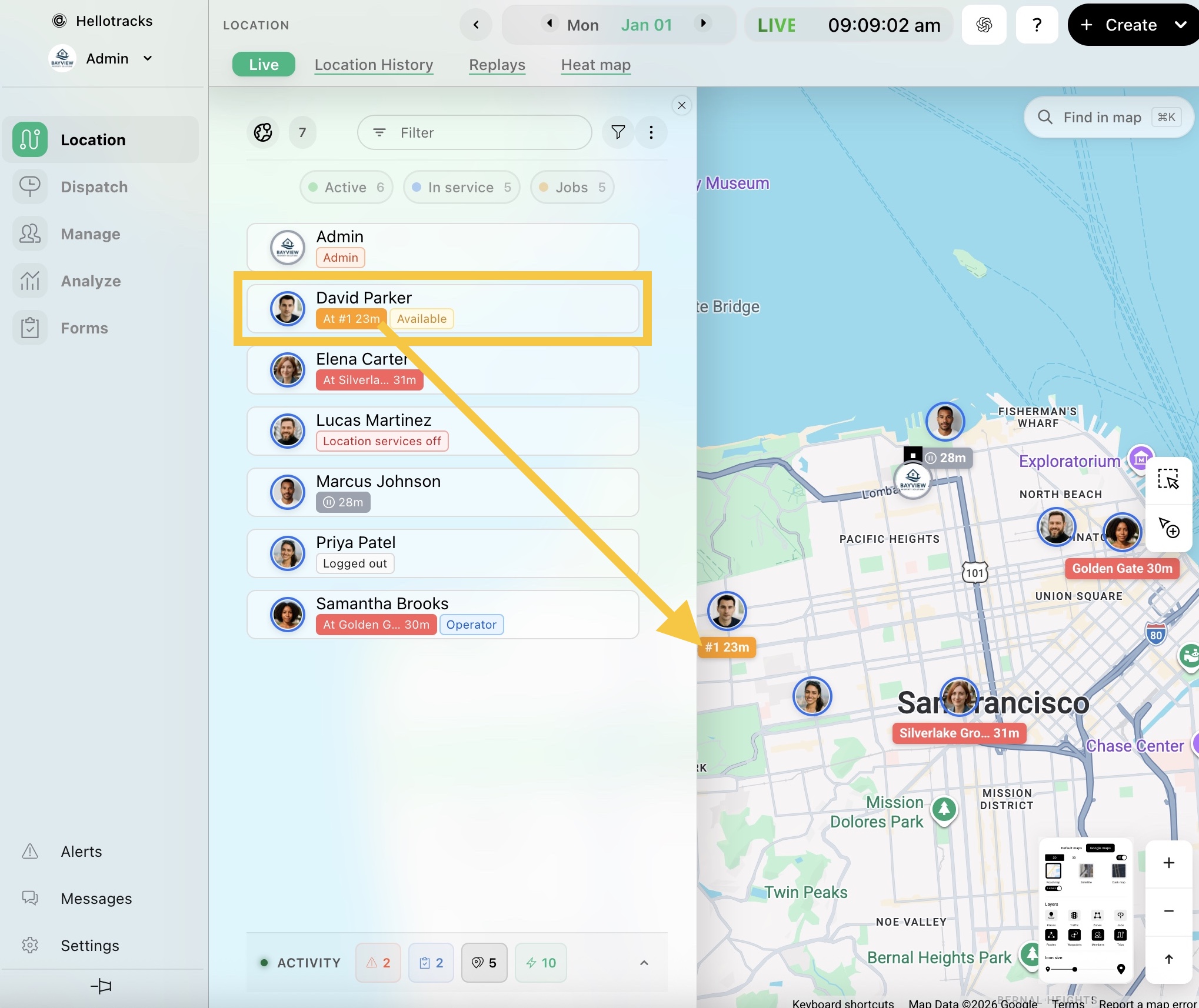
Note: Members may also have an availability status, such as Available, Busy, or On Leave, based on the status they select or create in the mobile app. This helps communicate their current availability to Administrators and Operators on the web dashboard. To learn more about advanced mobile app settings, click here.
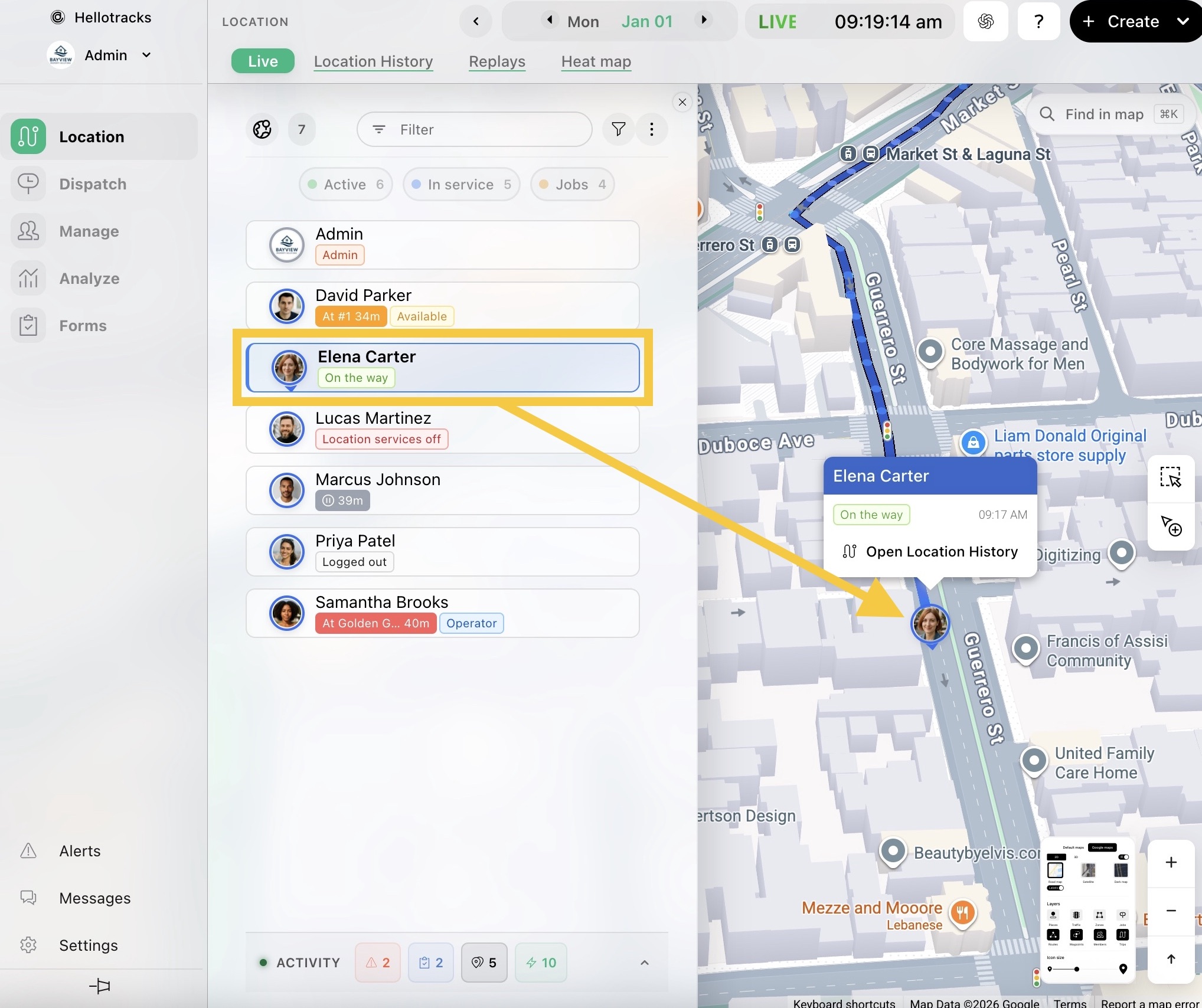
Step 3: Select a team member from the list to center the map on their current position.
This makes it easier to see where they are now.
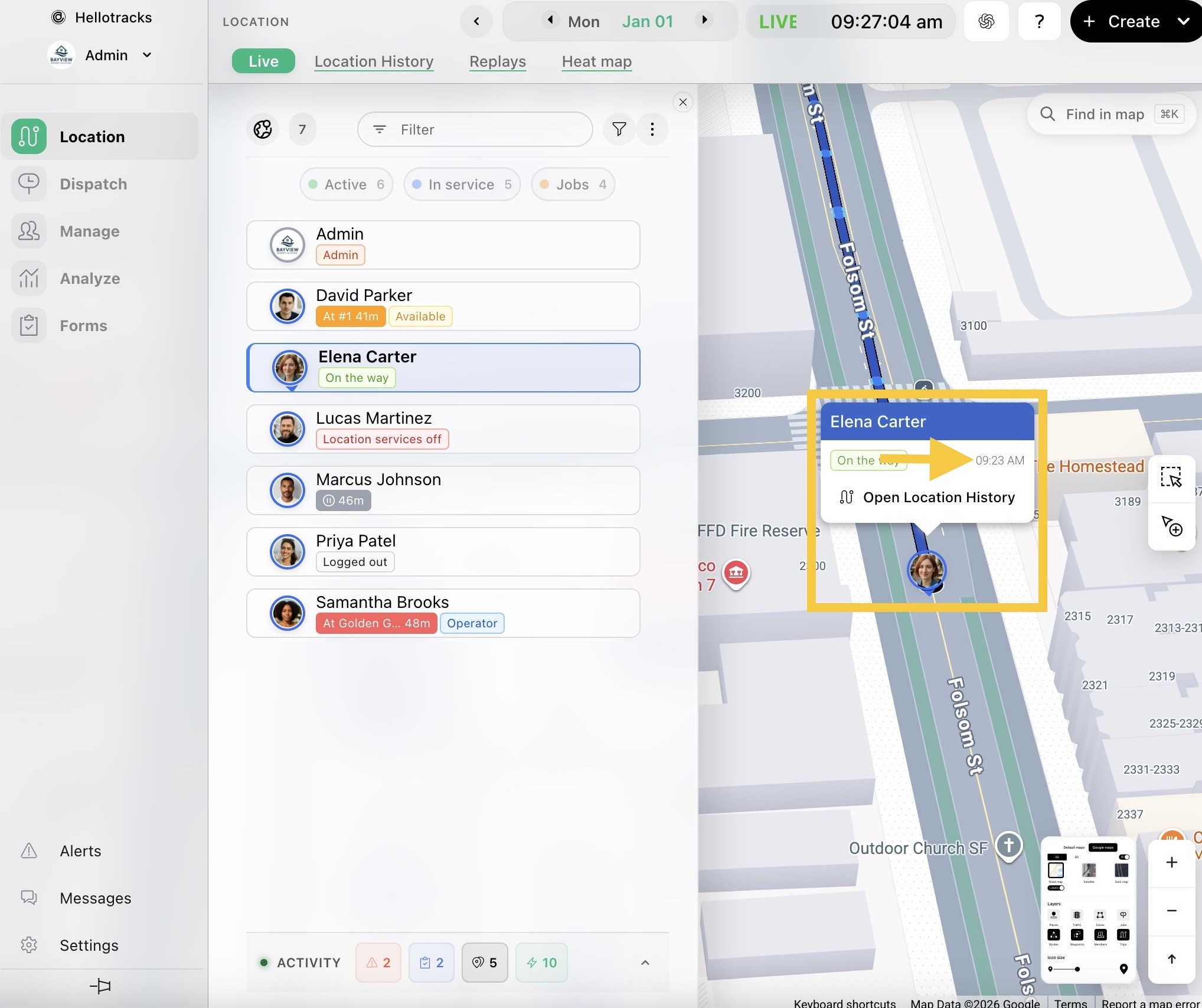
Step 4: See the timestamp of their last location update.
This helps you confirm how recently their location was updated.
Step 5: Click the Point tool, then select a location on the map to create a Job from Live.
Use a team member’s current location and status to help decide who may be able to take an extra Job.
Job creation and dispatch tools are only available with the Dispatch plan. These features are not included in the Location plan. To learn more, click here.
You’re ready to start monitoring your team’s location and status in real time.