How to Create a Working Hours Schedule
This guide explains how to create a working hours schedule for individual members or an entire team. When enabled in your company settings, working hours can automatically disable tracking for members outside the defined hours in the mobile app. Working hours are also used in Solve Route and Find Assignee to support availability-based Job scheduling.
In this guide:
1. How to Create a Working Hours Schedule for a Member
2. How to Create a Working Hours Schedule for a Team
-
How to Create a Working Hours Schedule for a Member
Step 1: Go to Manage from the main menu, then select Members.

Step 2: Click the Open Profile icon of the member.

Step 3: Select Working hours.
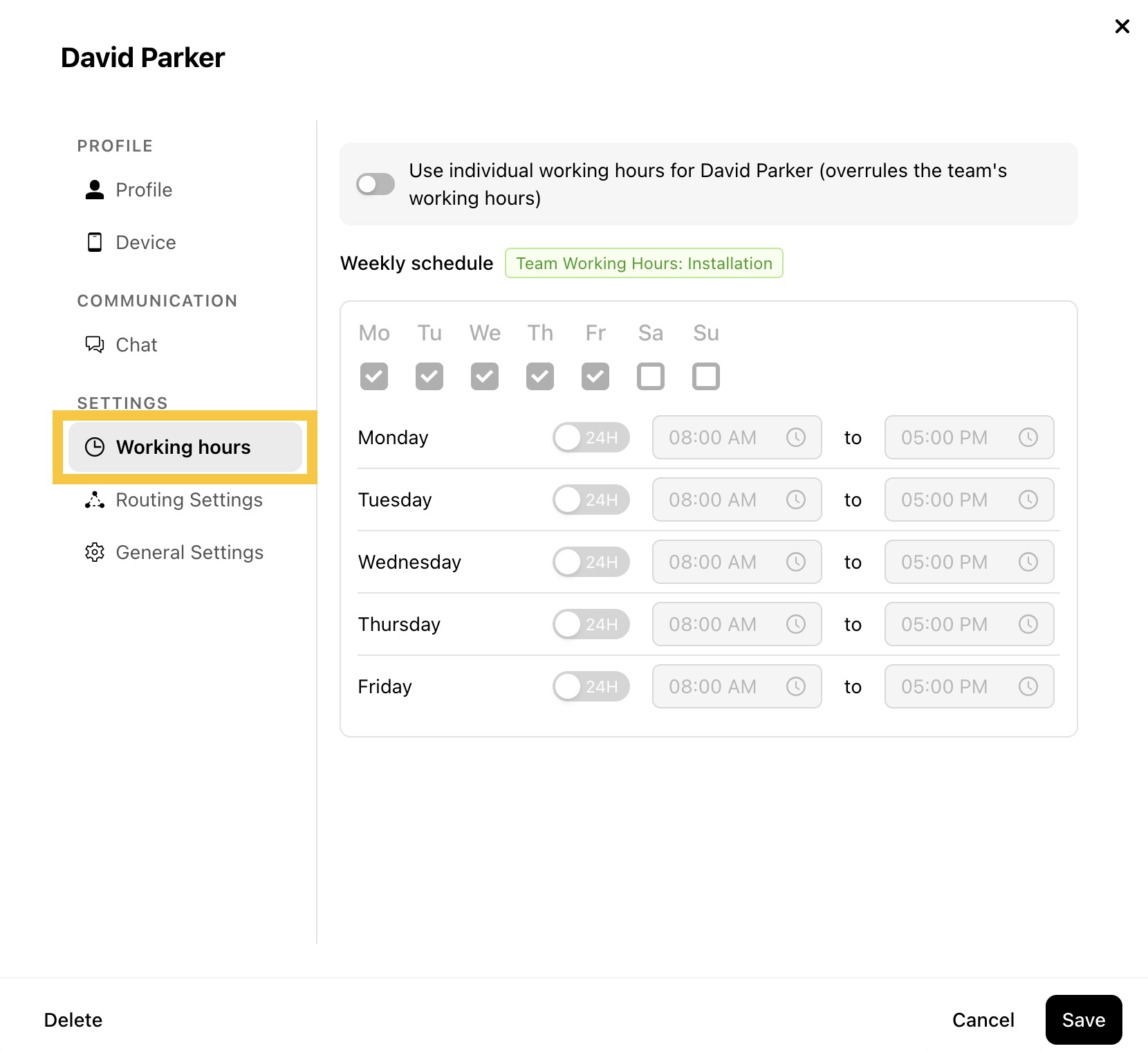
Step 4: Enable Use individual working hours and set the working hours for the member, then click Save.
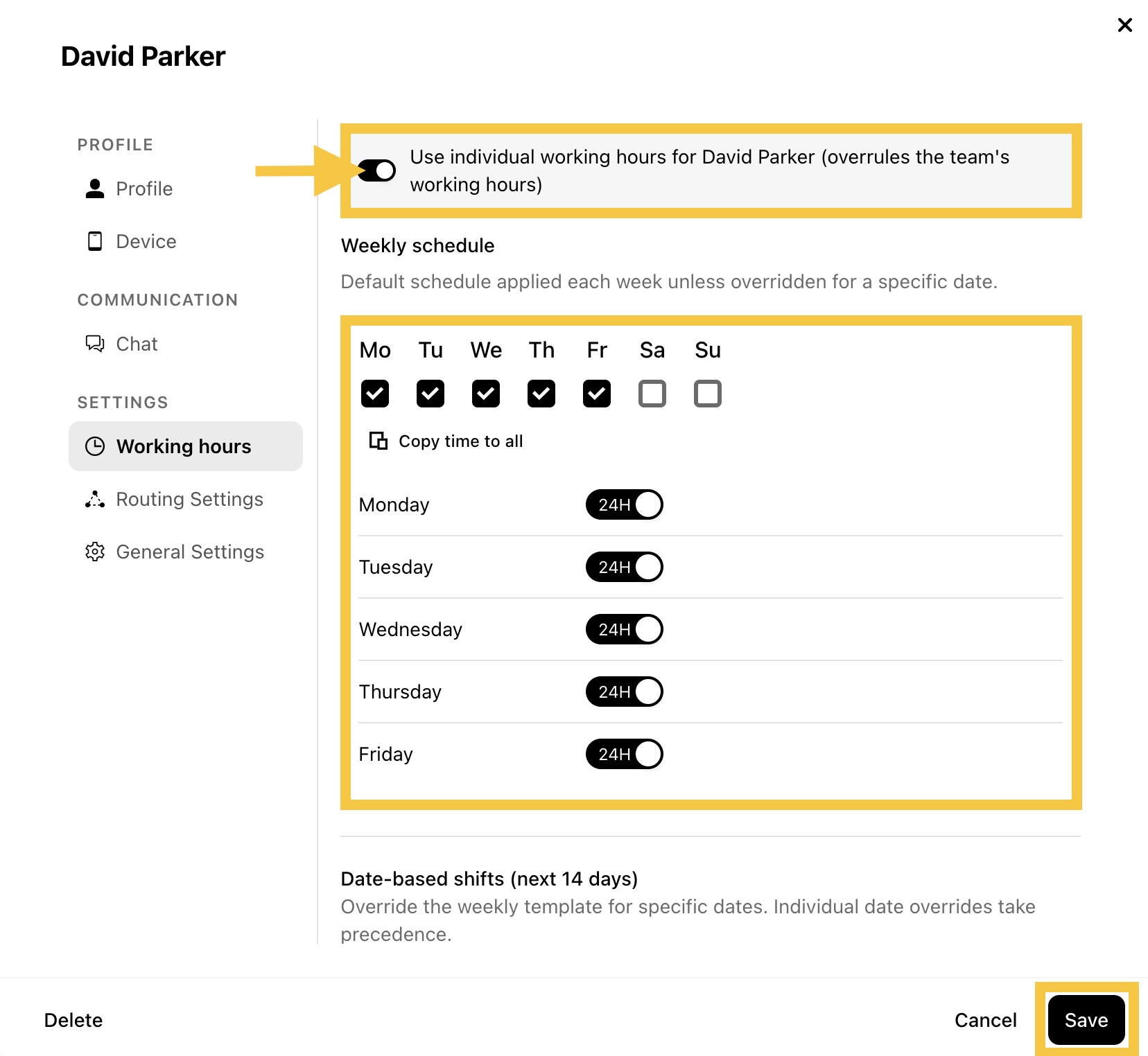
Note: Use Date-based shifts (next 14 days) if you need to override the weekly schedule for specific dates. To learn how to override a member's working hours for specific dates, click here.
-
How to Create a Working Hours Schedule for a Team
Step 1: Go to Manage from the main menu, then select Teams.

Step 2: Hover over the team to reveal the clock icon and click it.
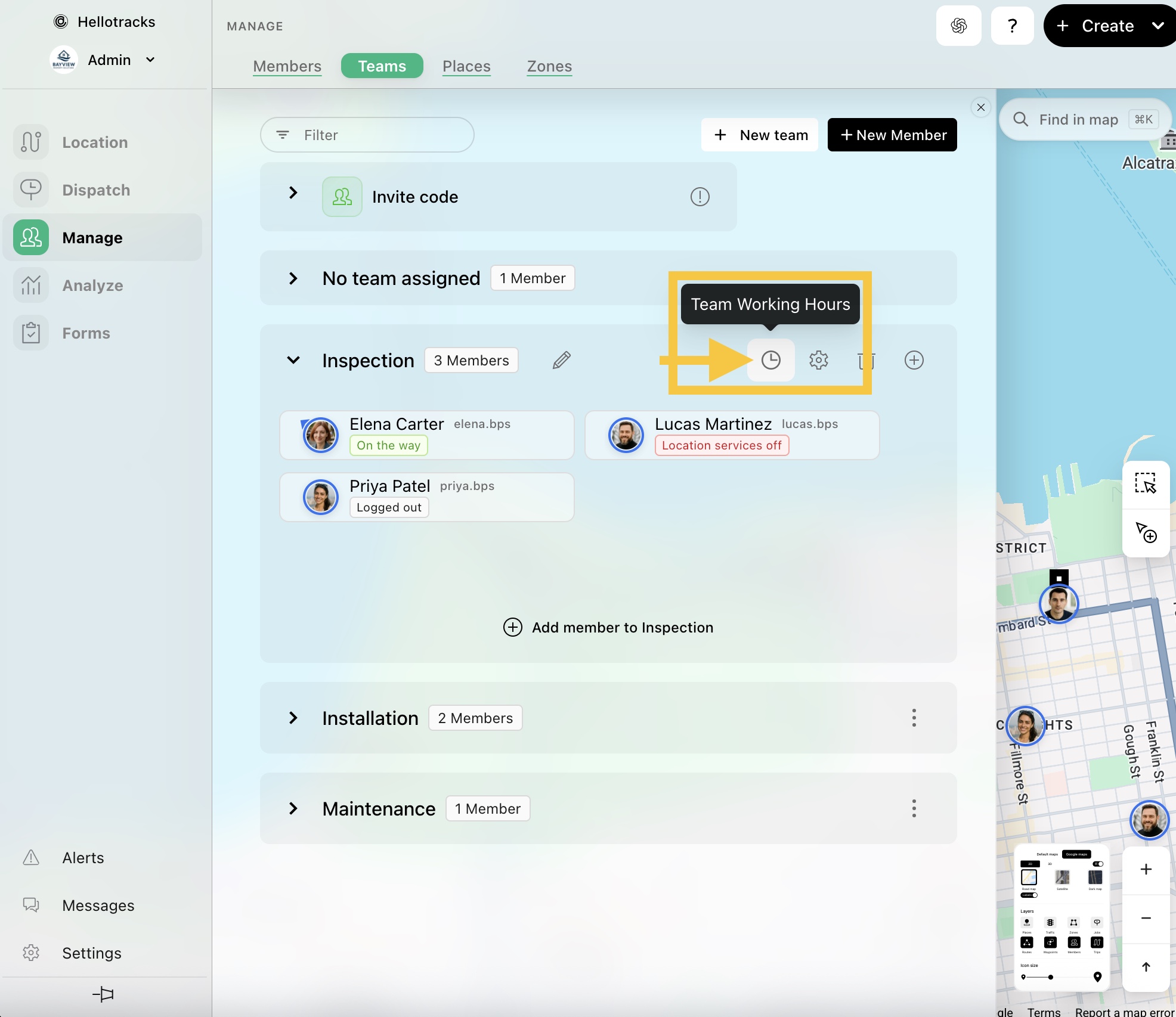
Step 3: Set the team working hours, then click Save.

Note: To ensure the team’s working hours apply, make sure Use individual working hours is disabled in each team member’s profile (see Step 4 in 1. How to Create a Working Hours Schedule for a Member).