How to Skip a Date or Pause a Recurring Route
Holidays, snow days or a customer who is closed for two weeks: you can leave out a single date of a recurring route, pause it for a while, or let it end on a date.
Go to Dispatch › Recurring routes and click the route. To learn how to create one, see How to Create a Recurring Route.
Skip a date
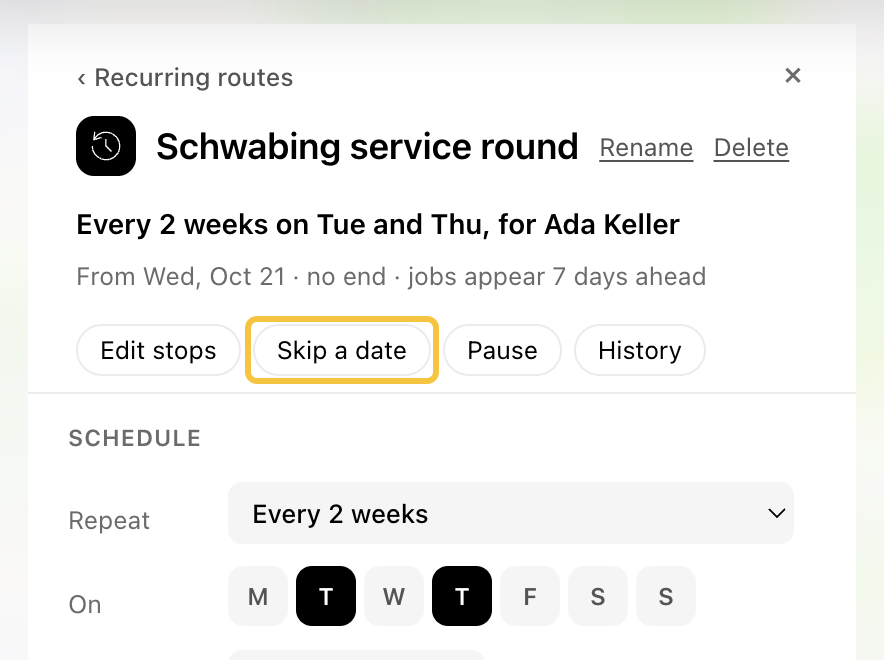
Step 1: Click Skip a date at the top of the route.
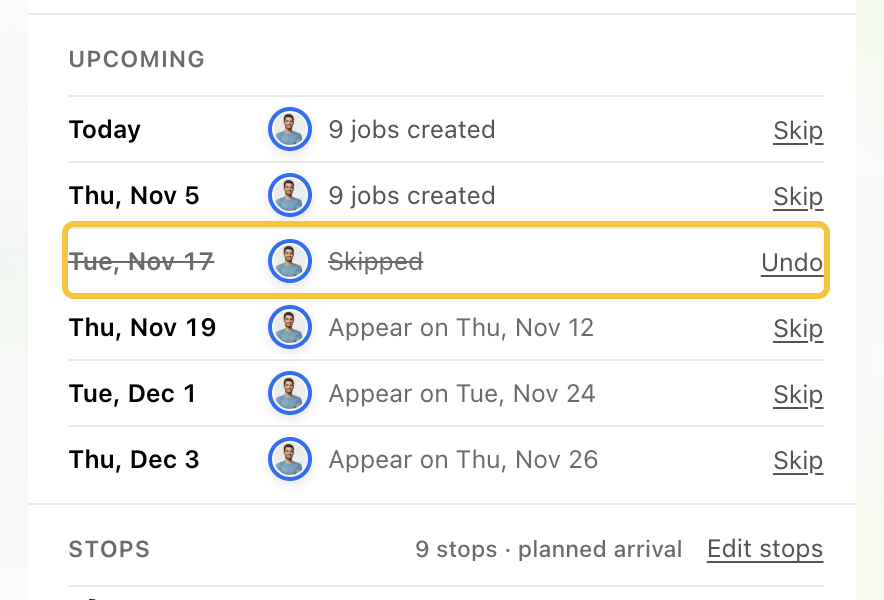
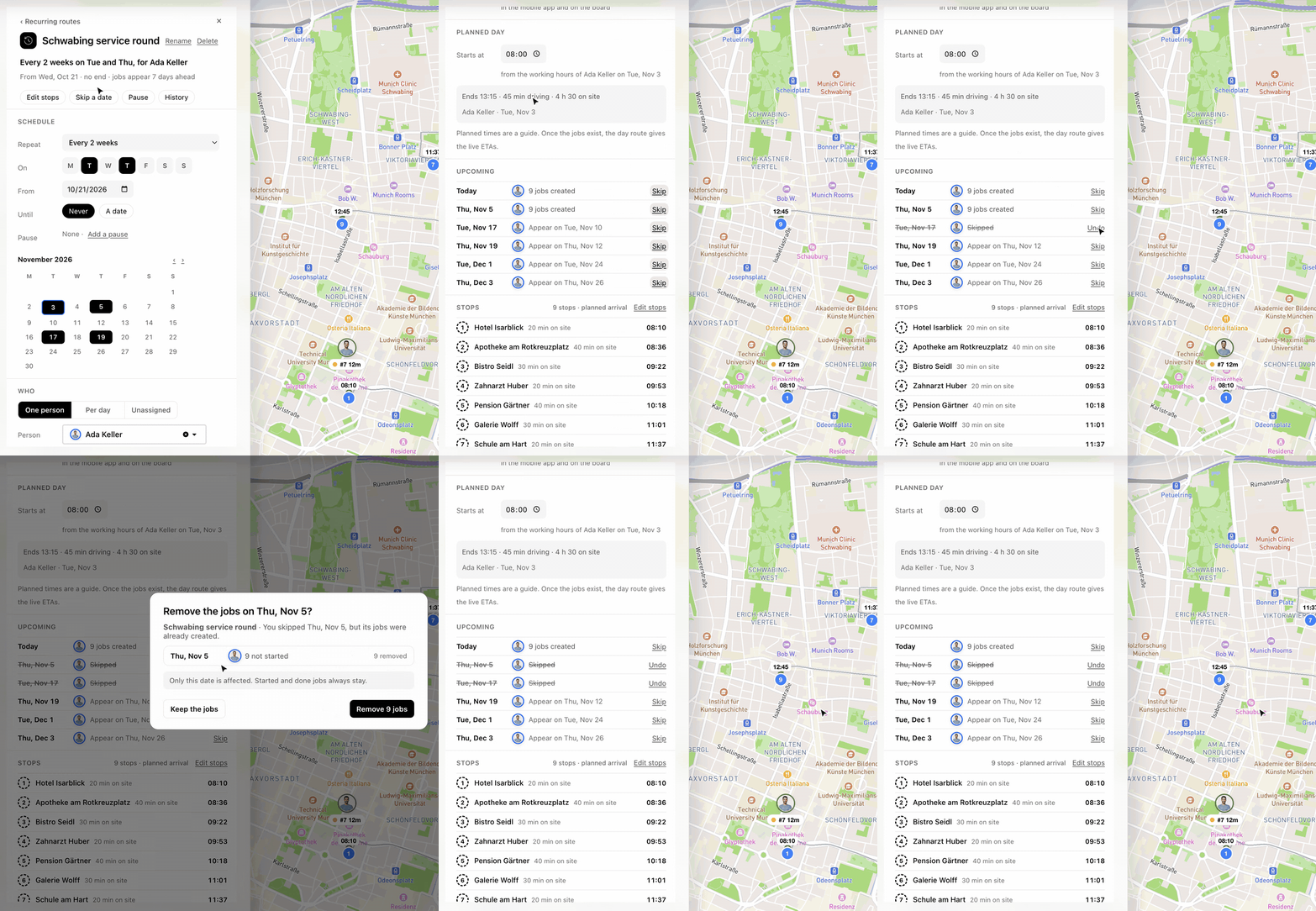
Step 2: The route jumps to Upcoming. Click Skip next to the date you want to leave out. The date is crossed out and no jobs are created for it. It is saved right away. To bring the date back, click Undo.
Step 3: If the jobs for that date were already created, Hellotracks asks Remove the jobs on …?
- Click Remove … jobs to remove that date's jobs.
- Click Keep the jobs to leave them on the board.
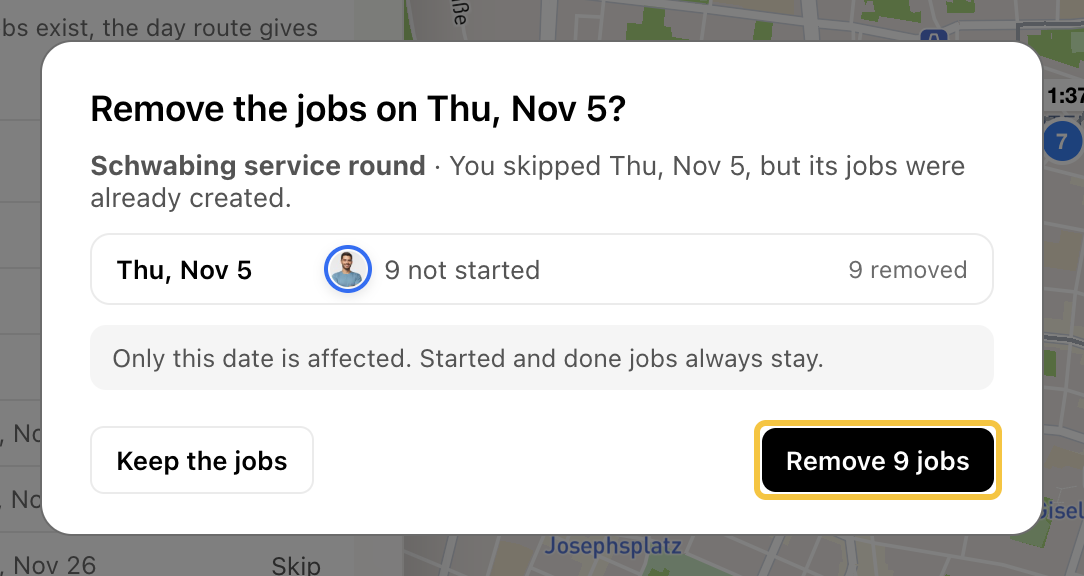
Note: Only this date is affected. Jobs that are started or done always stay.
Pause the route
Step 1: Click Pause at the top of the route, or click Add a pause under Schedule. The pause starts on the route's next date and ends two weeks from today.
Step 2: Change the first and last date of the pause if you need to. To pause the route until further notice, clear the last date.
Step 3: Click Save changes. If the route has already created jobs for dates in the pause, Hellotracks asks whether to update them. To learn more, see How to Edit a Recurring Route.
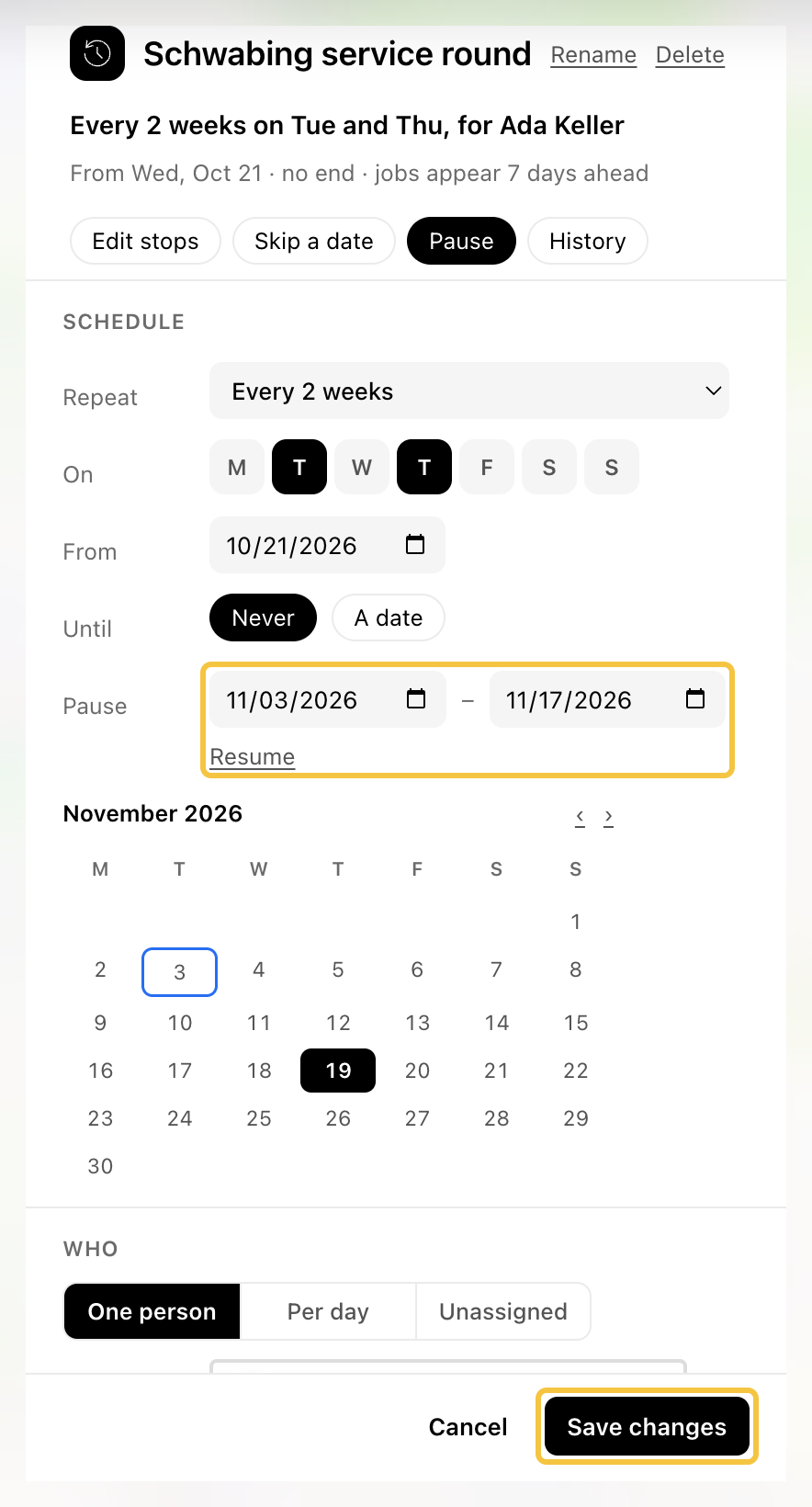
To end the pause early, click Resume next to the pause dates and then Save changes.
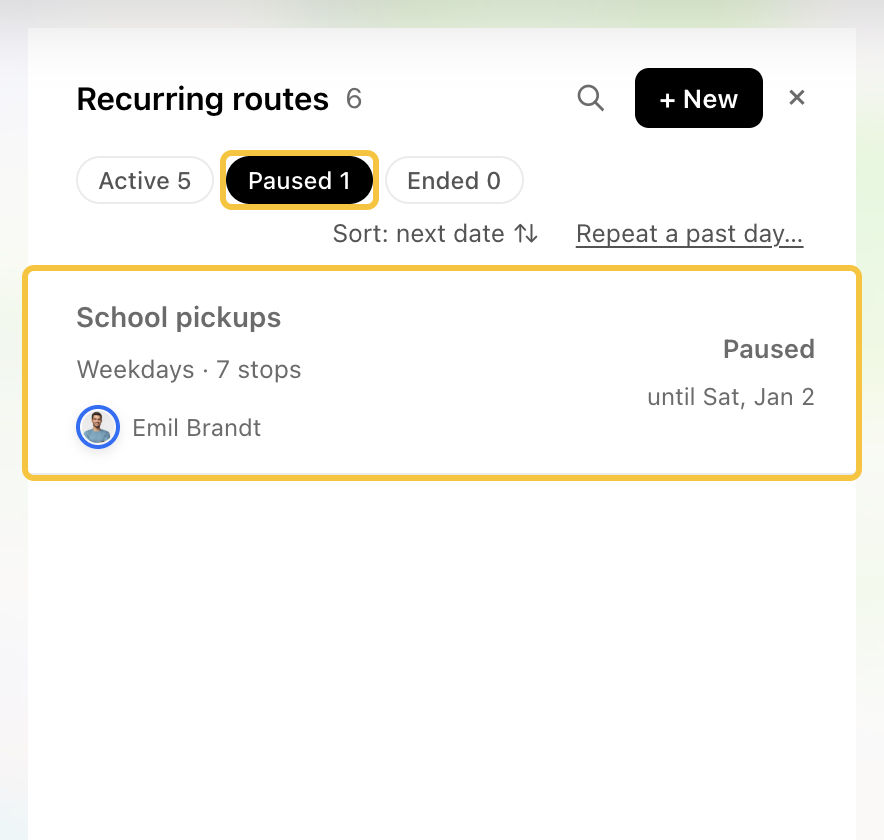
Paused routes are listed under Paused in Recurring routes, with the date the pause ends.
End the route on a date
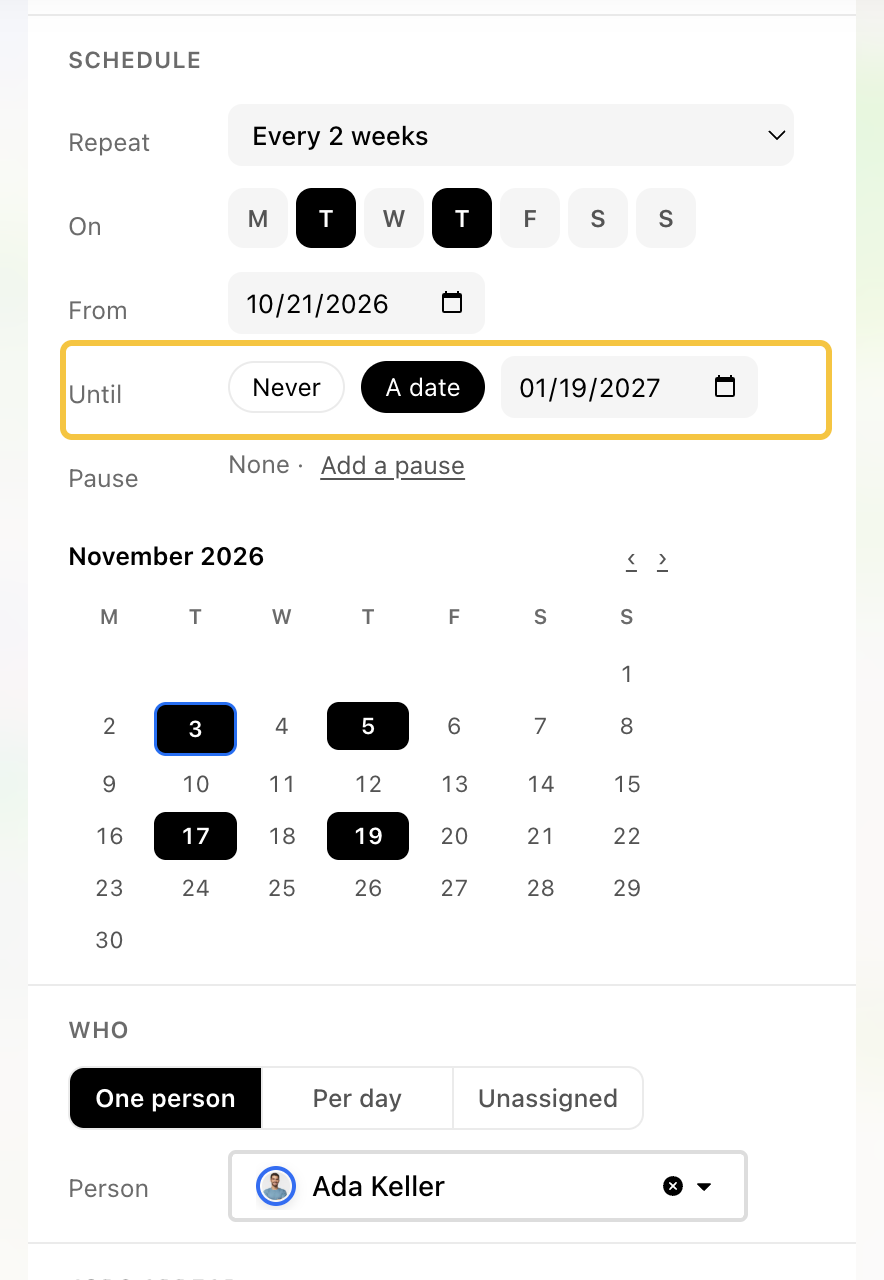
Under Schedule, next to Until, choose A date and set the route's last date. Then click Save changes. After its last date, the route is listed under Ended.
Note: To remove a route completely, click Delete next to its name.