How to Create a Device Offline Alert
This guide explains how to check a team member’s device connection status and create an alert when connection to a device is lost.
To share real-time location updates, team members should stay logged in to the mobile app and keep it running with an active mobile data or Wi-Fi connection. The service may go offline if the user logs out of the app, the app has been running in the background for too long, the device loses data connection, or the device is turned off.
The No connection to device alert helps notify you when Hellotracks stops receiving updates from a member’s device.
Check a Member’s Device Status
From Live, you can view the real-time status of each team member.
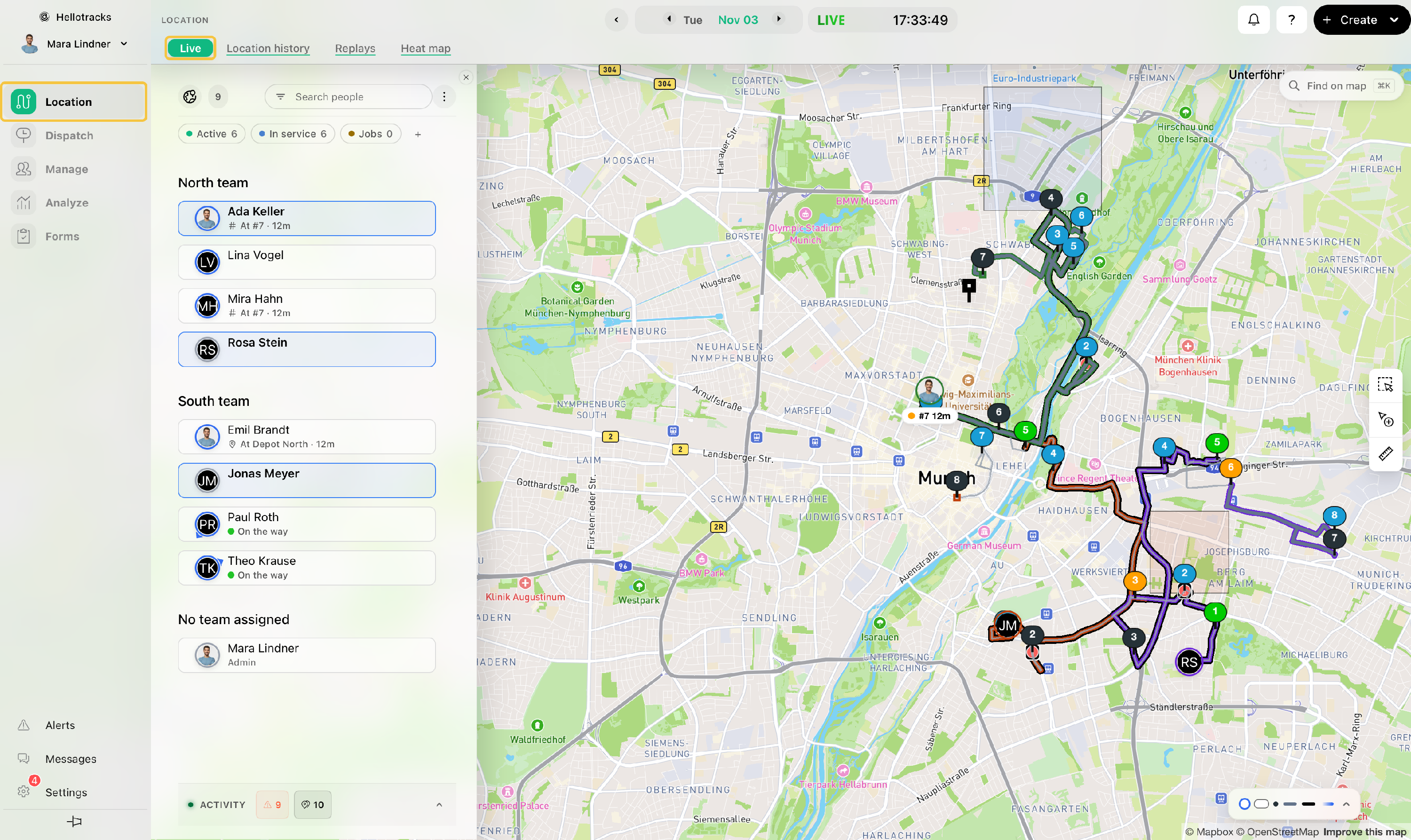
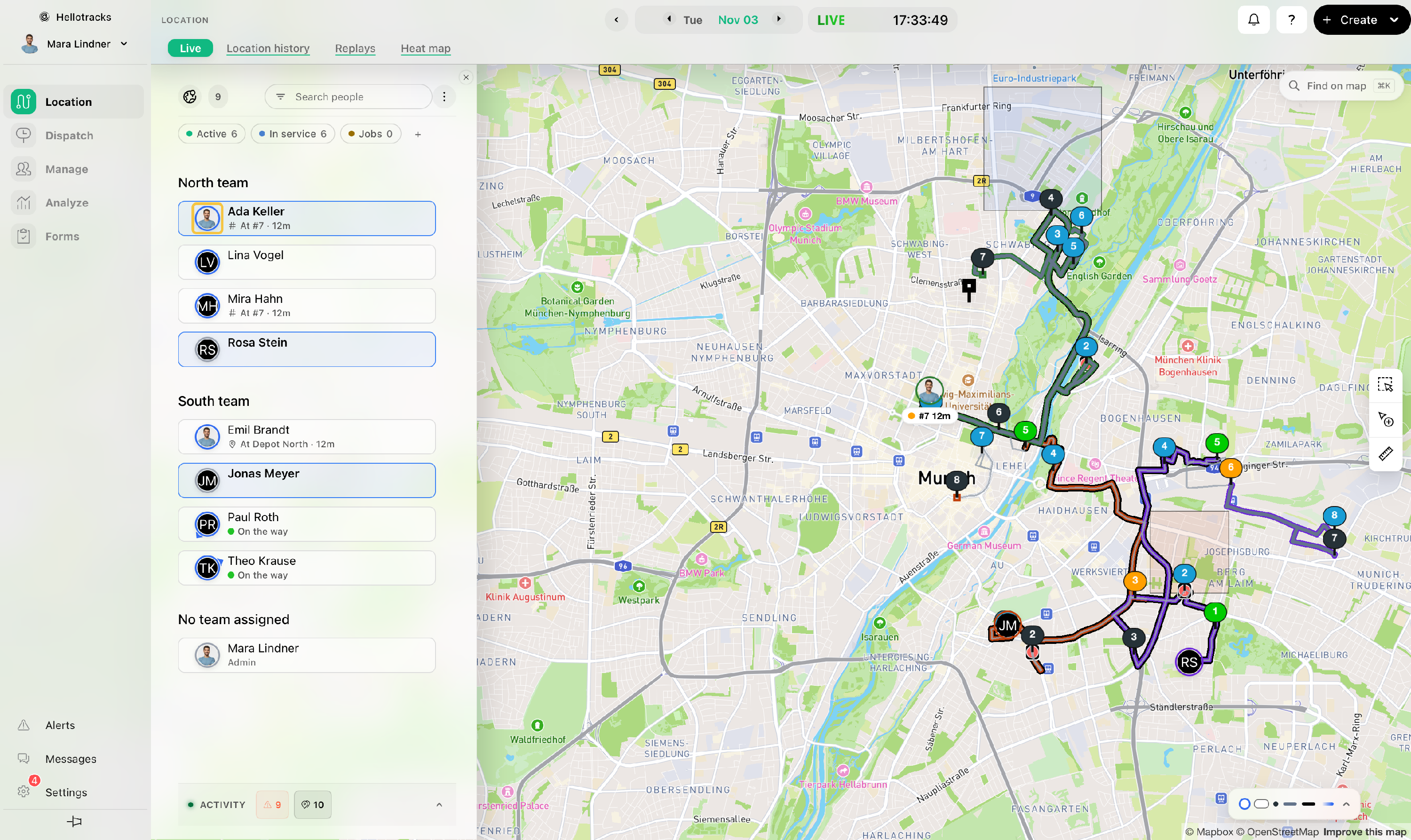
To view more details, click the member’s profile icon in the list or on the map to open their profile.
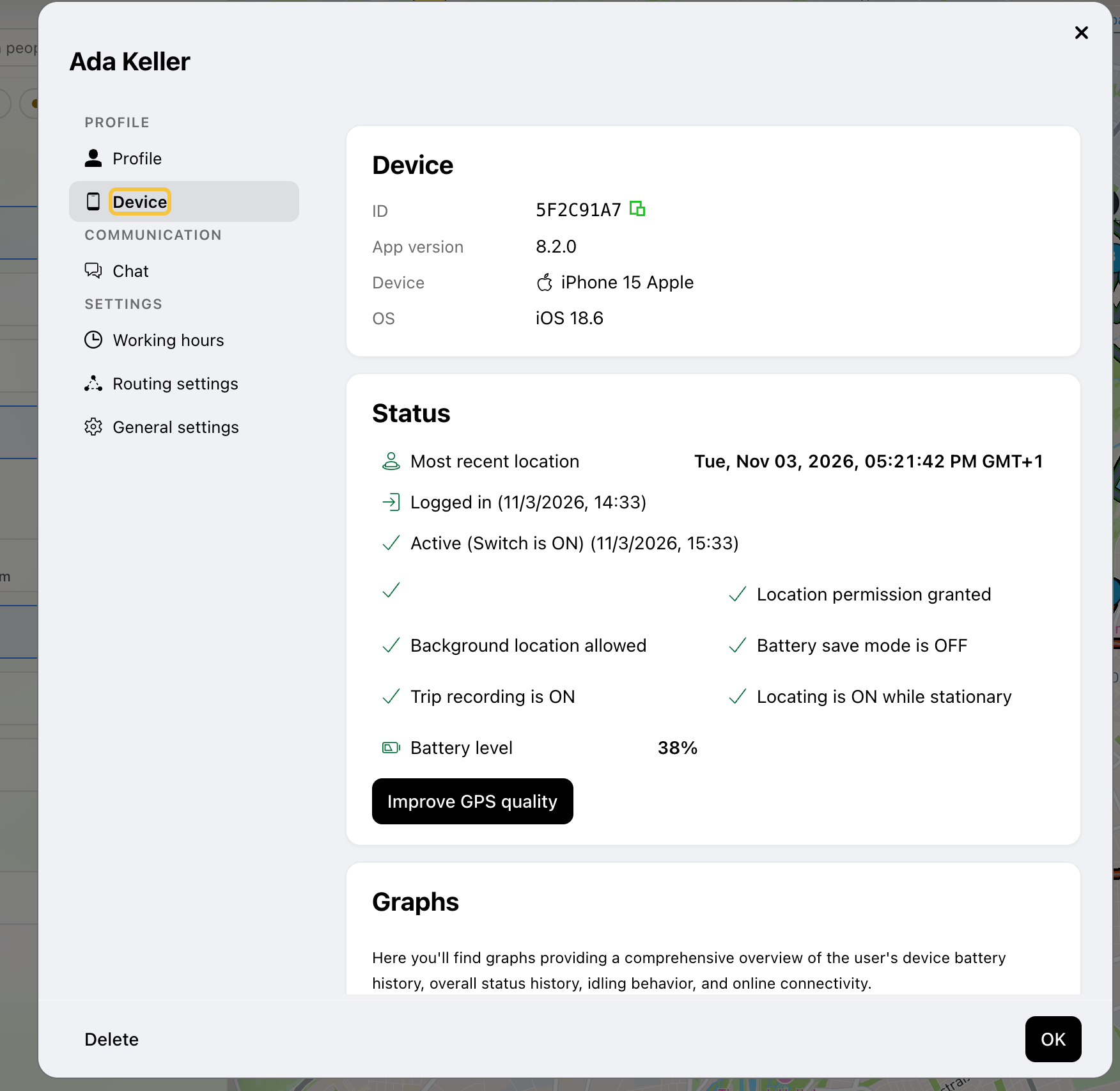
Select Device to view the member’s latest login or logout activity and other device status details.
Create a No Connection to Device Alert
To be notified when Hellotracks stops receiving updates from a member’s device for a specified period, create a No connection to device alert.
Step 1: Go to Alerts at the bottom of the main menu.
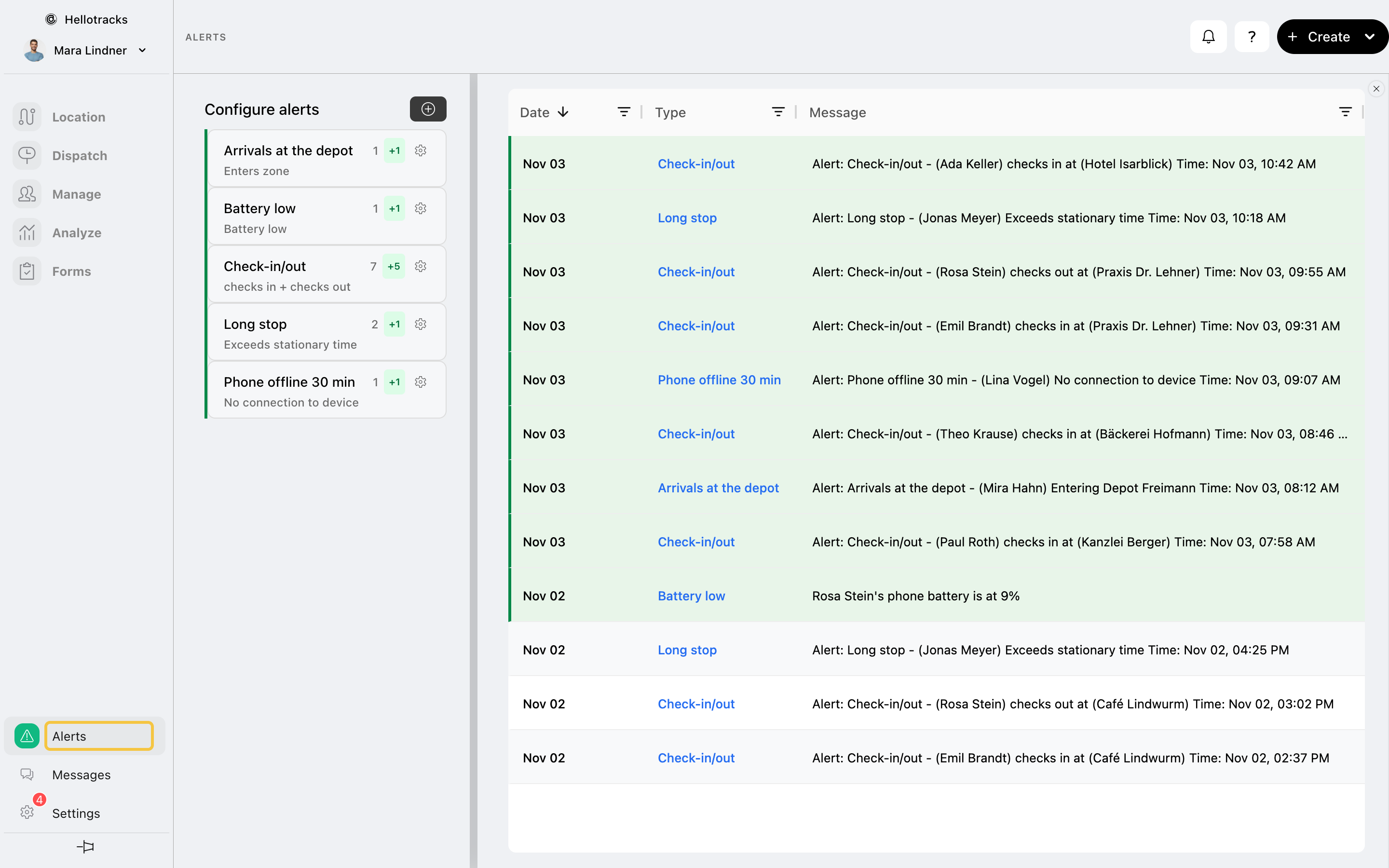
Step 2: Click the + button next to Configure alerts.
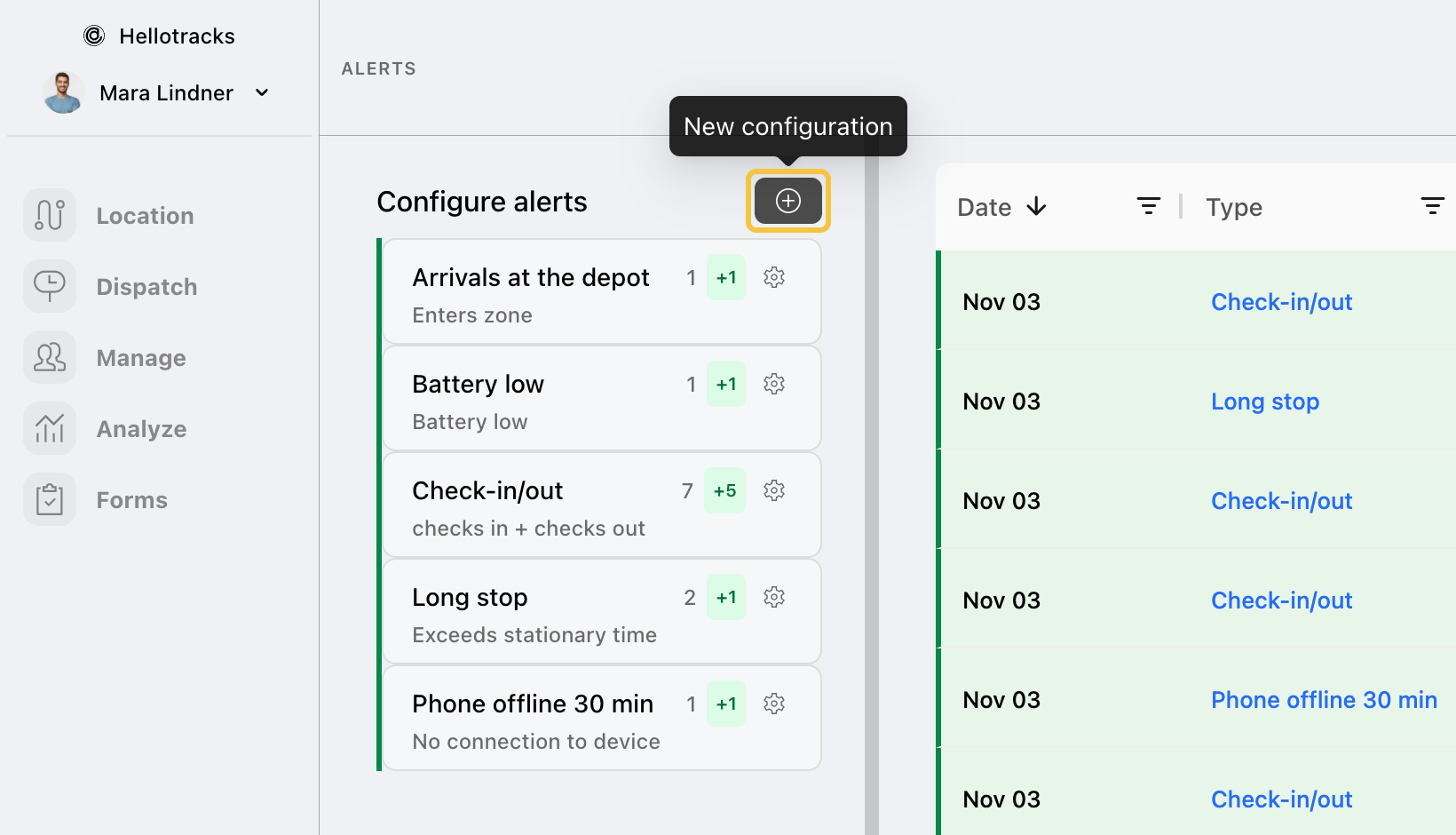
Step 3: Enter a Title for the alert.

Step 4: Choose whether to apply the alert to specific Members or a Team. To learn how to create a team, click here.

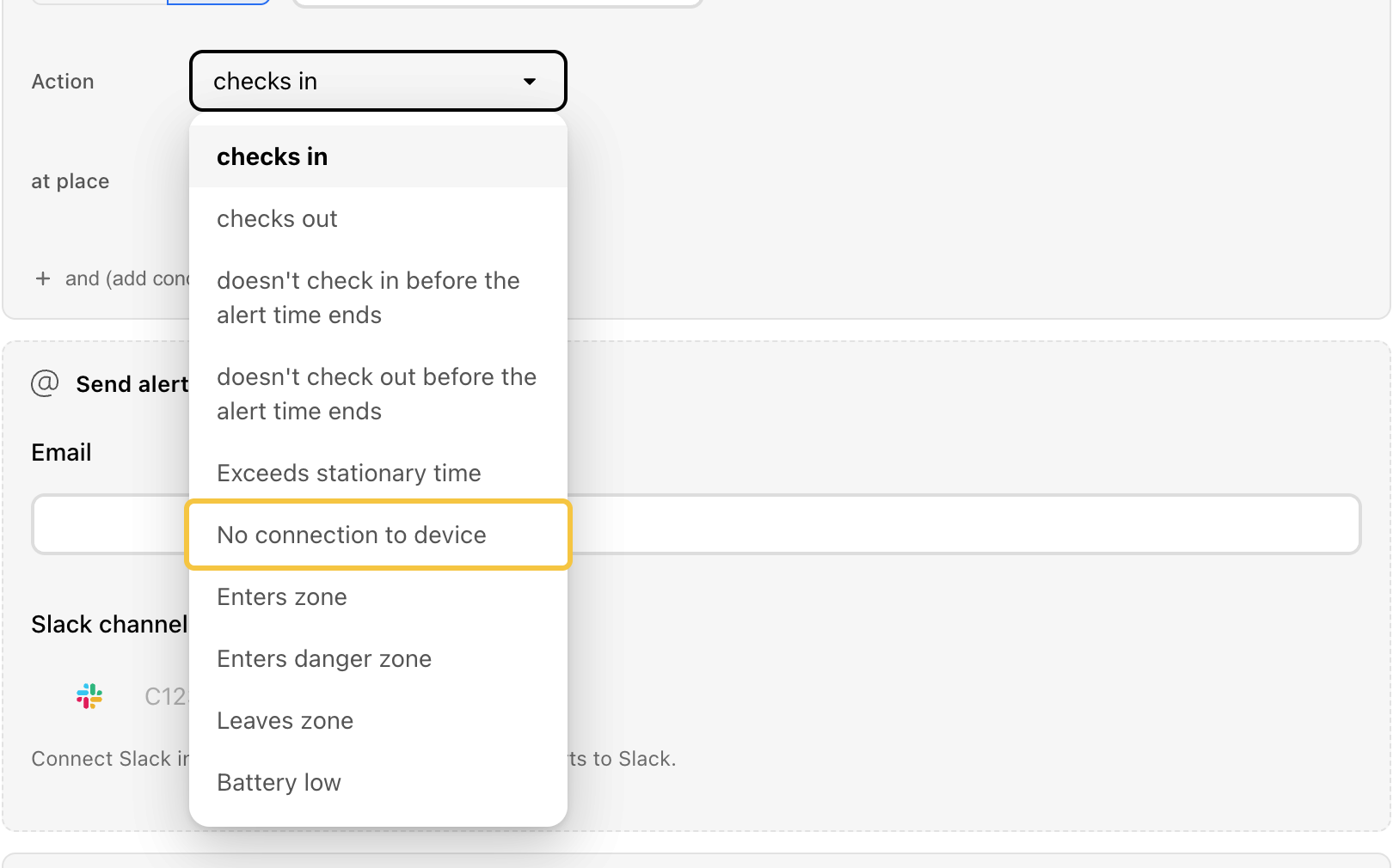
Step 5: In Action, select No connection to device.
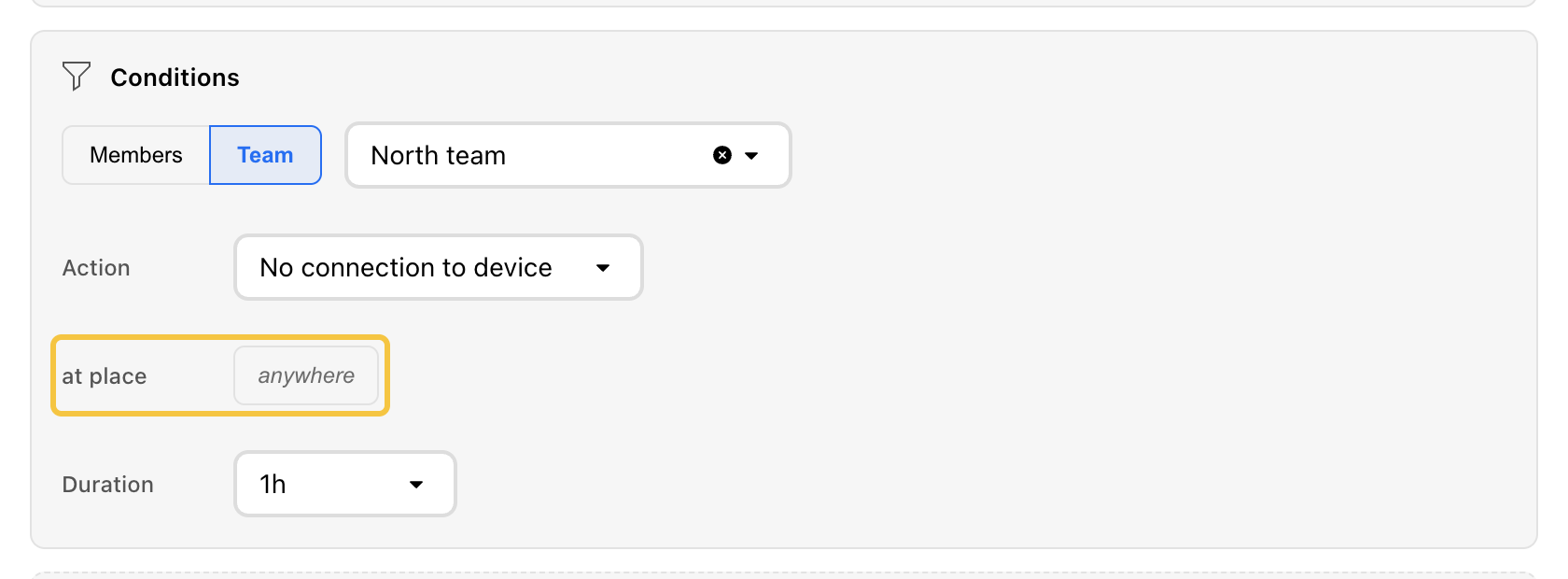
Step 6: In at place, select where the alert should apply. You can select one or more Places or leave it set to anywhere.
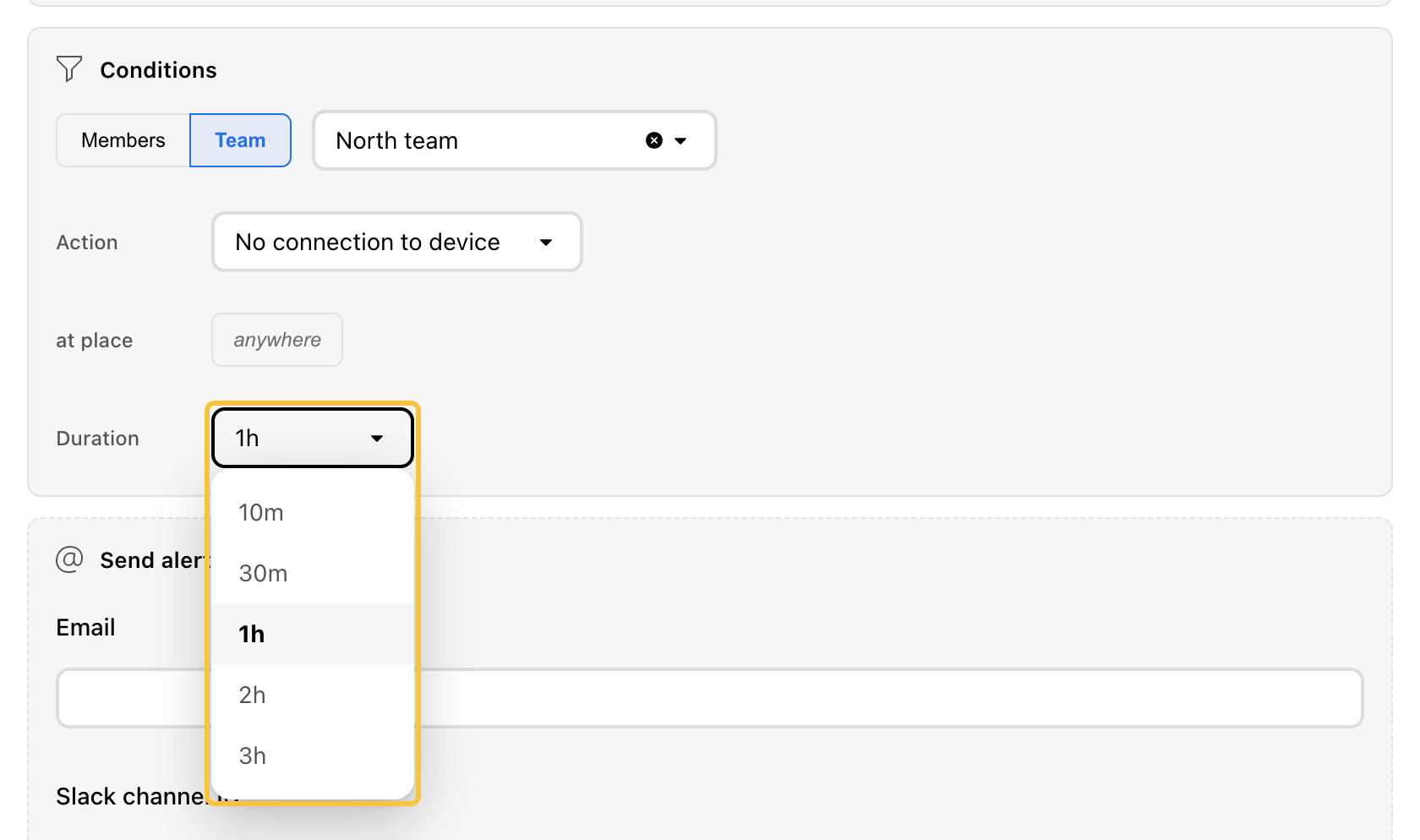
Step 7: In Duration, select how long the device must have no connection before the alert is triggered (10m, 30m, 1h, 2h, or 3h).
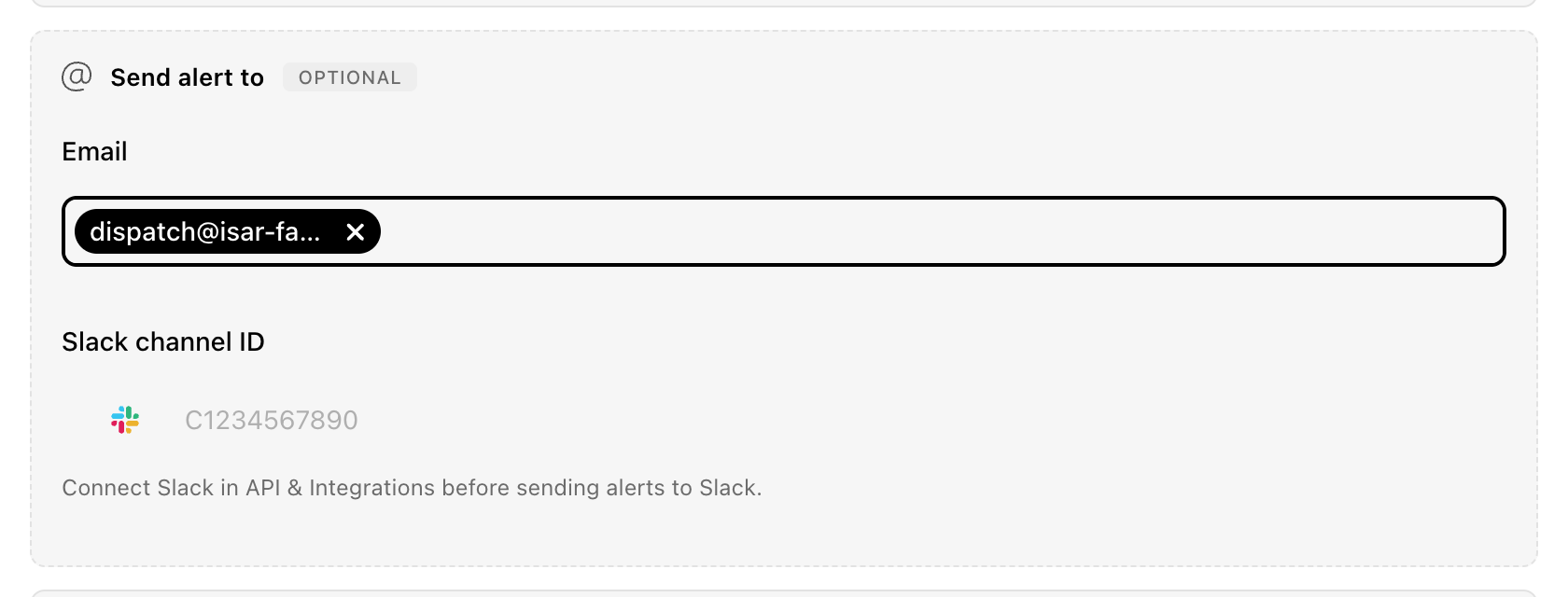
Step 8 (optional): Add alert recipients.
- Enter the email address(es) that should receive the alert notification.
- To also send the alert to Slack, enter the Slack channel ID. To use this option, make sure your Slack workspace is connected to Hellotracks. To learn how to connect Slack, click here.
Step 9: Select when the alert should be active by choosing the weekdays and setting the active time, then click Create alert.
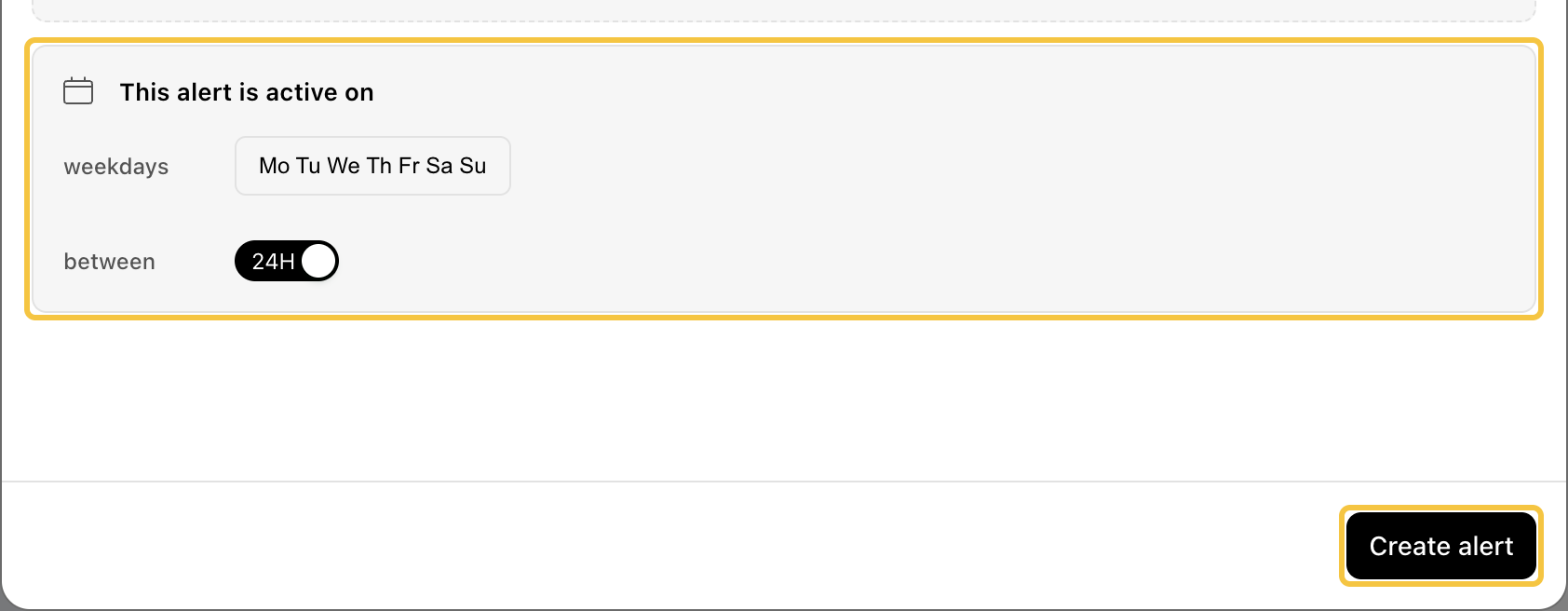
Once created, the alert will be active based on the selected schedule. Any triggered alerts can be viewed in Alerts and will also be sent to the configured recipients.