How to View and Handle Alerts
The Alerts page shows what happened in the field and what still needs someone. This guide explains what you see there and how to mark alerts done.
Step 1: Go to Alerts at the bottom of the main menu. The number next to Alerts counts the open alerts.
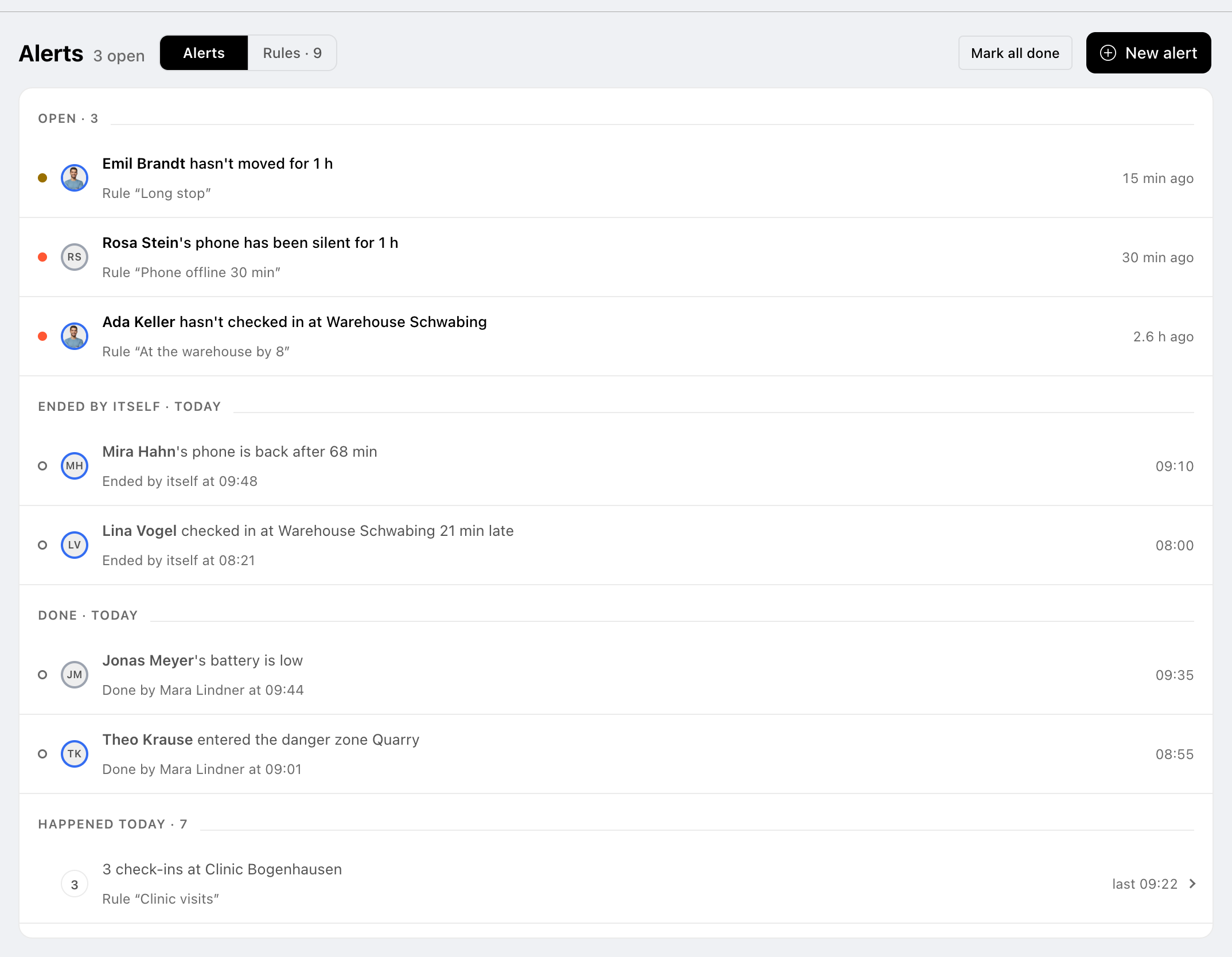
The list has these parts:
- Open: today's alerts that are waiting for someone.
- Ended by itself: alerts that sorted themselves out, for example the phone is back or the person checked in late.
- Done: alerts someone marked done, with who and when.
- Happened today: check-ins, check-outs and zone entries, grouped per place or zone. They are only listed and never count as open.
- Earlier: the days before. An alert nobody handled says Not marked done; you can still mark it done.
Step 2: Click an alert to see where it happened. From there, you can:
- Message: write to the person.
- Show on map: see the location.
- Open location history: open that person’s day. Close it to come back to the alert.
- Open place: open the place.
Why you got this shows the rule behind the alert. To change it, click Edit rule.
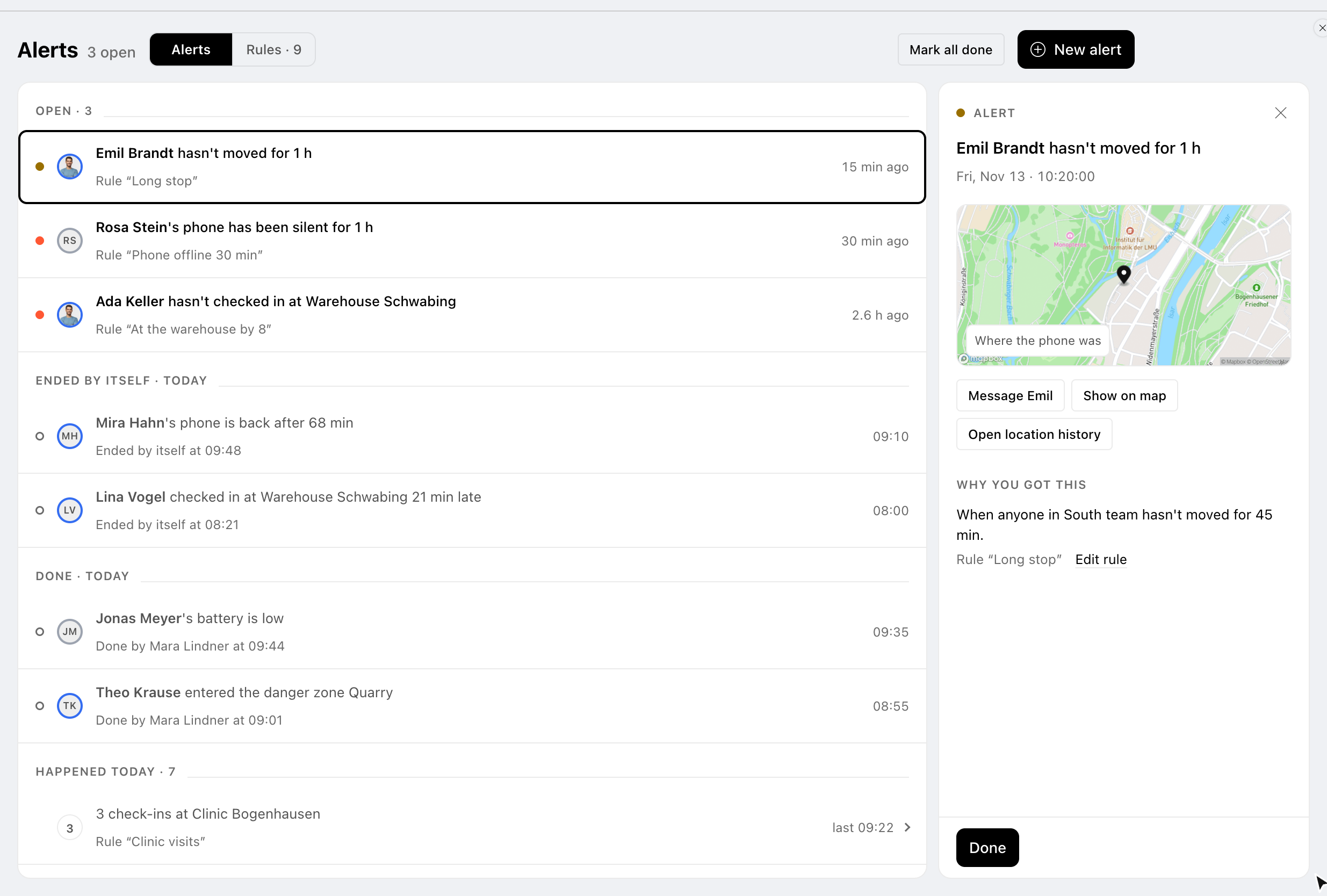
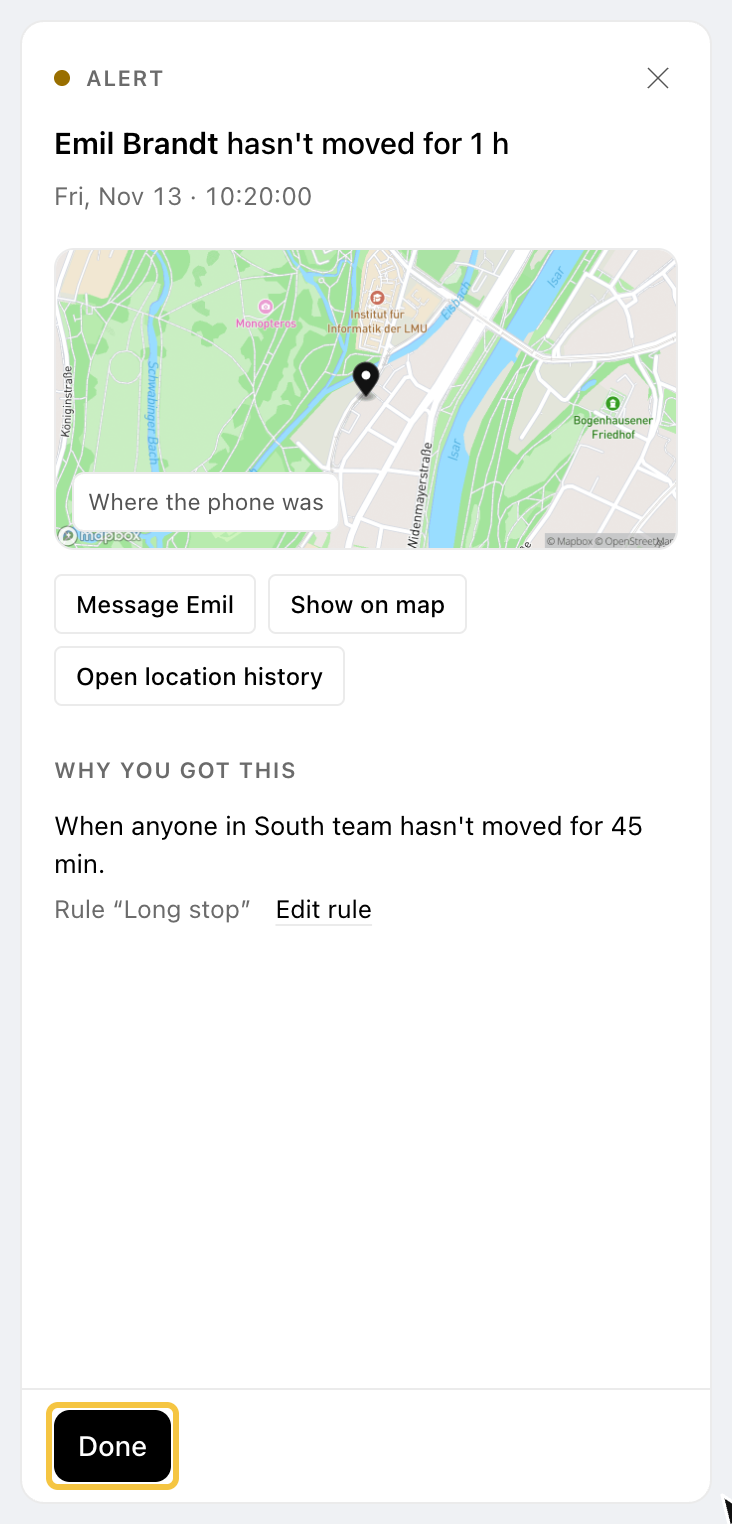
Step 3: When it's handled, click Done. To undo it, click Reopen.
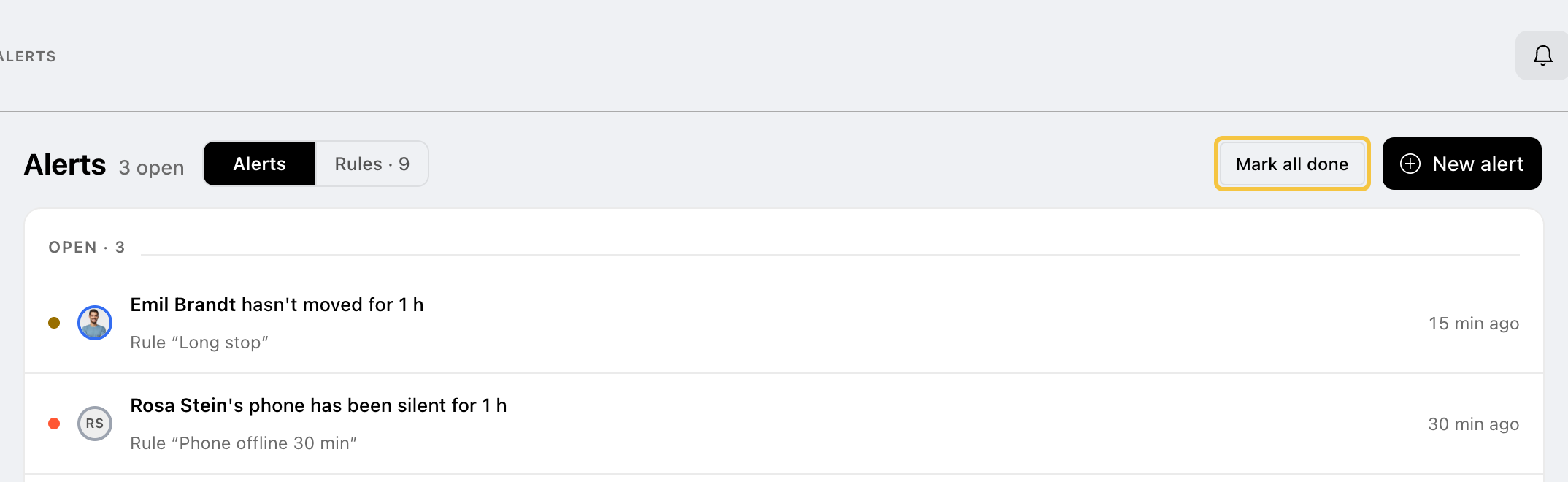
Step 4 (optional): With 3 or more open alerts, click Mark all done to handle them all at once.
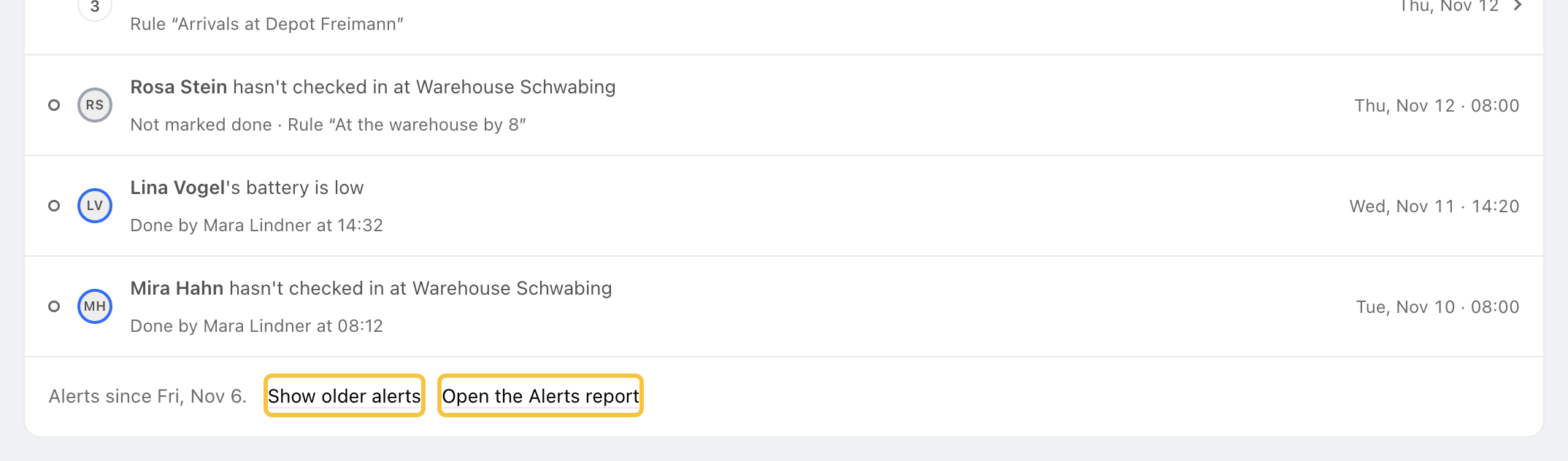
Step 5 (optional): The page shows the last 7 days. At the end of the list:
- To see more, click Show older alerts.
- To export alerts, click Open the Alerts report. To learn more, click here.
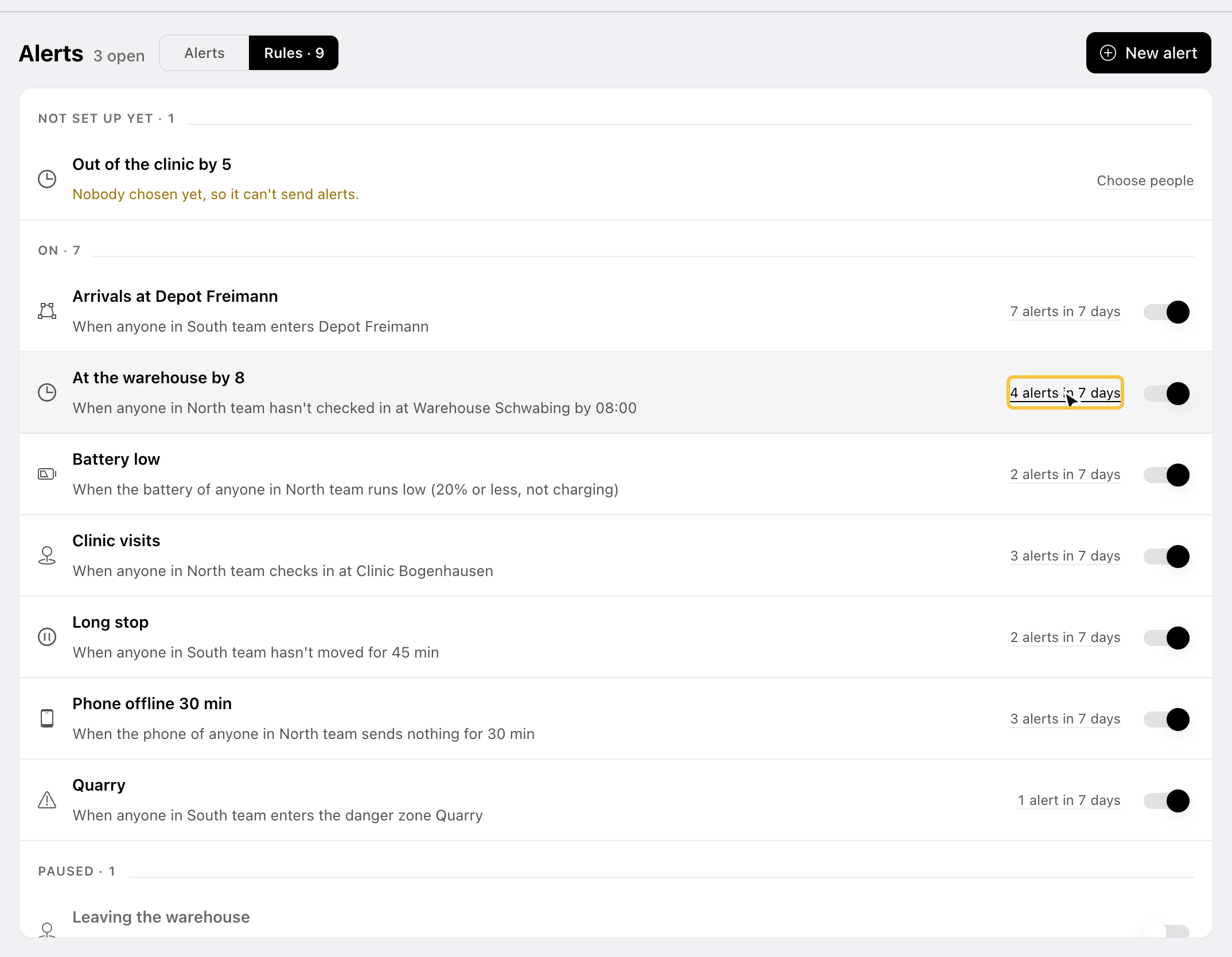
Step 6 (optional): To see the alerts of one rule, click Rules, then click [number] alerts in 7 days on that rule.
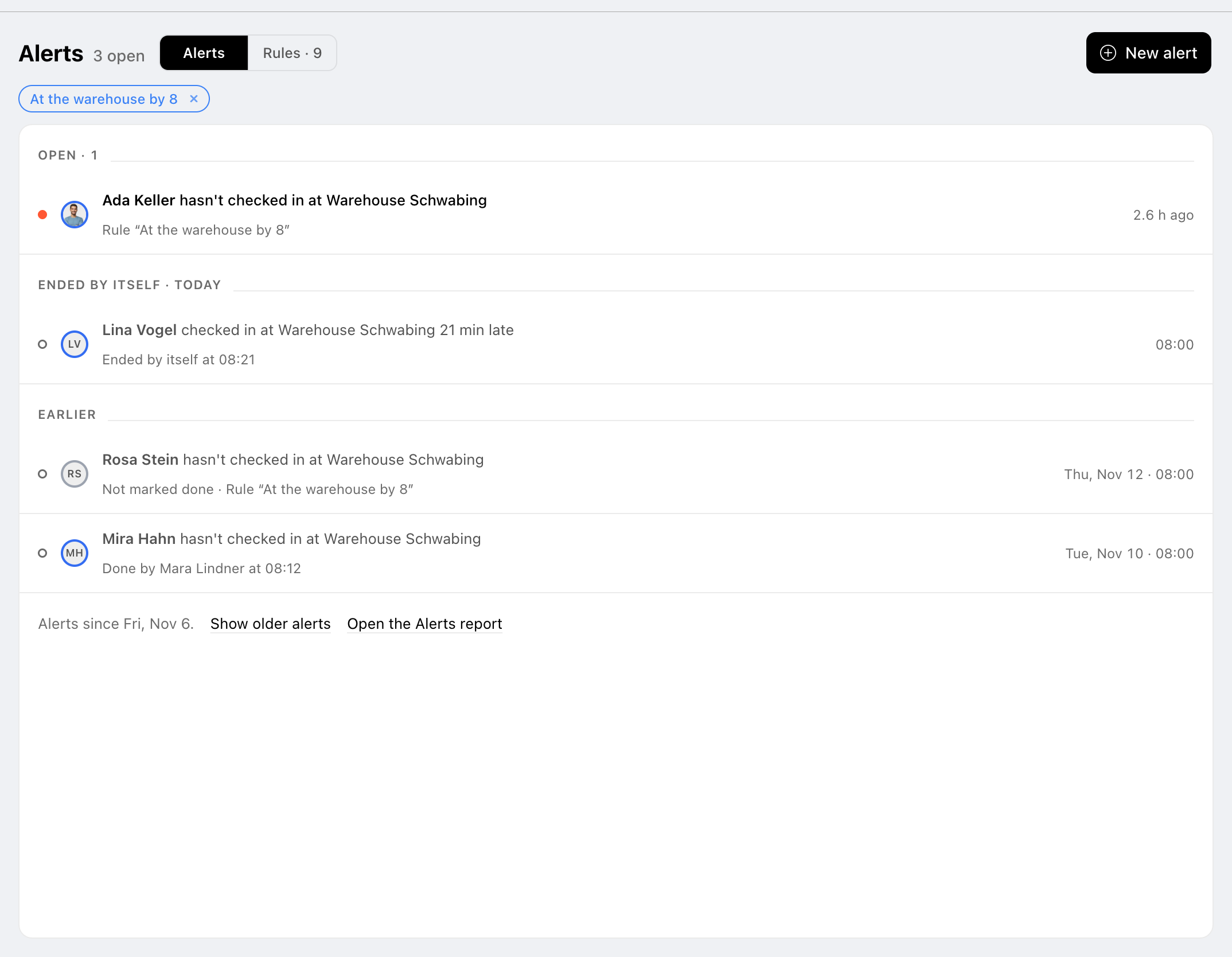
The rule then shows as a filter above the list. Click its × to see all alerts again.
Note: Not every alert needs to be marked done. Each alert rule decides this under Follow-up. If a rule asks for follow-up, its alerts stay Open until someone clicks Done. To learn how to set up a rule, click here.