How to Enable/Disable Tracking
This guide shows Administrators how to manage team members’ access to the tracking toggle in the mobile app and configure tracking behavior outside individual or team working hours.
The tracking toggle also serves as their clock-in and clock-out control in the mobile app. If you want team members to record their working hours for the Timesheet report, make sure Workers can deactivate tracking is enabled in Step 3.
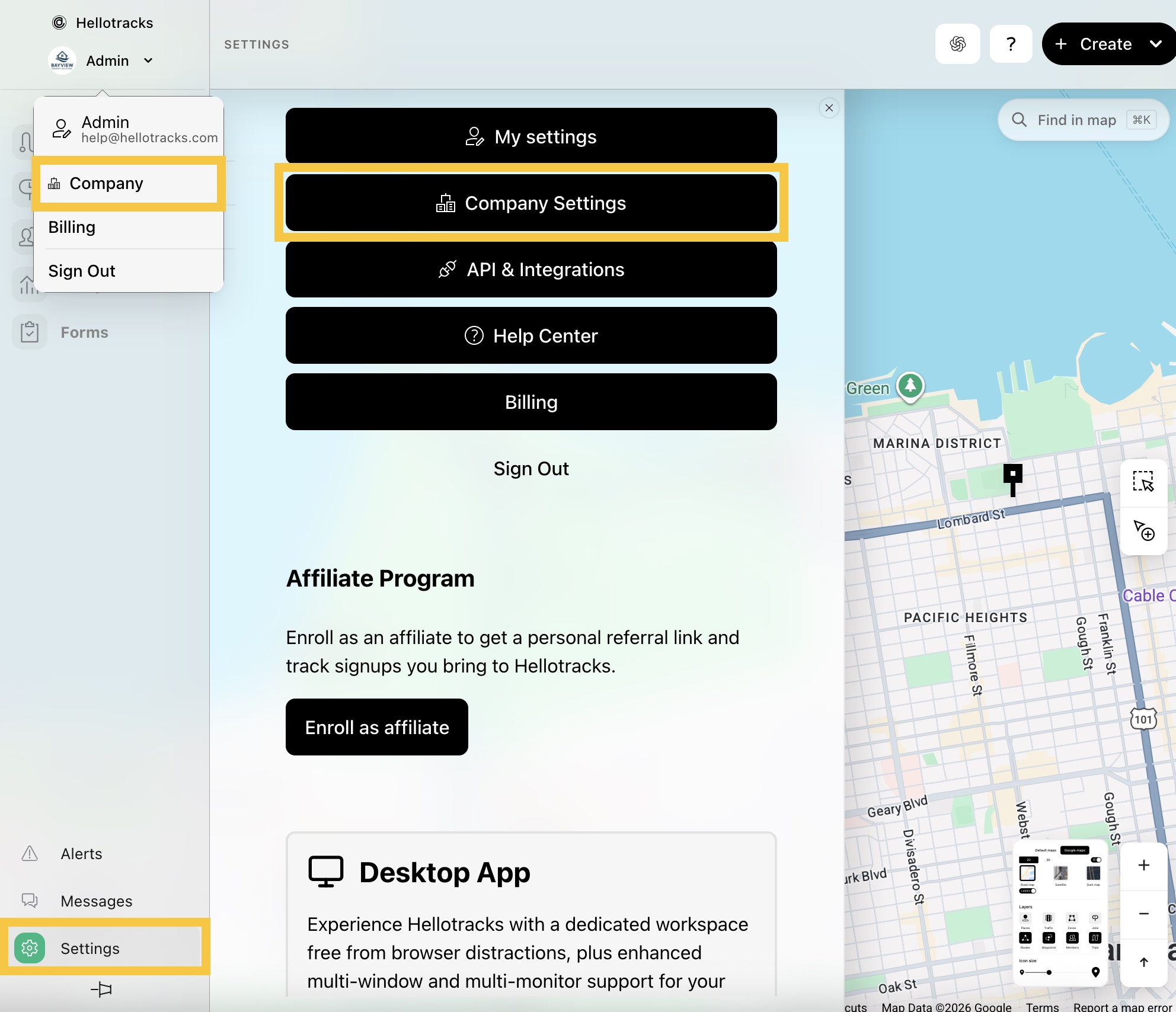
Step 1: Click the dropdown menu next to your profile and select Company. Or, go to Settings at the bottom of the main menu and select Company Settings.
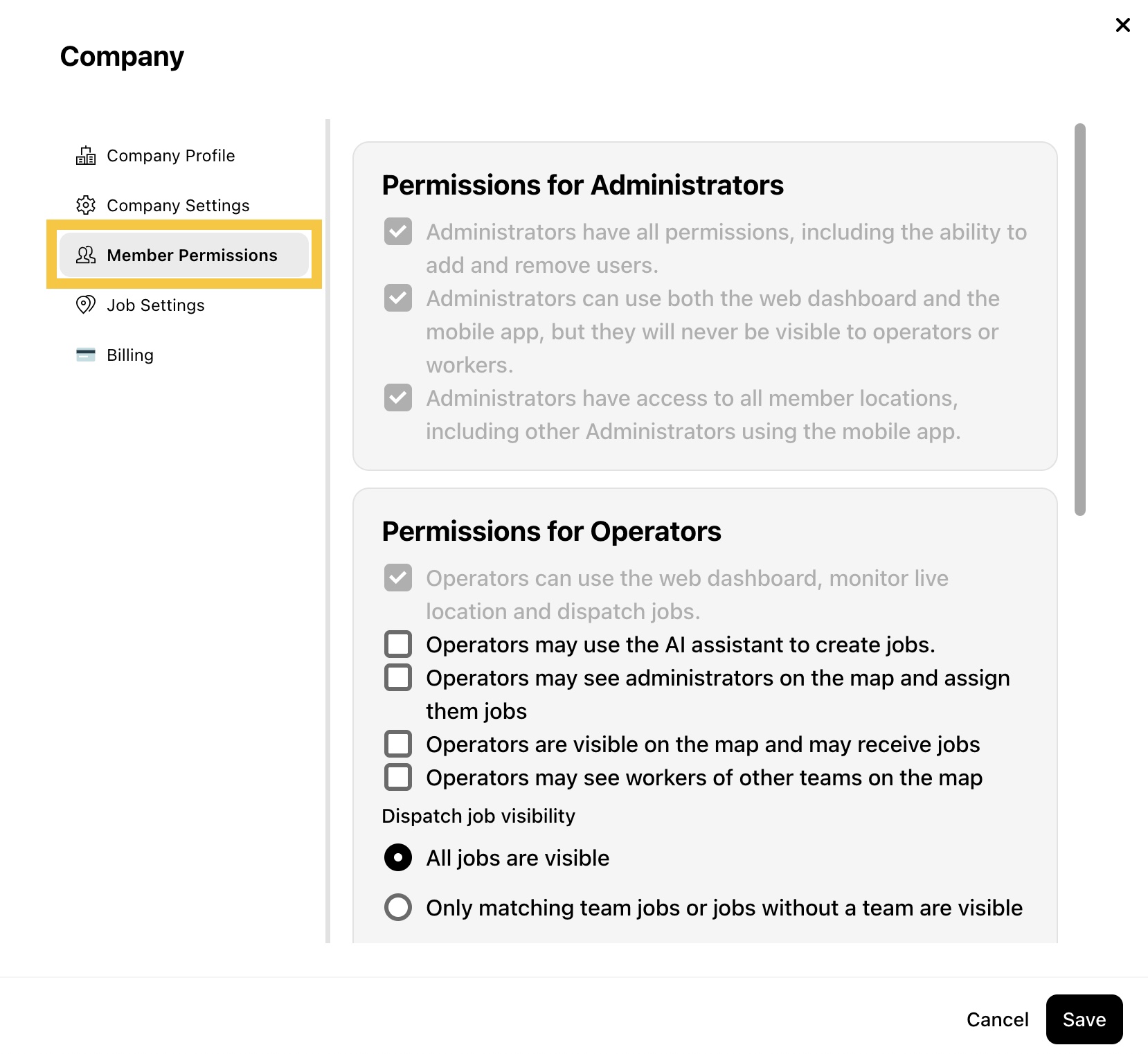
Step 2: Select Member Permissions.
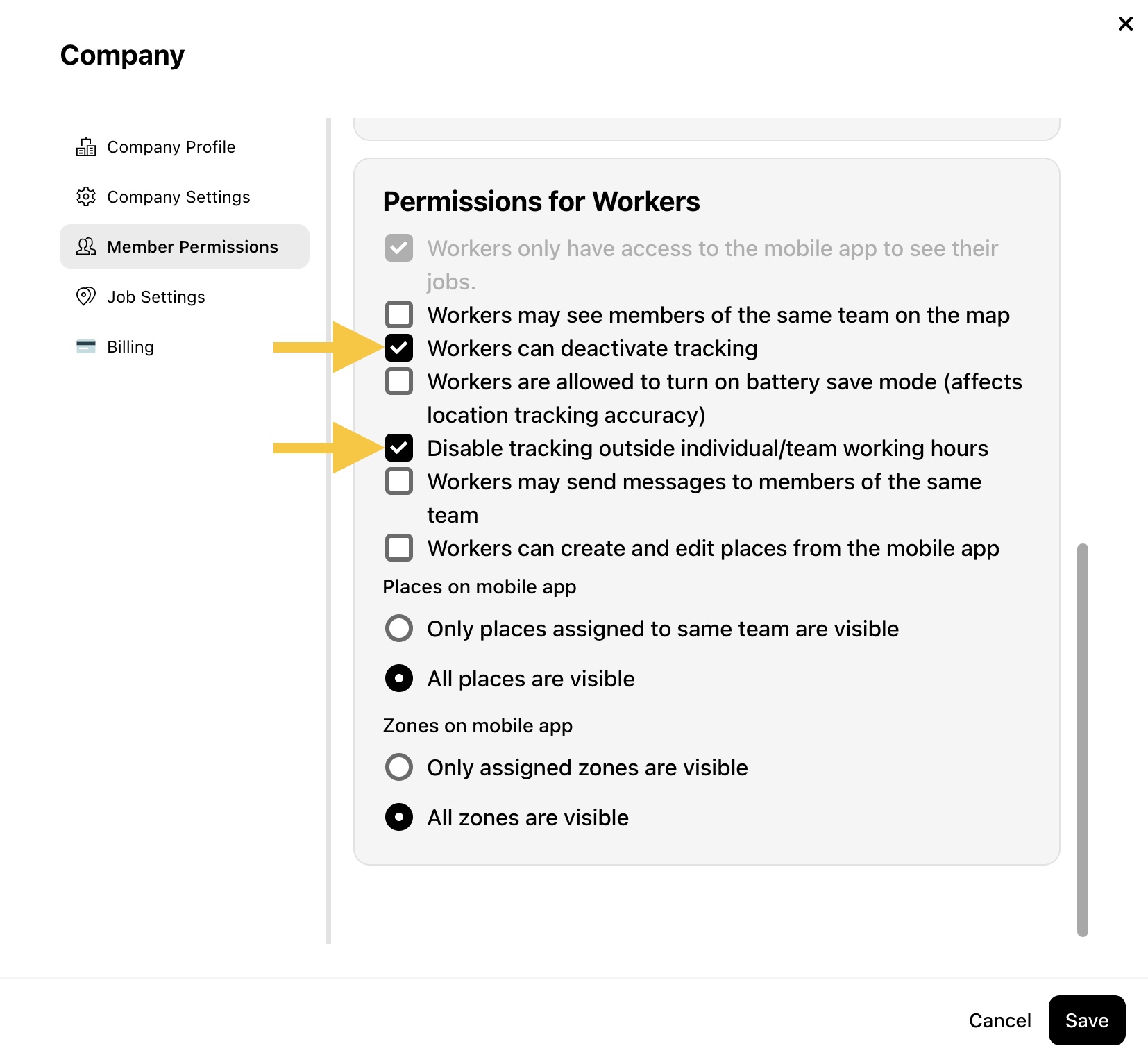
Step 3: In Permissions for Workers, configure the tracking options:
- Workers can deactivate tracking
This controls Workers’ ability to turn tracking off from the mobile app. The tracking toggle also serves as their clock-in and clock-out control. If disabled, the toggle will not be available in the mobile app, and Workers will not be able to use it to clock in or out. Click here to see how this appears in the mobile app.
- Disable tracking outside individual/team working hours
This controls whether tracking is automatically disabled outside defined working hours in the mobile app. To learn how to create individual/team working hours, click here.
Step 4: Click Save to apply your changes.
Result: Workers can deactivate tracking
- If enabled: Workers will see the tracking toggle in the mobile app and can turn tracking on or off as needed (useful for flexible schedules and recording clock-ins and clock-outs). Tracking is recorded only when the tracking toggle is turned on.

- If disabled: The tracking toggle is not available in the mobile app and Workers can’t manually turn tracking off or use the toggle to clock in and out to record their working hours.

Tip: If Workers don’t have access to the tracking toggle in the mobile app, consider enabling the Disable tracking outside individual/team working hours (see Step 3 in this guide) to automatically control tracking based on their working hours.
Step 4: Click Save to apply your changes.