How to Turn On Co-Dispatch
Co-Dispatch is your second dispatcher: it keeps an eye on the day, answers questions and plans the changes you ask for. It comes with the Dispatch plan, and an administrator turns it on once for the whole company. This guide shows how to turn it on, how to ask an administrator if you aren't one, and what you can set. To learn how to use it, see How to Use Co-Dispatch.
Turn on Co-Dispatch (administrators)
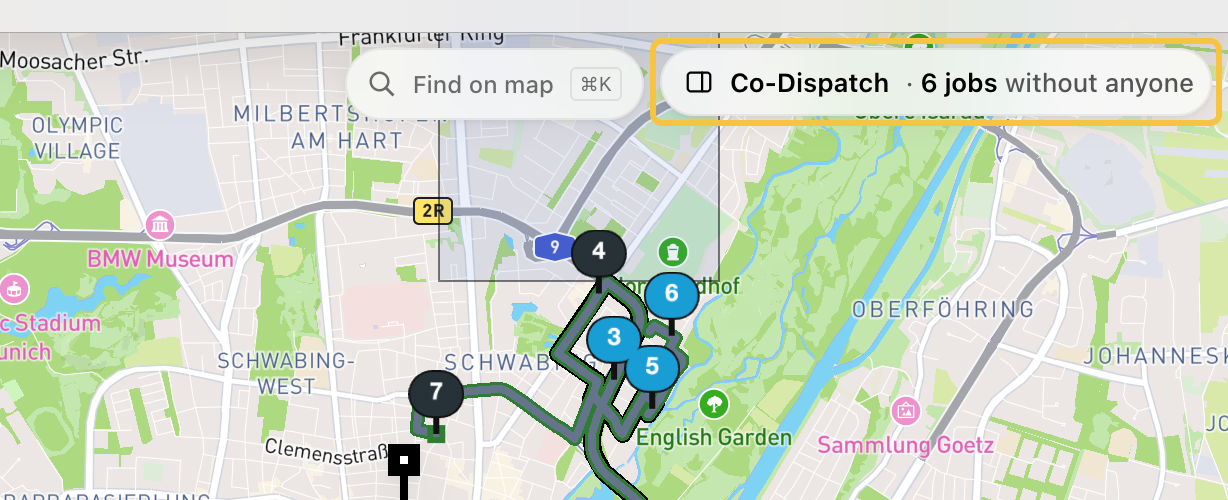
Step 1: Go to Dispatch in the main menu, or to Location and then Live. Even while Co-Dispatch is off, its pill at the top right of the map shows what needs a look on today's plan, for example 6 jobs without anyone. Click it.
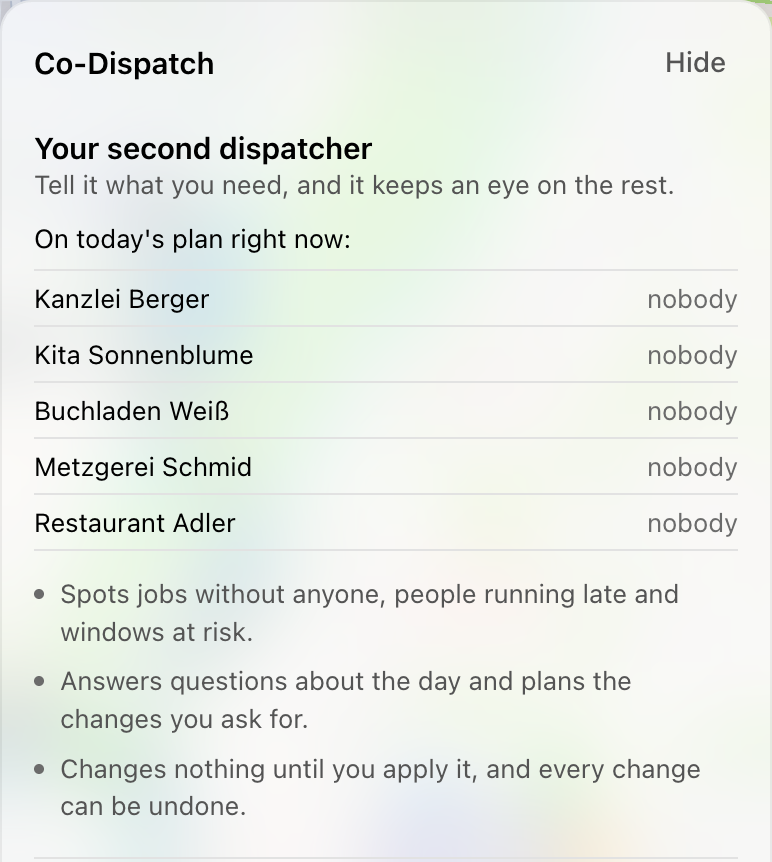
Step 2: The panel lists those jobs and what Co-Dispatch does.
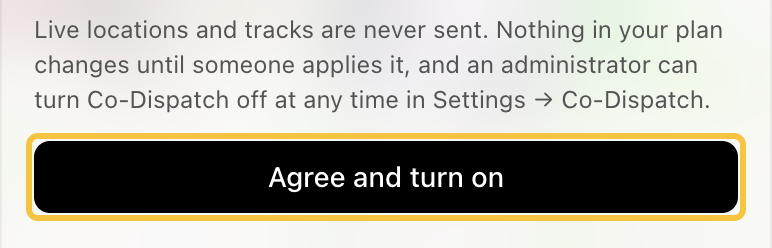
Step 3: Below, read what Co-Dispatch uses to plan and what it never shares: live locations and tracks are never sent. Then click Agree and turn on. Co-Dispatch checks your day right away.
Note: You can also turn it on in the settings: click your name at the top of the main menu, select Company settings, open the Co-Dispatch tab and switch it on. It asks for the same agreement first.
Ask an administrator to turn it on
Only an administrator can turn Co-Dispatch on. If you're an operator, you can ask for it.
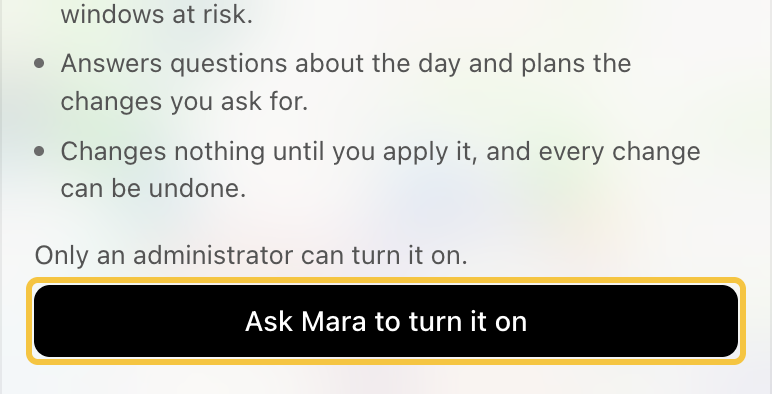
Step 1: Click the Co-Dispatch pill at the top right of the map, then click Ask [name] to turn it on.
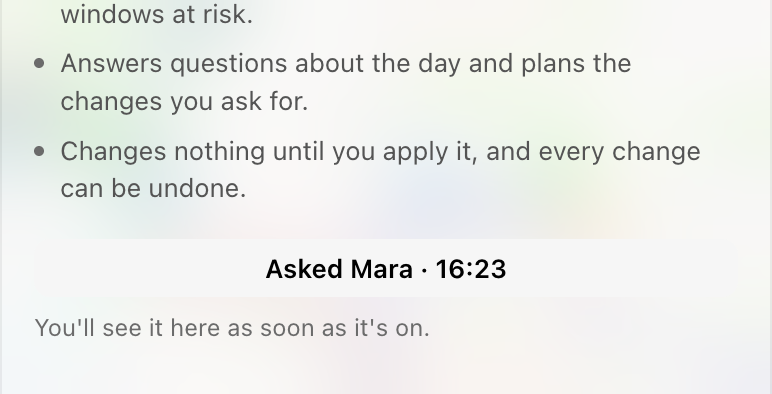
Step 2: The panel now says Asked [name] and when. Each administrator gets a notification and an email in their own language. You'll see Co-Dispatch in the panel as soon as it's on. If nothing happens, you can ask again after 3 days.
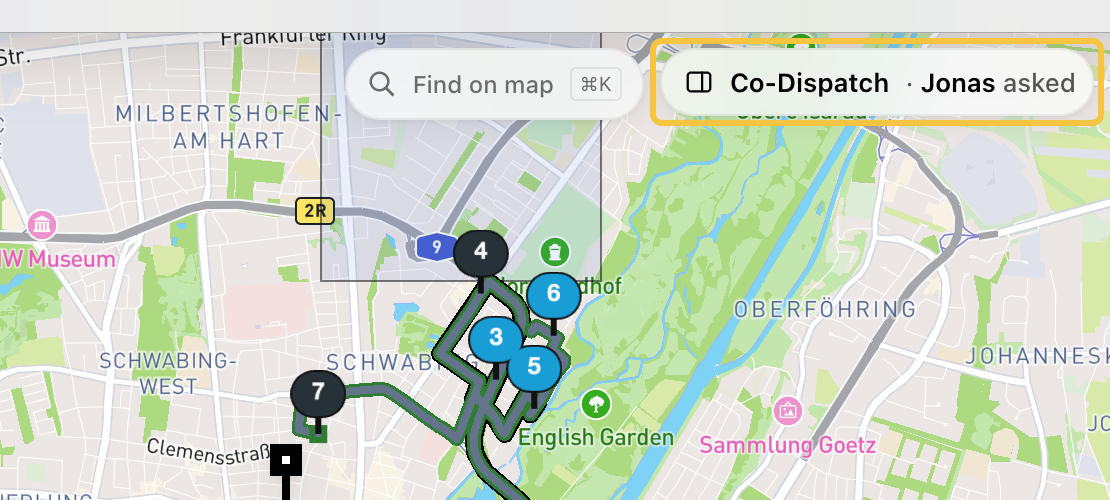
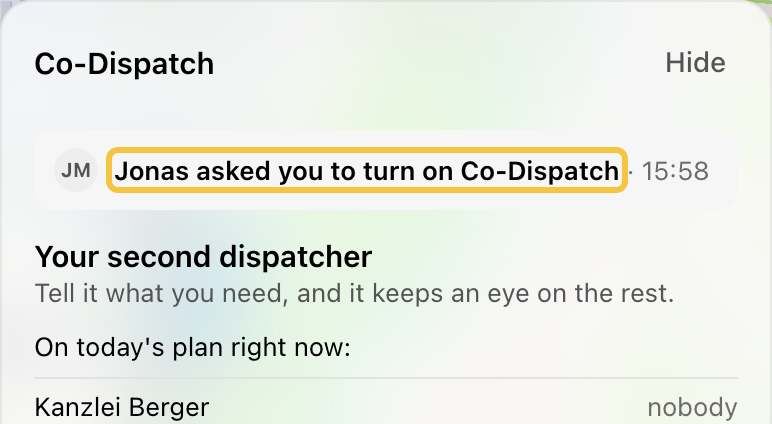
For administrators: When someone asks, the pill shows who asked, and the panel opens with the request above Agree and turn on.
Co-Dispatch settings
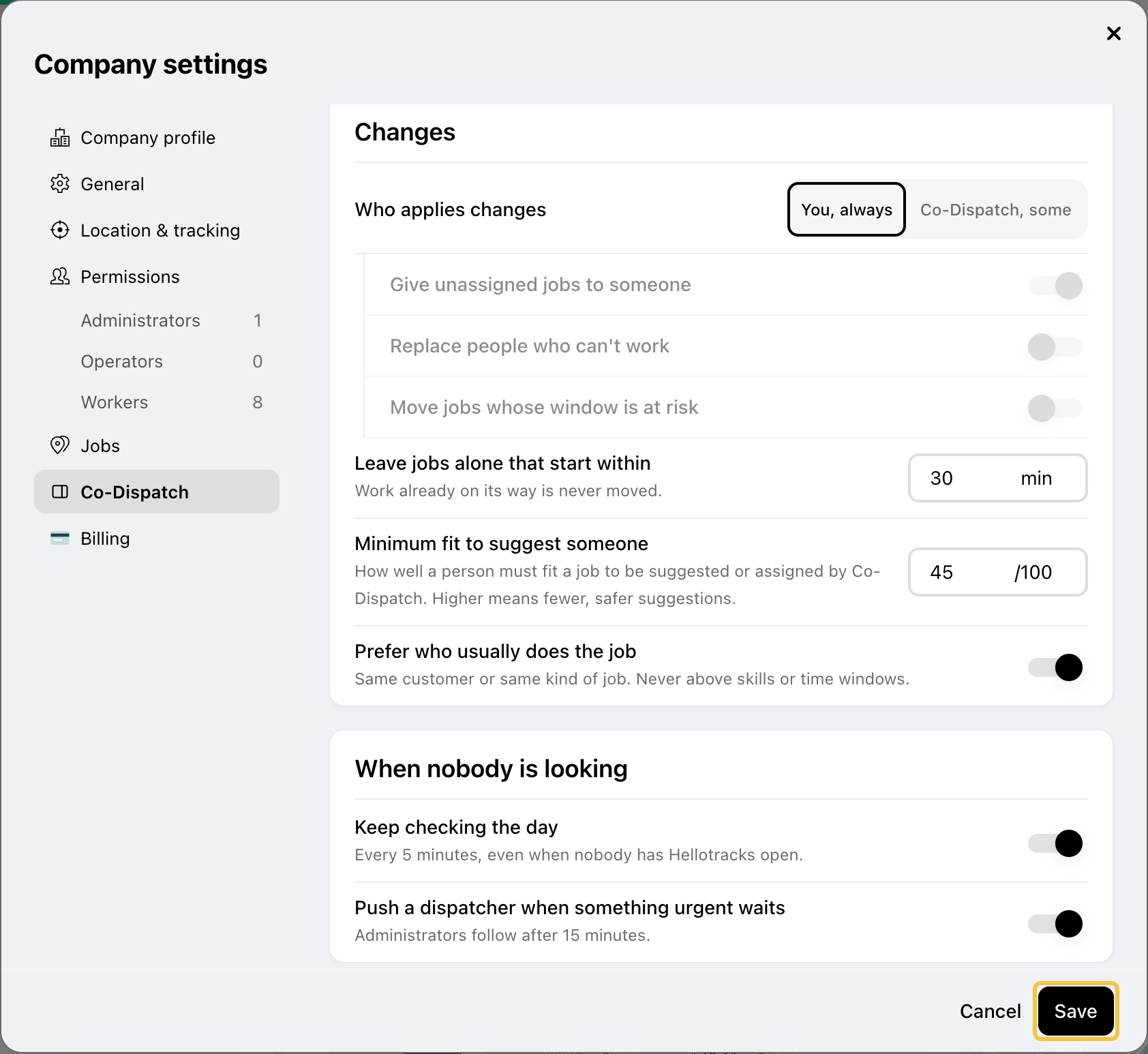
Step 1: Click your name at the top of the main menu and select Company settings, then open the Co-Dispatch tab. Only administrators can change these settings.
Step 2: Change what you need:
- Who applies changes: You, always, or Co-Dispatch, some, with the kinds of changes it may make by itself: give unassigned jobs to someone, replace people who can't work, and move jobs whose window is at risk. While Co-Dispatch is still learning your day, you apply every change.
- Leave jobs alone that start within: jobs starting this soon are never moved. Work already on its way is never moved either.
- Minimum fit to suggest someone: how well a person must fit a job to be suggested, out of 100. Higher means fewer, safer suggestions.
- Prefer who usually does the job: the same customer or the same kind of job, but never above skills or time windows.
- Keep checking the day: Co-Dispatch checks every few minutes, even when nobody has Hellotracks open.
- Push a dispatcher when something urgent waits: administrators follow after 15 minutes.
When Co-Dispatch is on, the top of the tab also shows how it's going over the last 30 days: suggestions applied and undone, and the time saved.
Step 3: Click Save.
Turn off Co-Dispatch
In Company settings → Co-Dispatch, switch Co-Dispatch off and confirm with Turn off. It stops watching the day, answering and planning, and nothing more is sent for planning. What it learned is kept for when you turn it on again.
If you have any questions, please contact us at support@hellotracks.com.