How to Use Co-Dispatch
Co-Dispatch is currently available in Early Access.
Contact us at support@hellotracks.com to switch it on for your account.
Co-Dispatch is an assistant that keeps an eye on your day-to-day dispatching, so you don't have to catch every issue yourself. It monitors your Jobs, spots what needs attention, and gives you two ways to fix the schedule:
- Optimize the whole schedule: rebuild every route for the day at once, based on travel, shifts, and worker availability.
- Single-job recommendations: fix one Job at a time when it has no assignee, the worker is unavailable, or it is at risk of missing its time window.
It's designed to work alongside you, not replace your judgment: nothing changes until you approve it, and any action it does take can be undone.
Step 1: Go to Dispatch, then click Co-Dispatch.
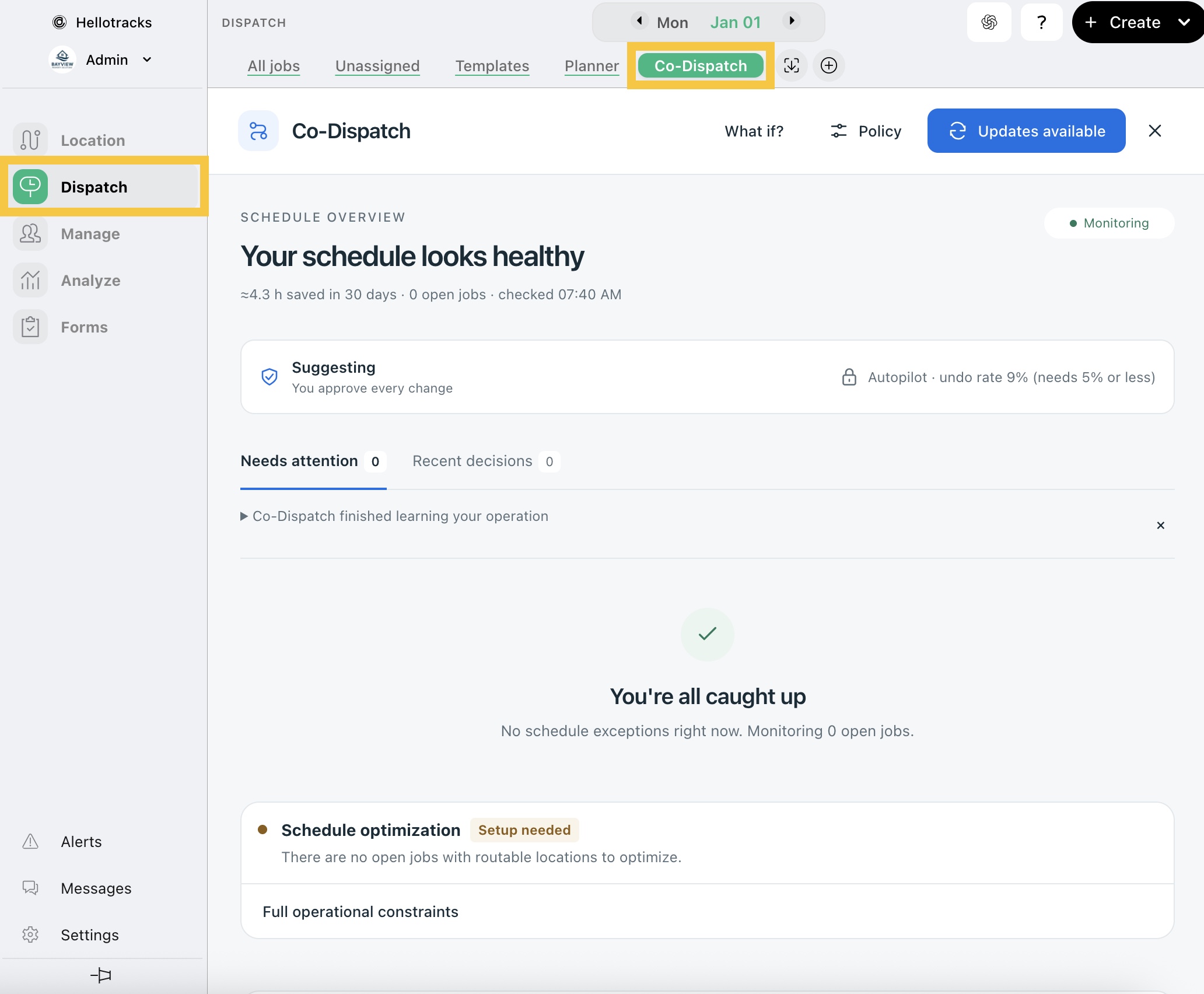
Note: If you’re opening Co-Dispatch for the first time, click Activate Co-Dispatch to get started.
Step 2: Choose how to fix your schedule.
- Optimize the whole schedule
-
-
Optimize the whole schedule
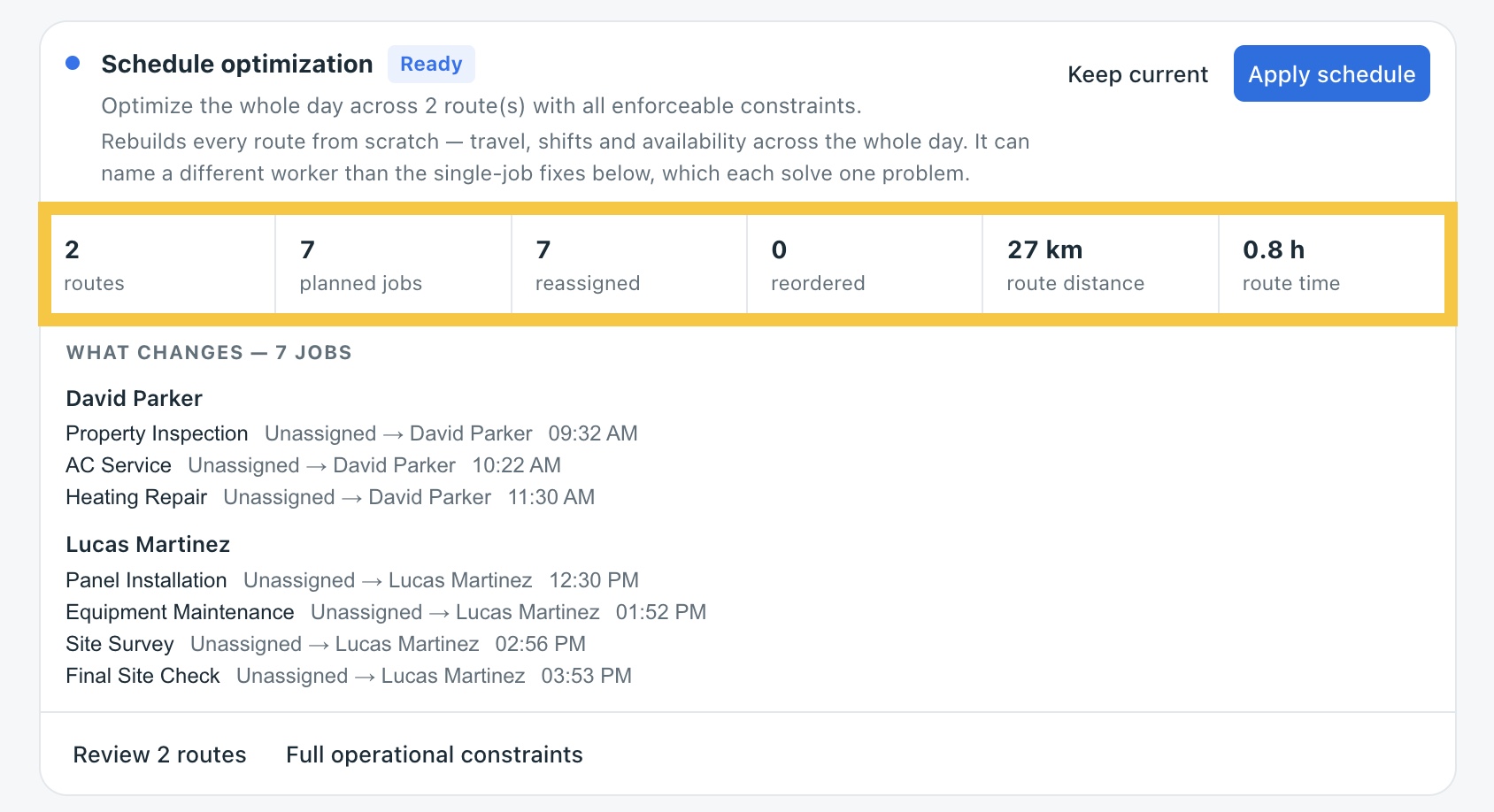
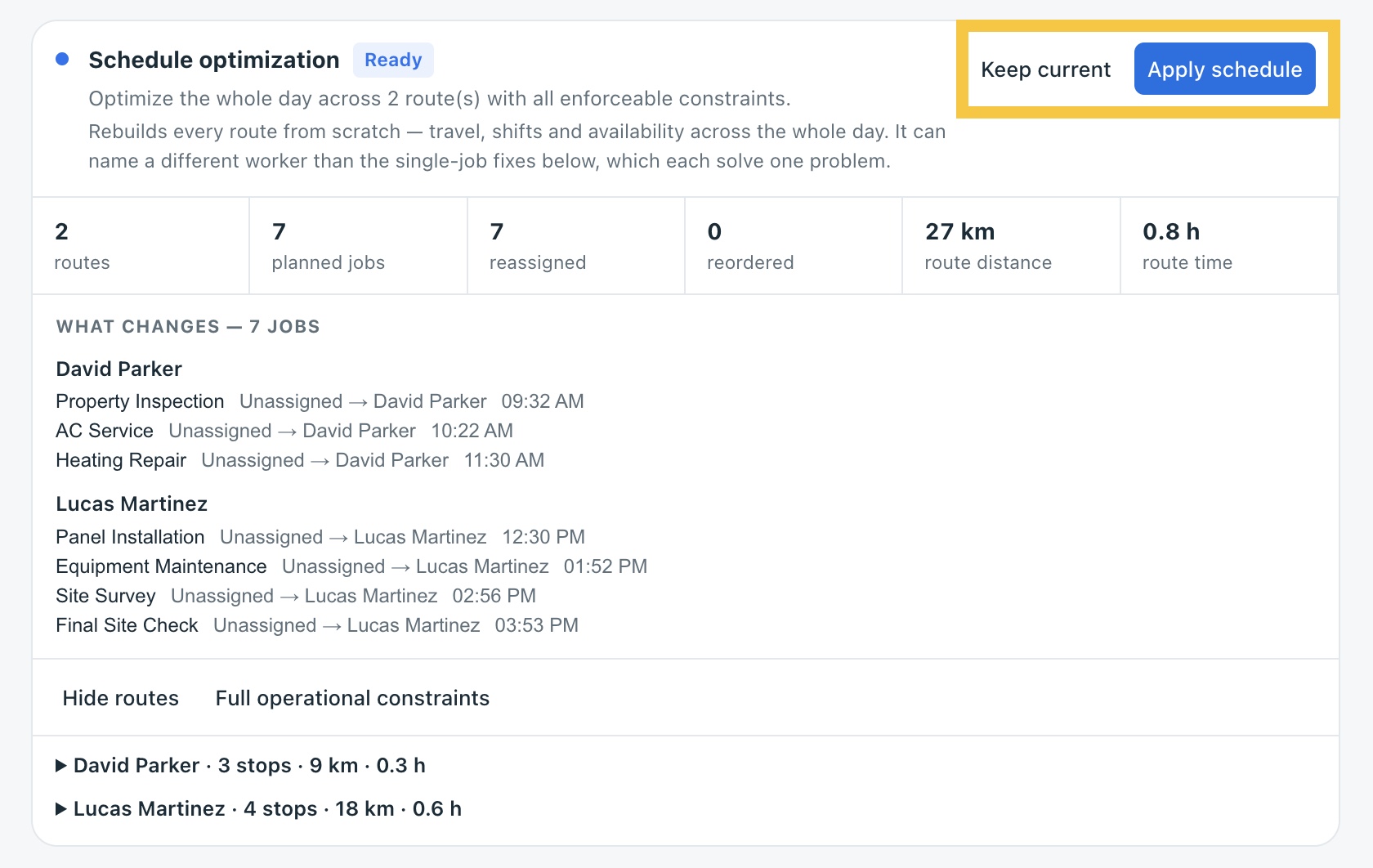
The Schedule optimization card rebuilds every route for the day at once, based on travel, shifts, and worker availability. It can name a different worker than the single-job recommendations.
At the top of the card, you'll see a summary of the plan: the number of routes, planned jobs, reassigned and reordered jobs, and the total route distance and time.
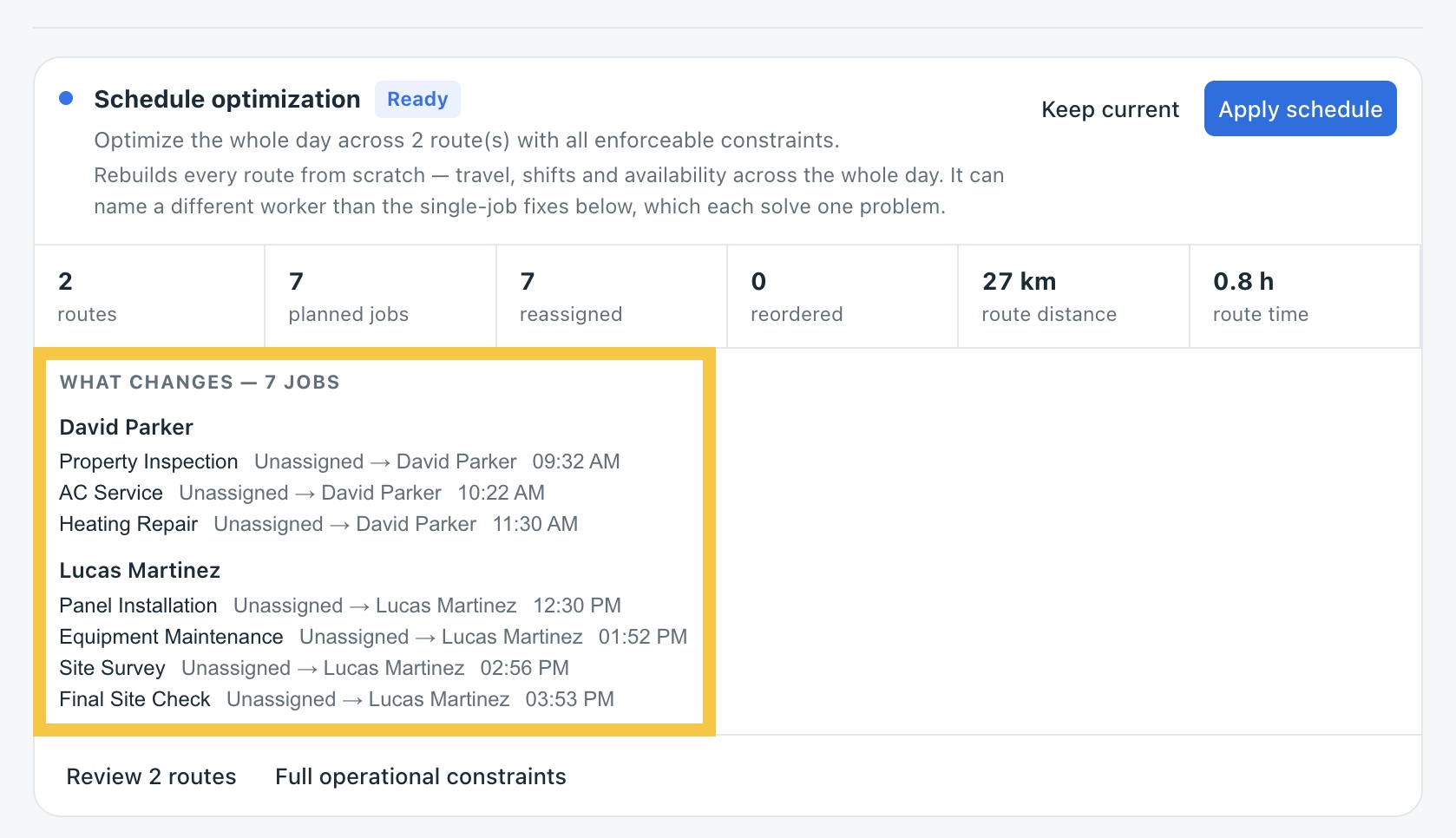
Under What changes, you'll see each Job that will move, who it moves from and to, and the new time.
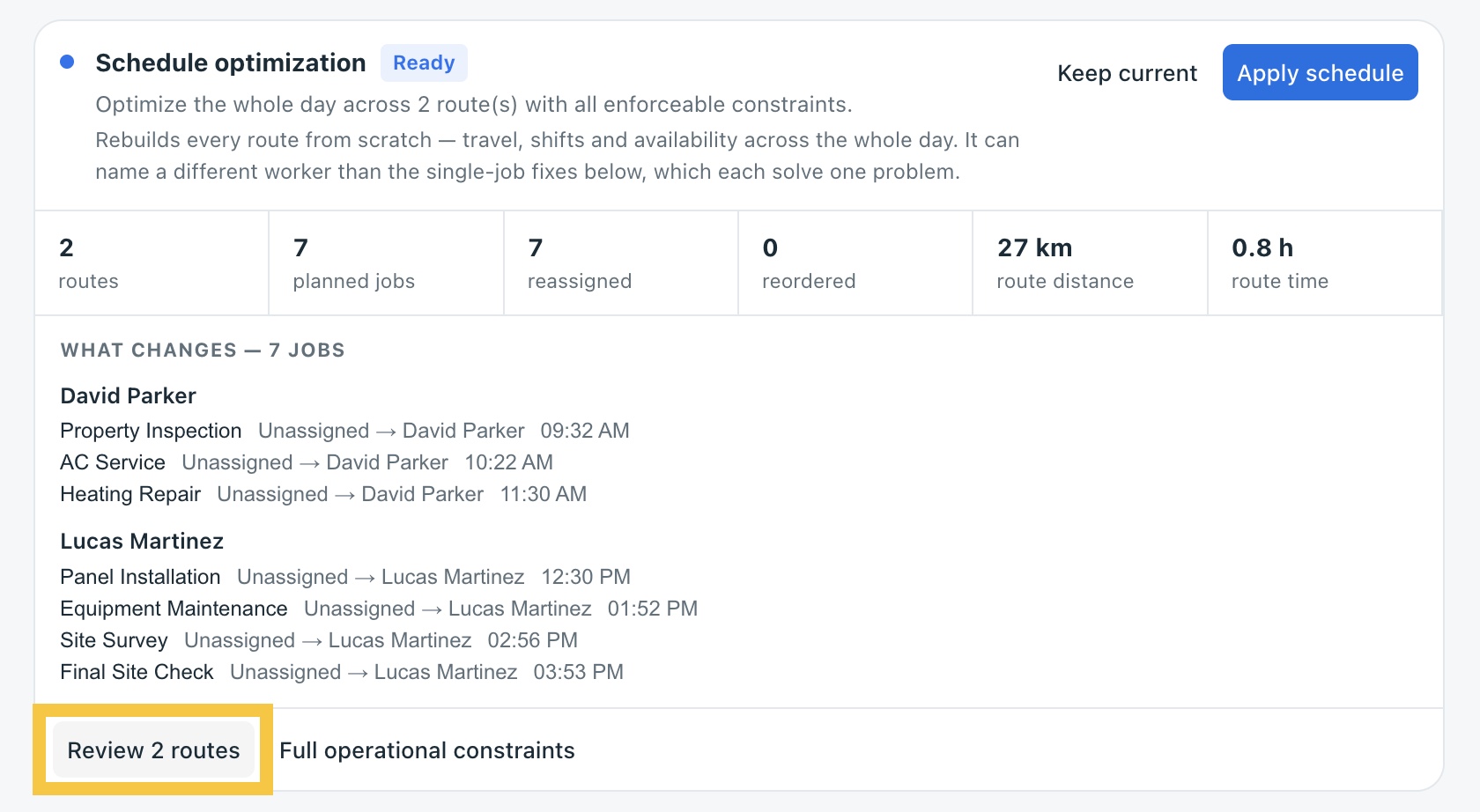
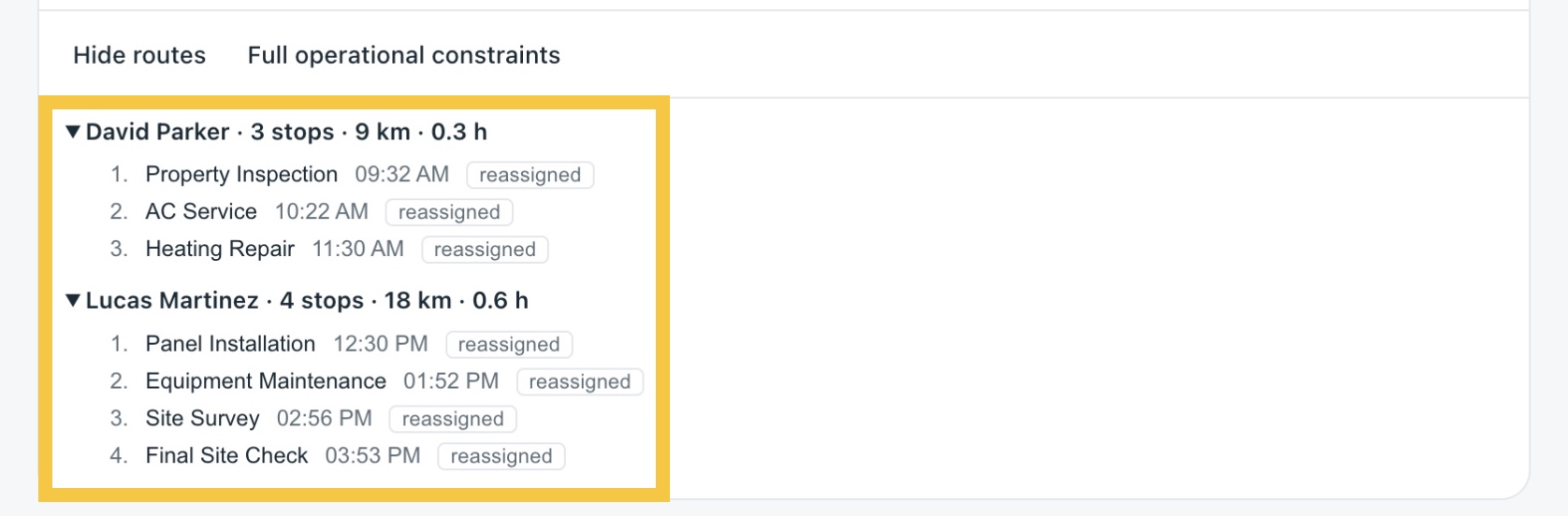
Click Review routes to see each worker's route, including the number of stops, distance, and time.
Then click Apply schedule to accept the plan or Keep current to leave your schedule as it is.
-
Single-job recommendations
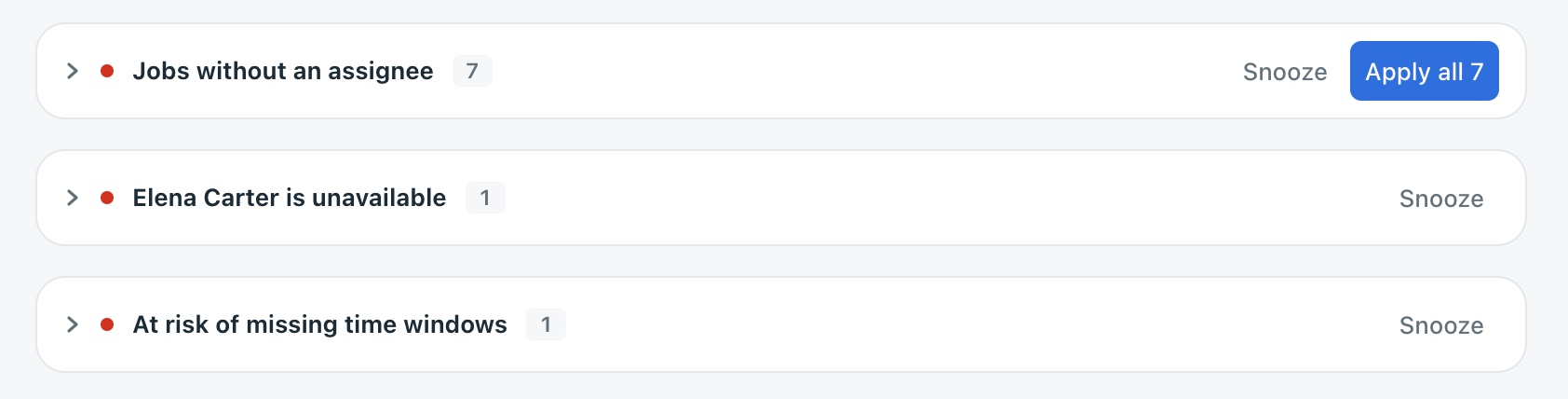
Below the schedule optimization, issues are grouped by type:
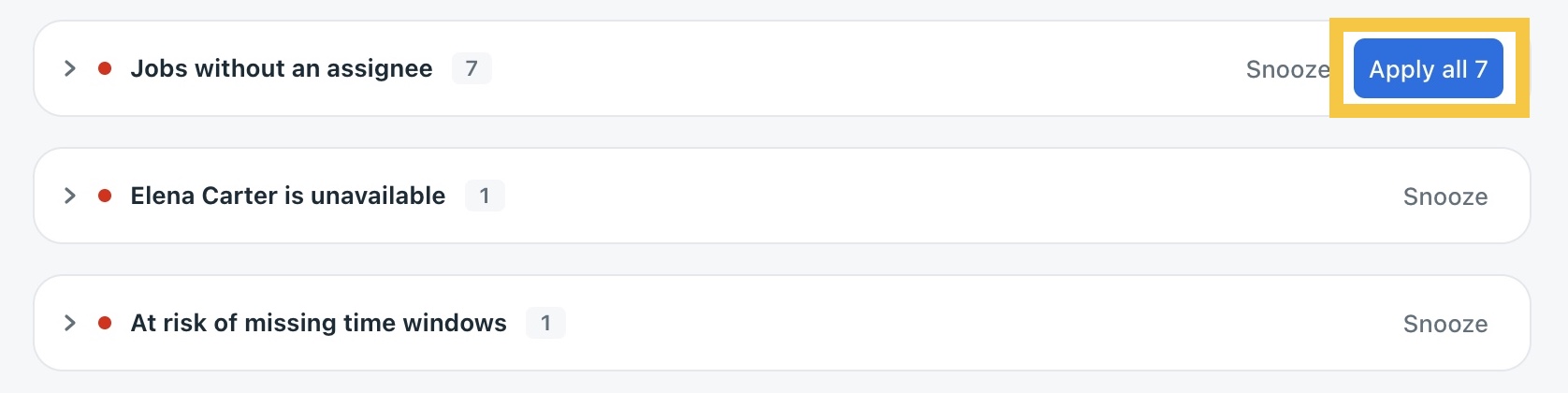
- Jobs without an assignee
- [Worker] is unavailable
- At risk of missing time windows
Each Job shows a recommended worker, their travel time, and their current workload. Click Why? to see the reasoning.
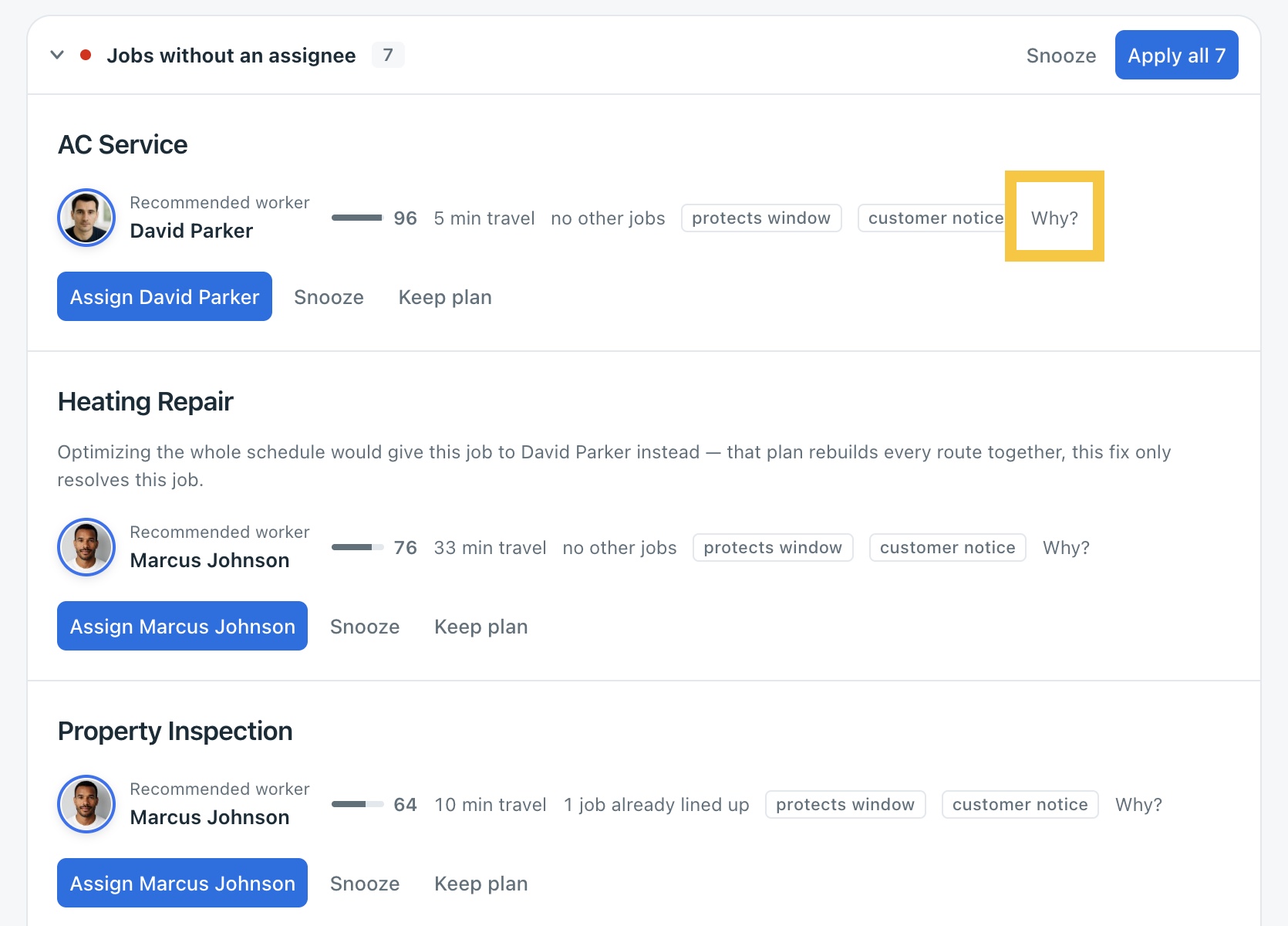
The Evidence explains why Co-Dispatch recommends this worker, and Candidates lists the other workers it considered.
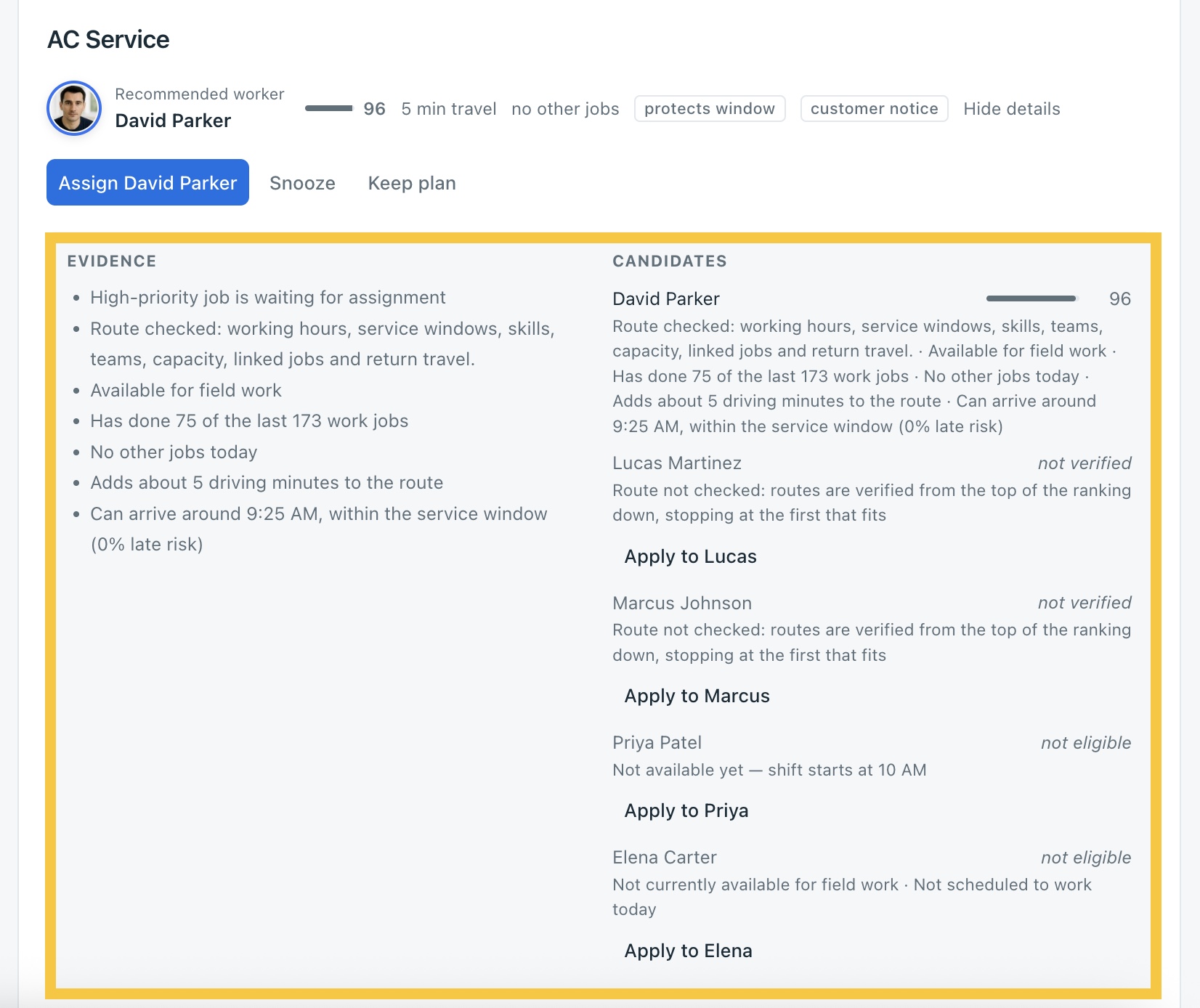
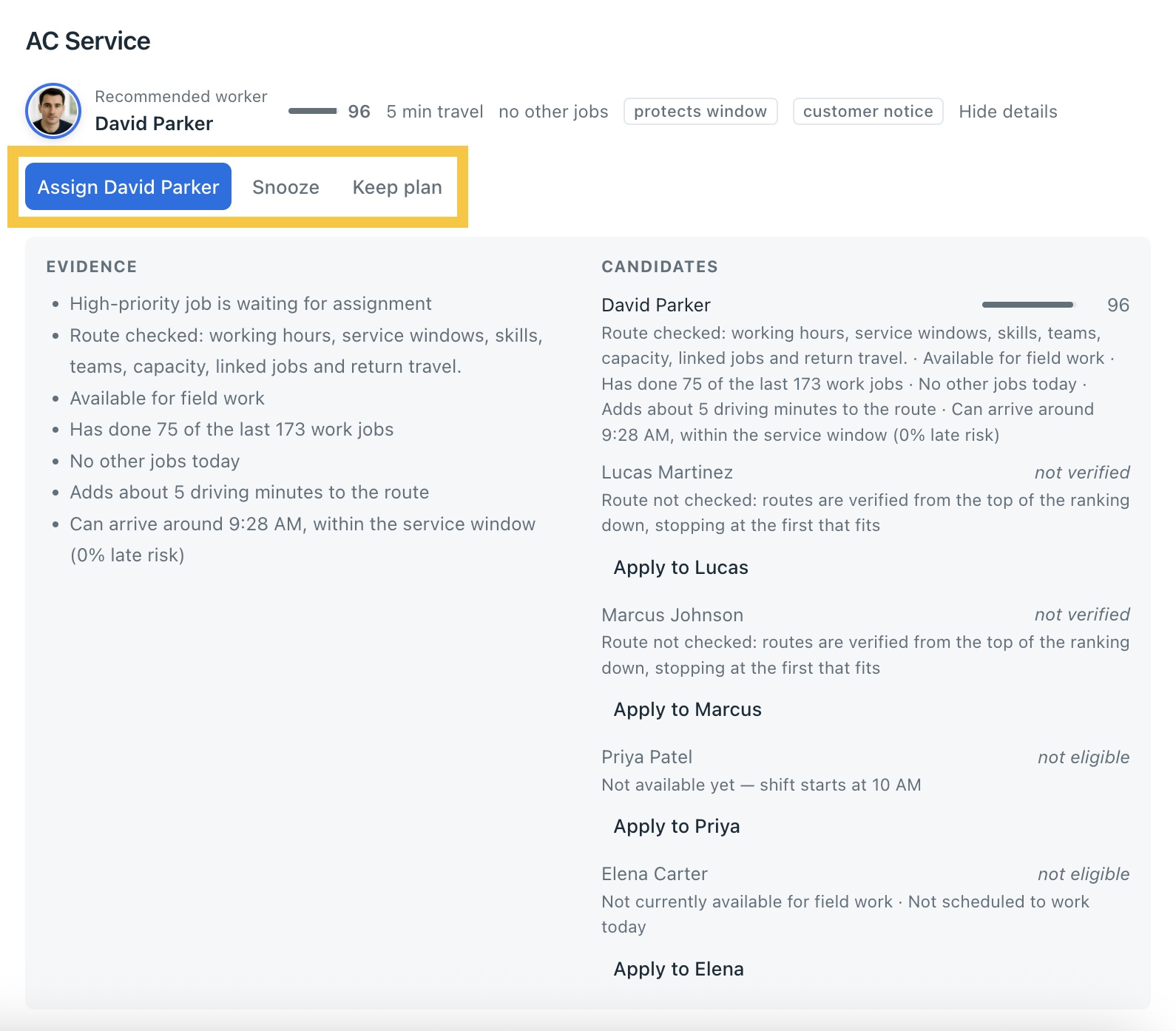
Then click Assign [worker] to accept, Snooze to deal with it later, or Keep plan to leave the Job as it is.
To accept every recommendation in a group at once, click Apply all.
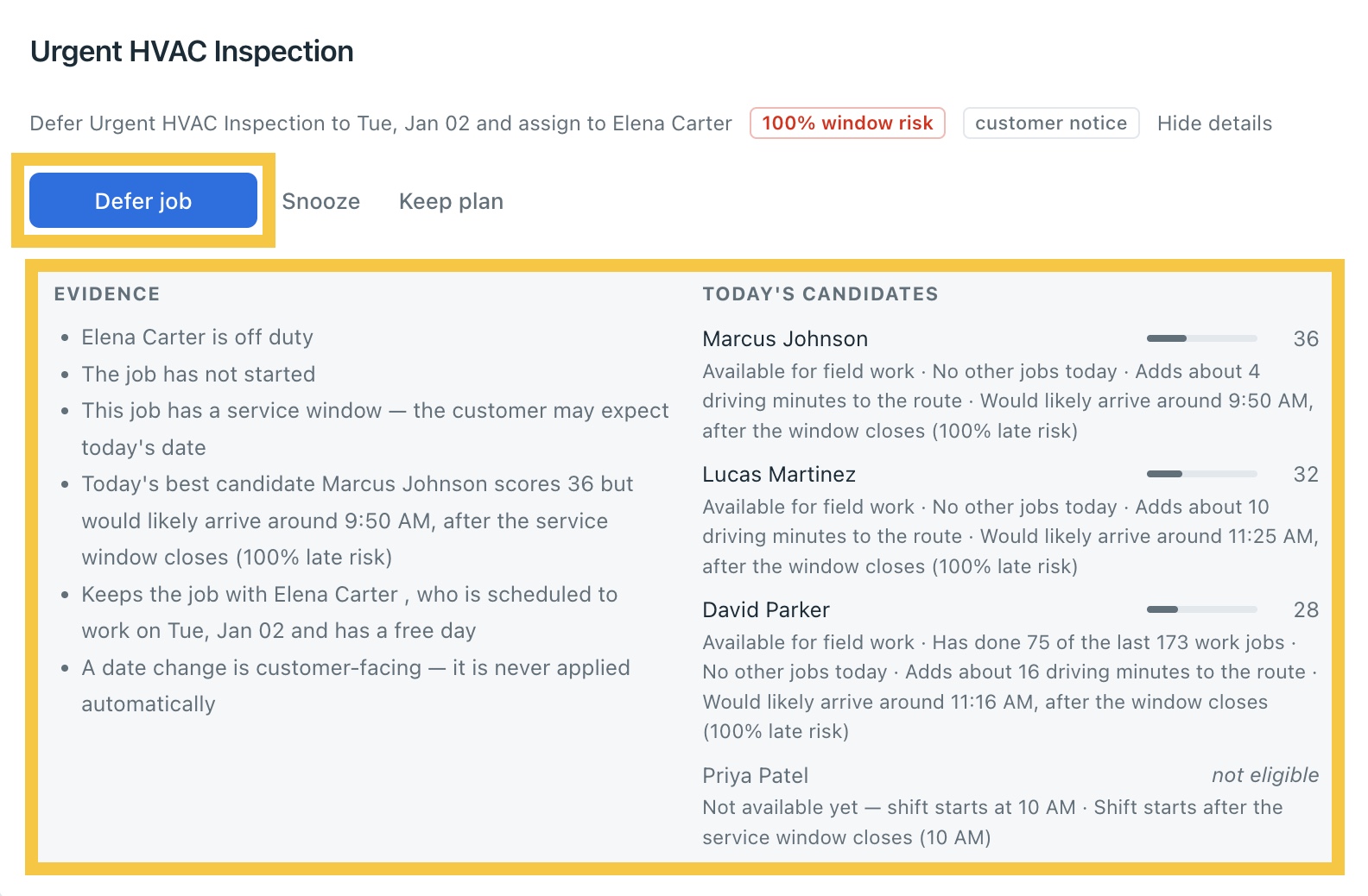
If no worker can take the Job, Co-Dispatch shows Defer job instead of a recommended worker. Open the details to see the Evidence and the Candidates it checked, with the reason each one isn't eligible.
If you have any questions or need help with Co-Dispatch, please contact us at support@hellotracks.com.