How to Integrate with Salesforce
This guide explains how to integrate Salesforce with Hellotracks to connect Salesforce cases to Hellotracks jobs.
In this guide:
3.1 Set Up Webhooks via Outbound Messages
3.2 (Optional) Set Up Webhooks via Apex or Custom JSON Callout
-
Create a Salesforce App
Create a Salesforce app to generate the Client ID and Client Secret required to connect Salesforce with Hellotracks.
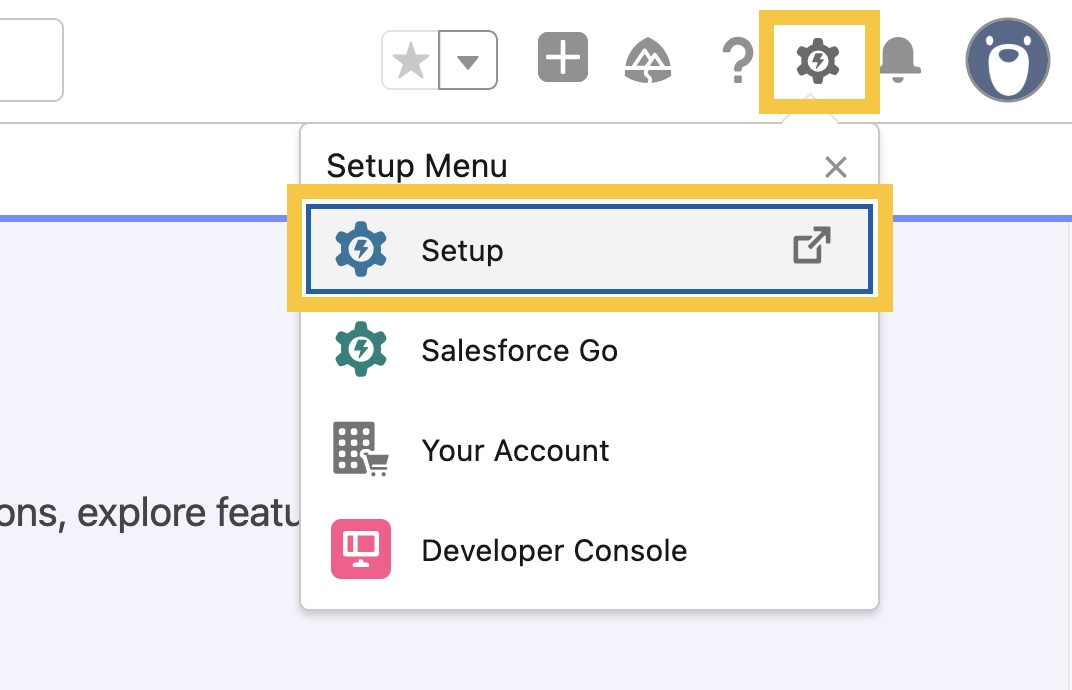
Step 1: In Salesforce, click the gear icon, then select Setup.
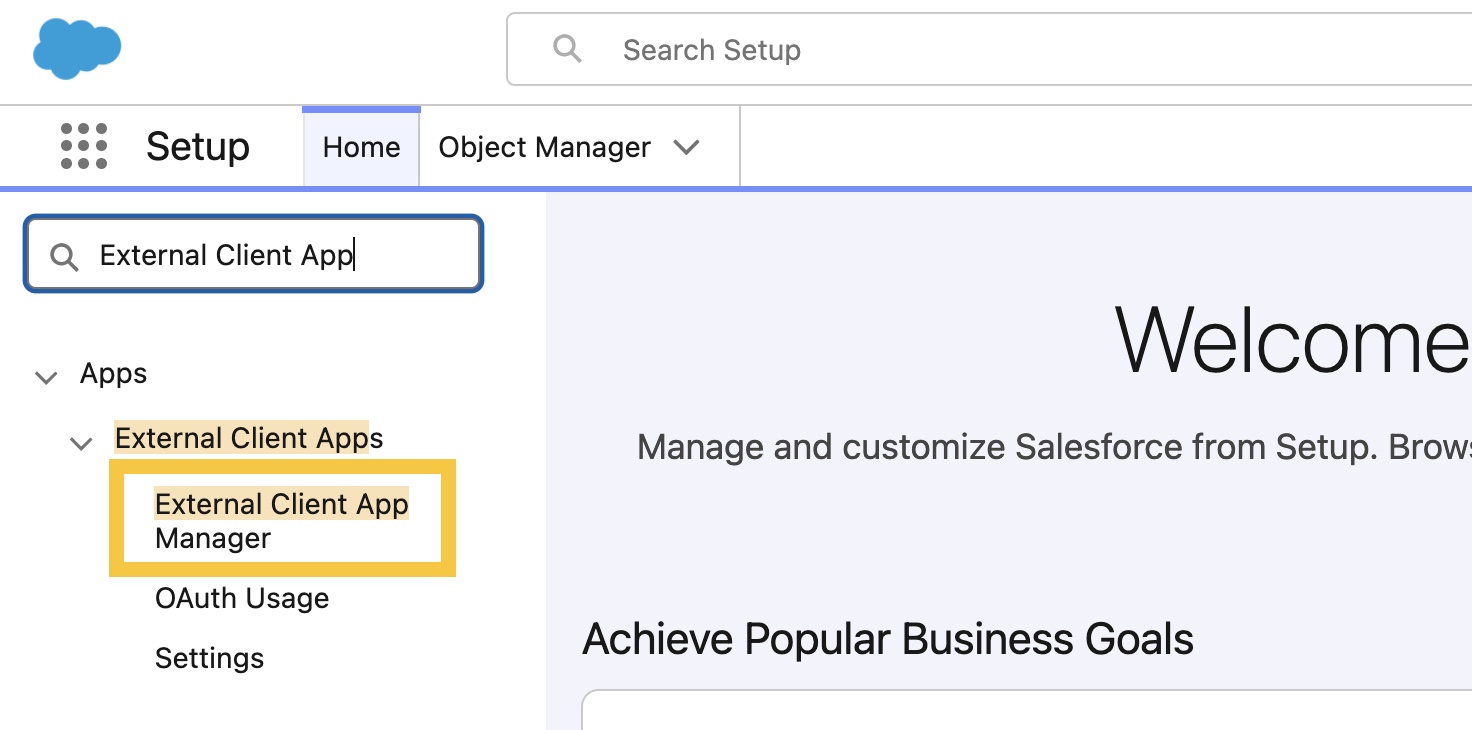
Step 2: In Quick Find, search for External Client App Manager.
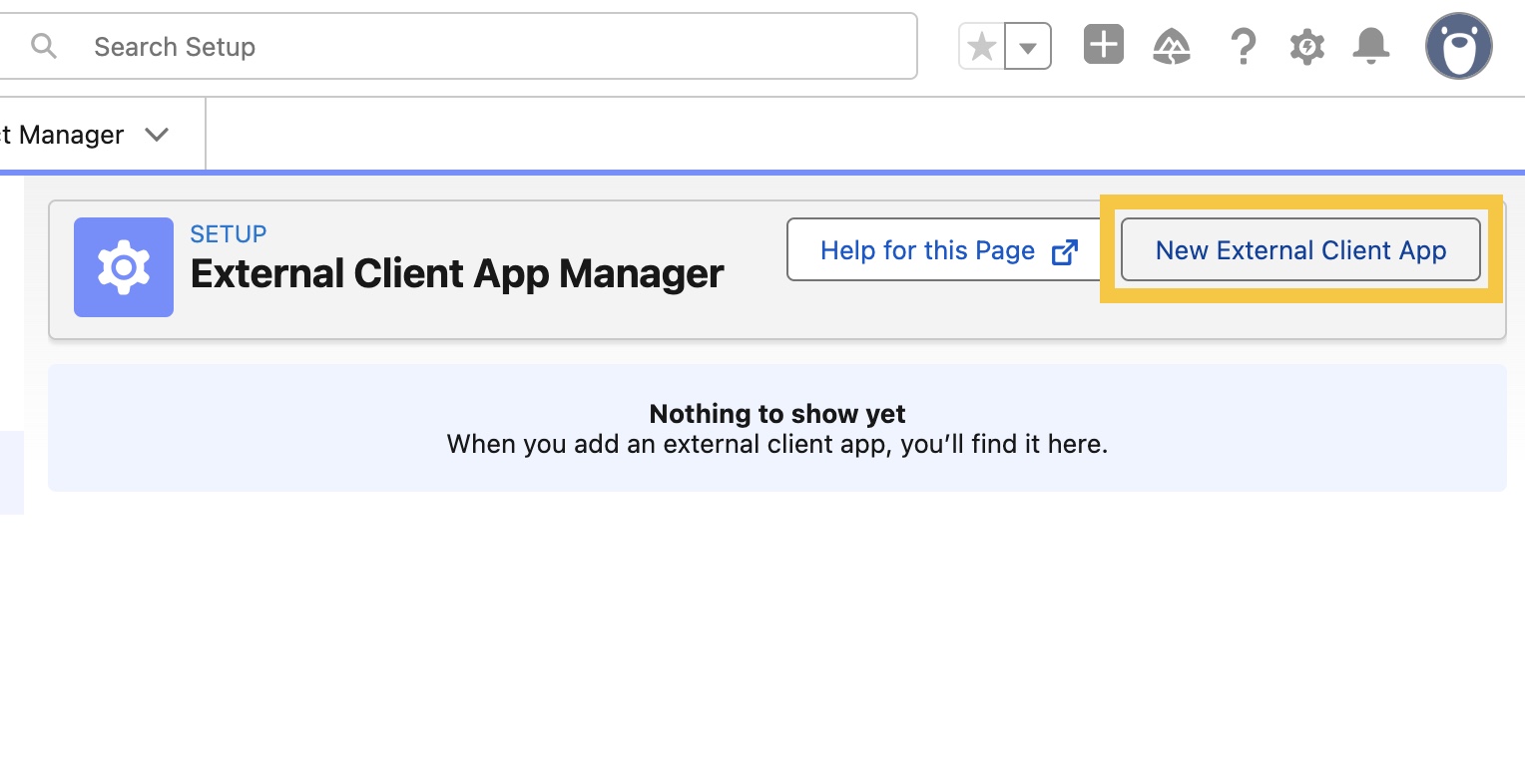
Step 3: Click New External Client App.
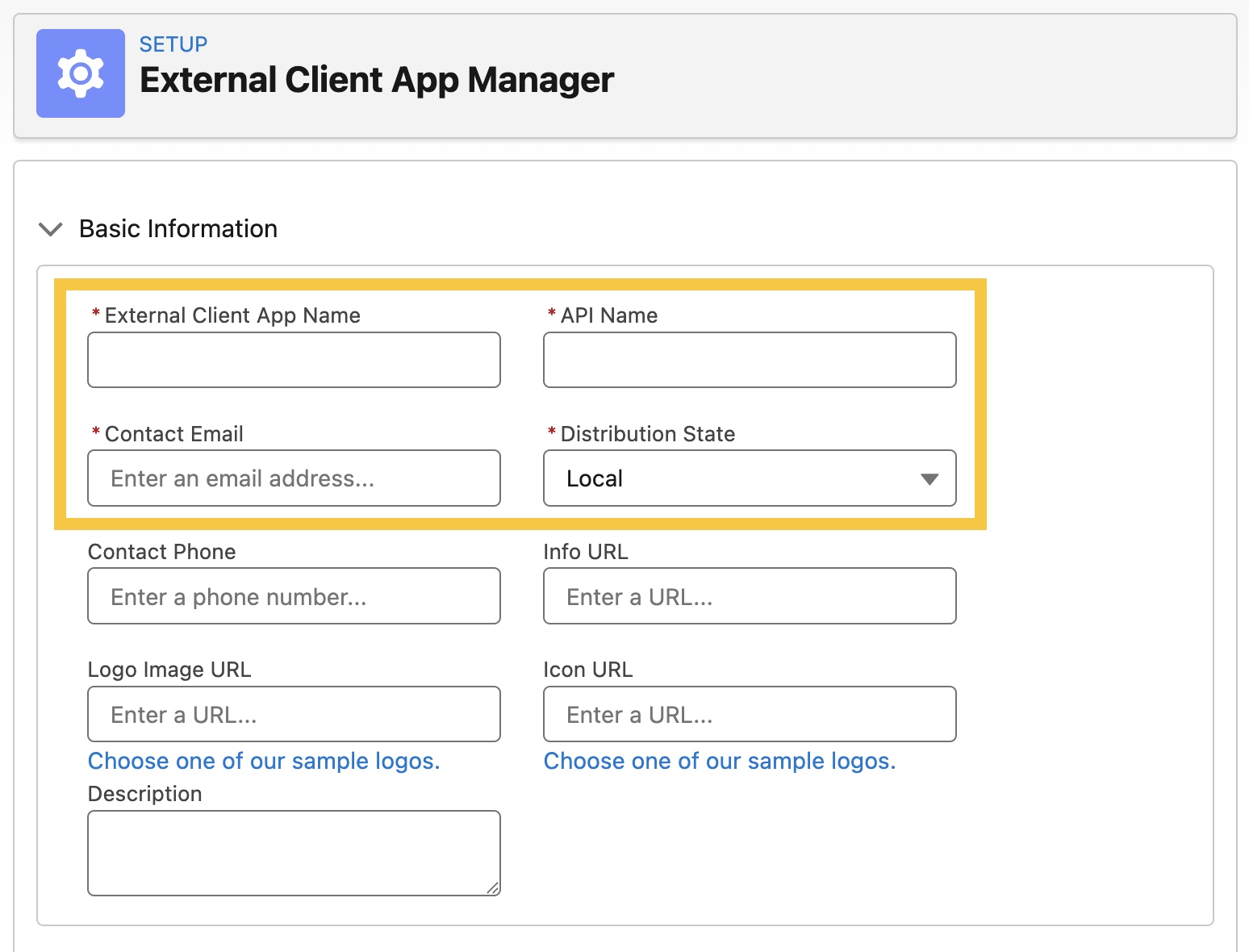
Step 4: Enter the required fields:
- External Client App Name: Hellotracks (or your preferred name)
- API Name: (auto-filled)
- Contact Email: (your email address)
- Distribution State: Local
-
Configure OAuth Settings
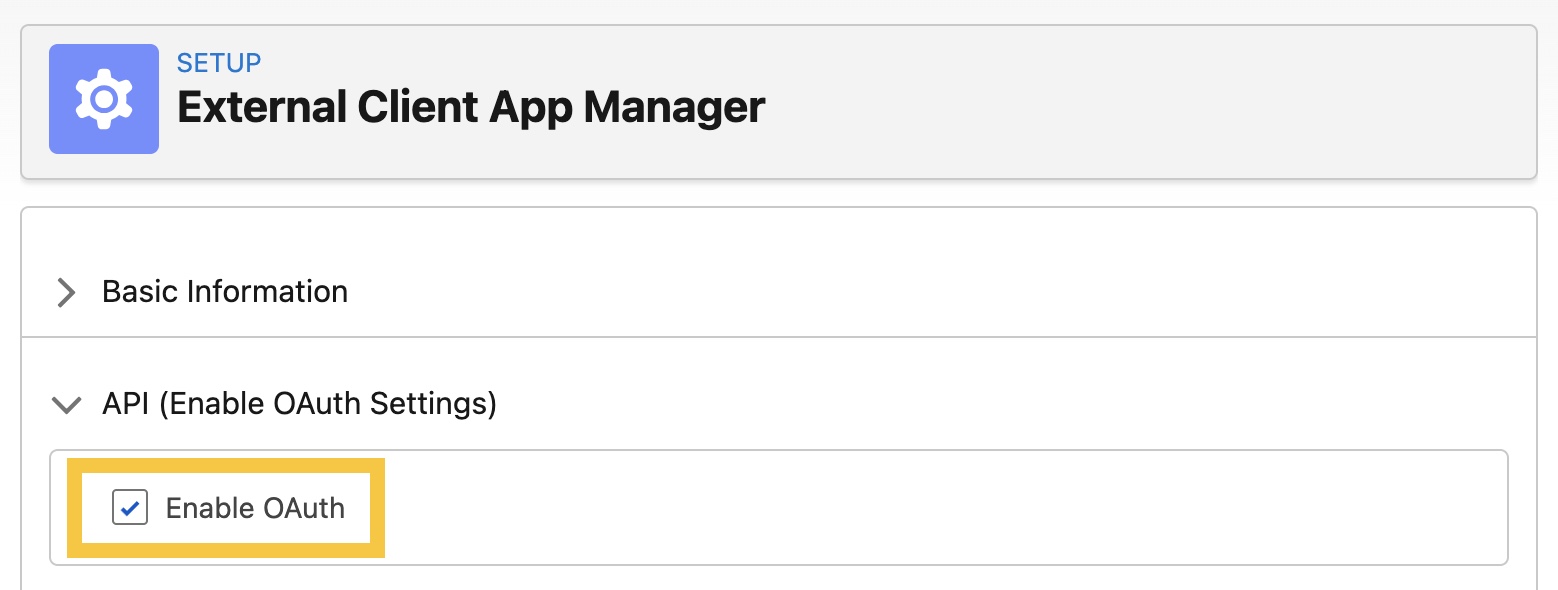
Step 5: Go to API (Enable OAuth Settings), then check Enable OAuth.
Step 6: Configure the App Settings:
- Under Callback URL, add:
https://api.hellotracks.com/api/integrations/oauth/salesforce/callback
- Under OAuth Scopes, move the following to Selected OAuth Scopes:
api
refresh_token
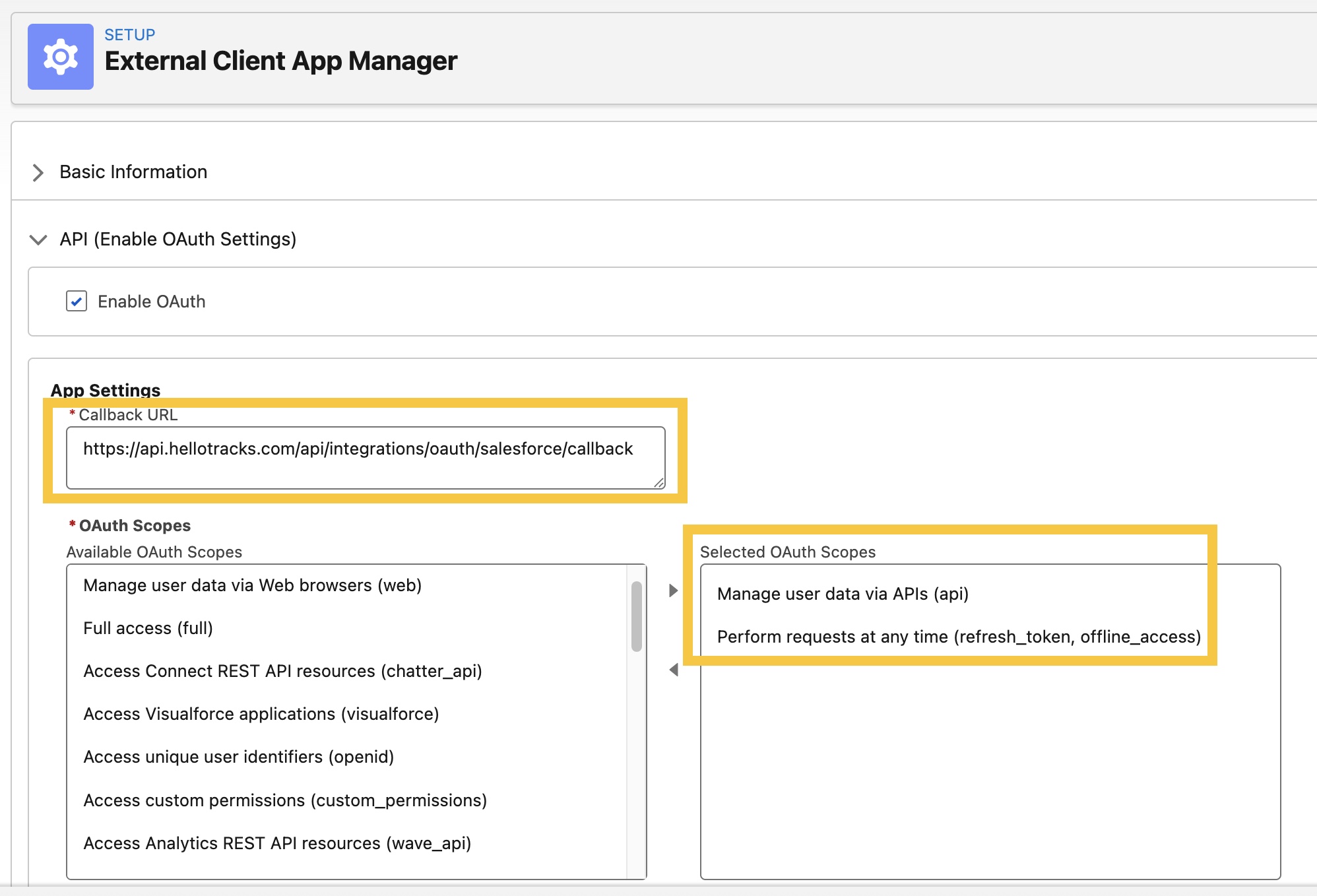
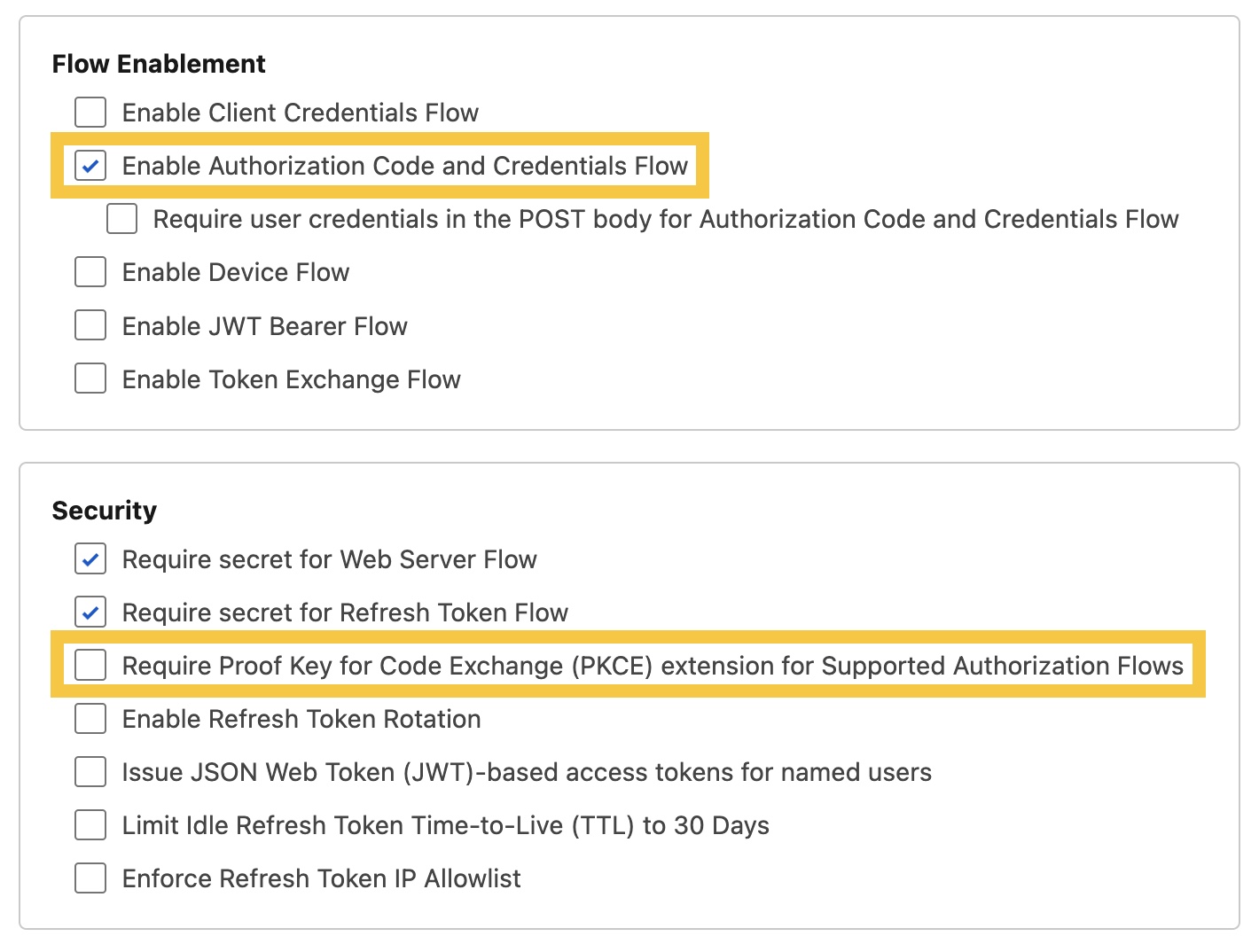
- Under Flow Enablement, check Enable Authorization Code and Credentials Flow
- Under Security, uncheck Require Proof Key for Code Exchange (PKCE) extension for Supported Authorization Flows
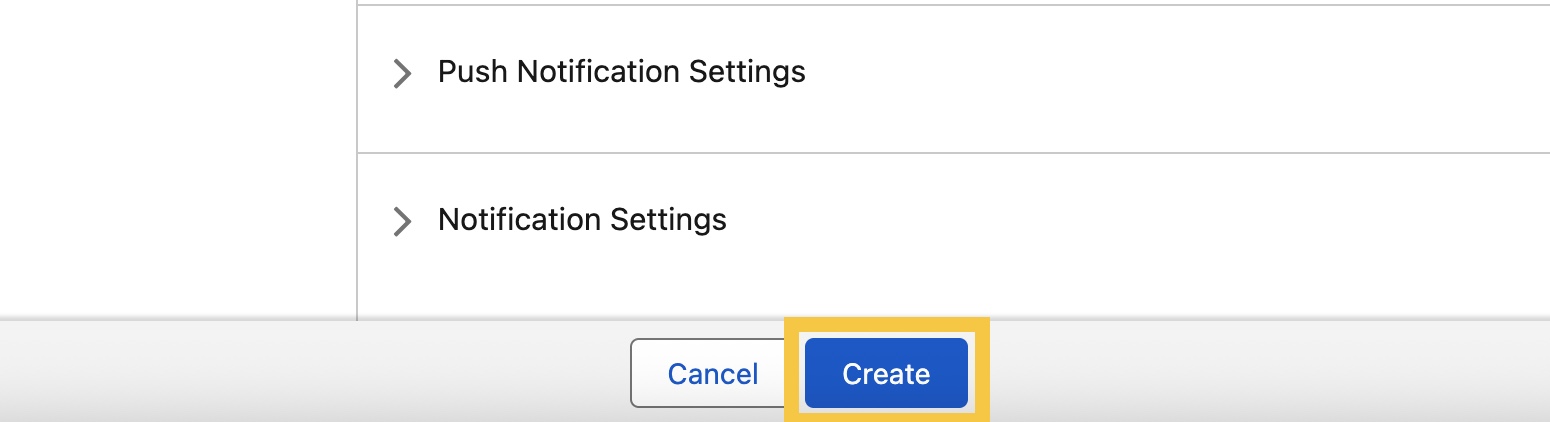
Step 7: Click Create.
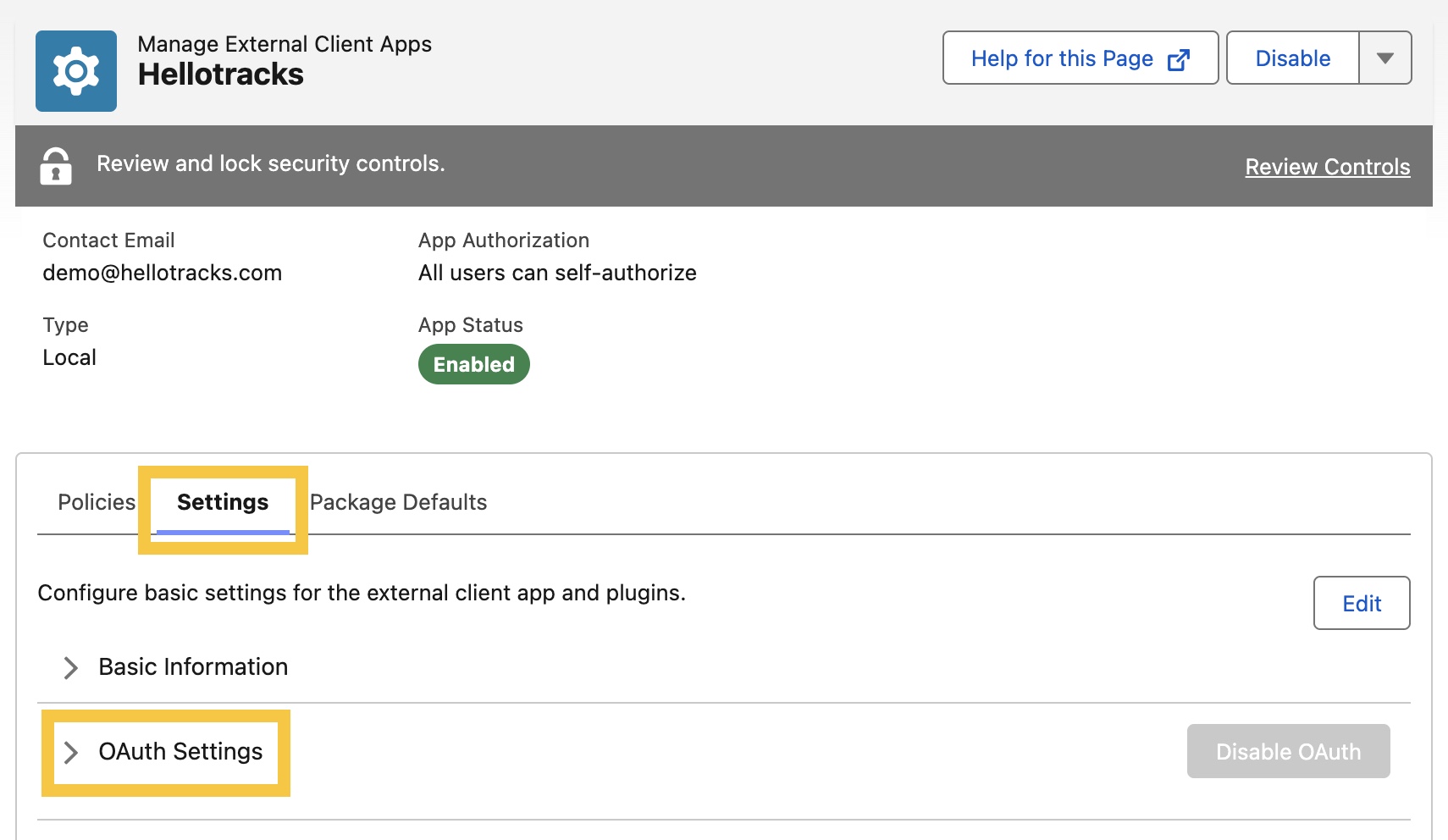
Step 8: Once created, go to Settings, then click OAuth Settings.
Step 9: Click Consumer Key and Secret to copy the following:
- Consumer Key - used as the Client ID in Hellotracks
- Consumer Secret - used as the Client Secret in Hellotracks
These values are required later to connect Salesforce with Hellotracks.
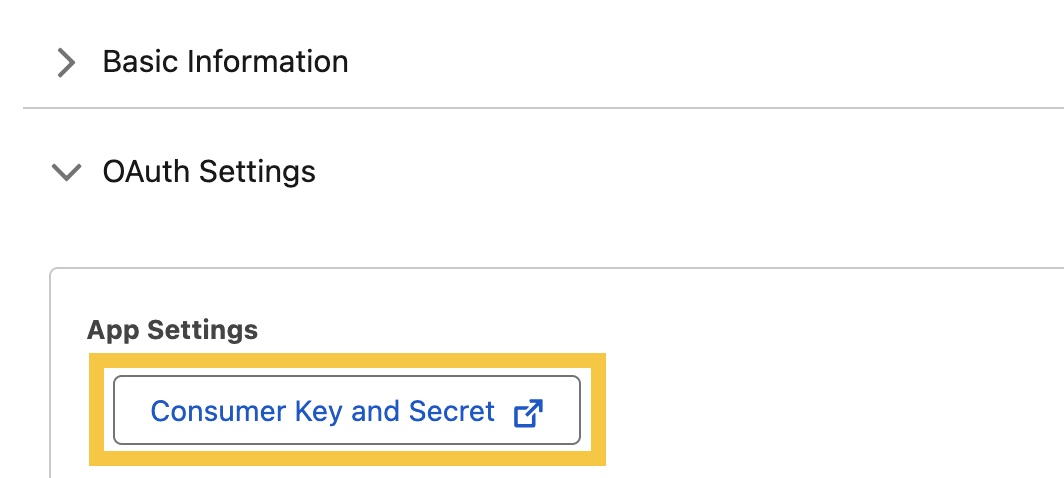
Note: You may be asked to enter a verification code sent to your email to access the Consumer Key and Consumer Secret.
-
Choose a Salesforce Webhook Method
Choose one webhook method to send Salesforce case updates to Hellotracks.
3.1 Set Up Webhooks via Outbound Messages
Use this method for the standard no-code setup. If you require more control over the data or trigger logic, proceed to 3.2 (Optional) Set Up Webhooks via Apex or Custom JSON Callout.
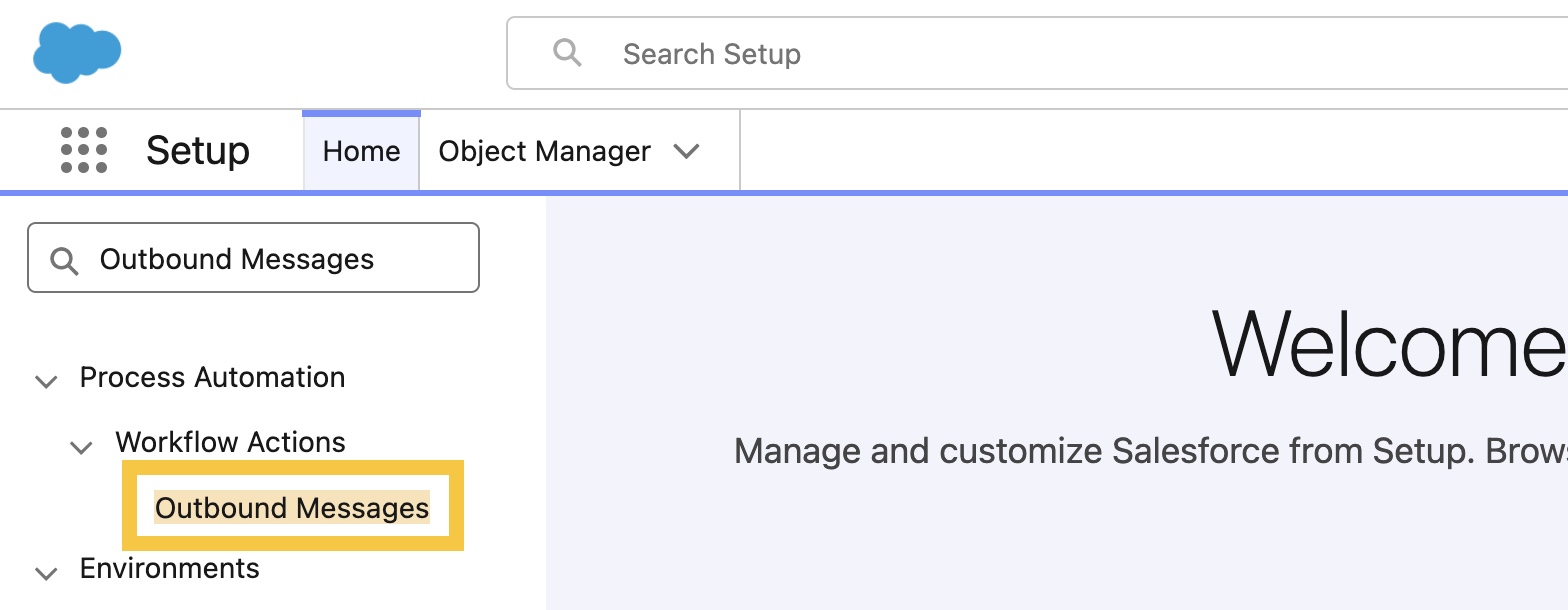
Step 10: In Quick Find, search for Outbound Messages.
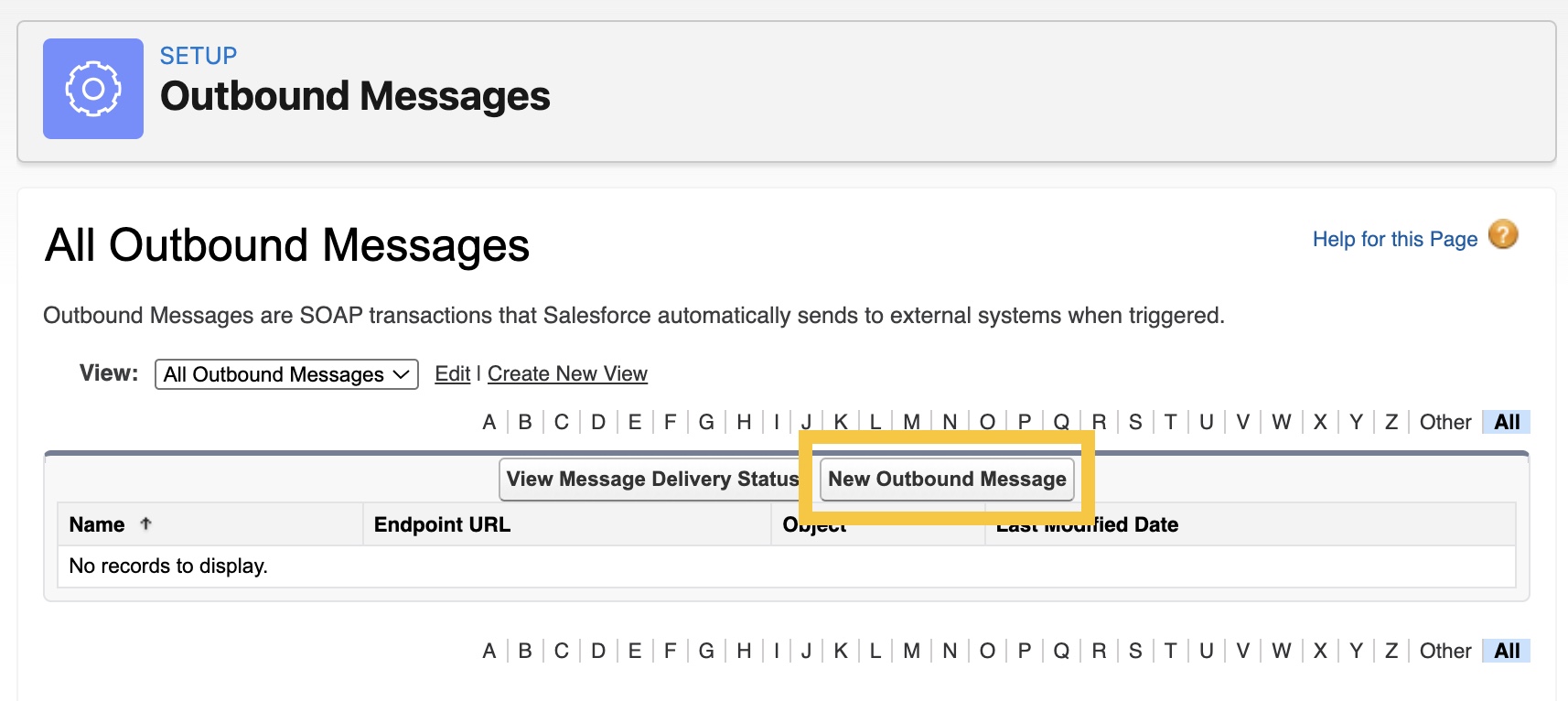
Step 11: Click New Outbound Message.
Step 12: Select Case as the object, then click Next.
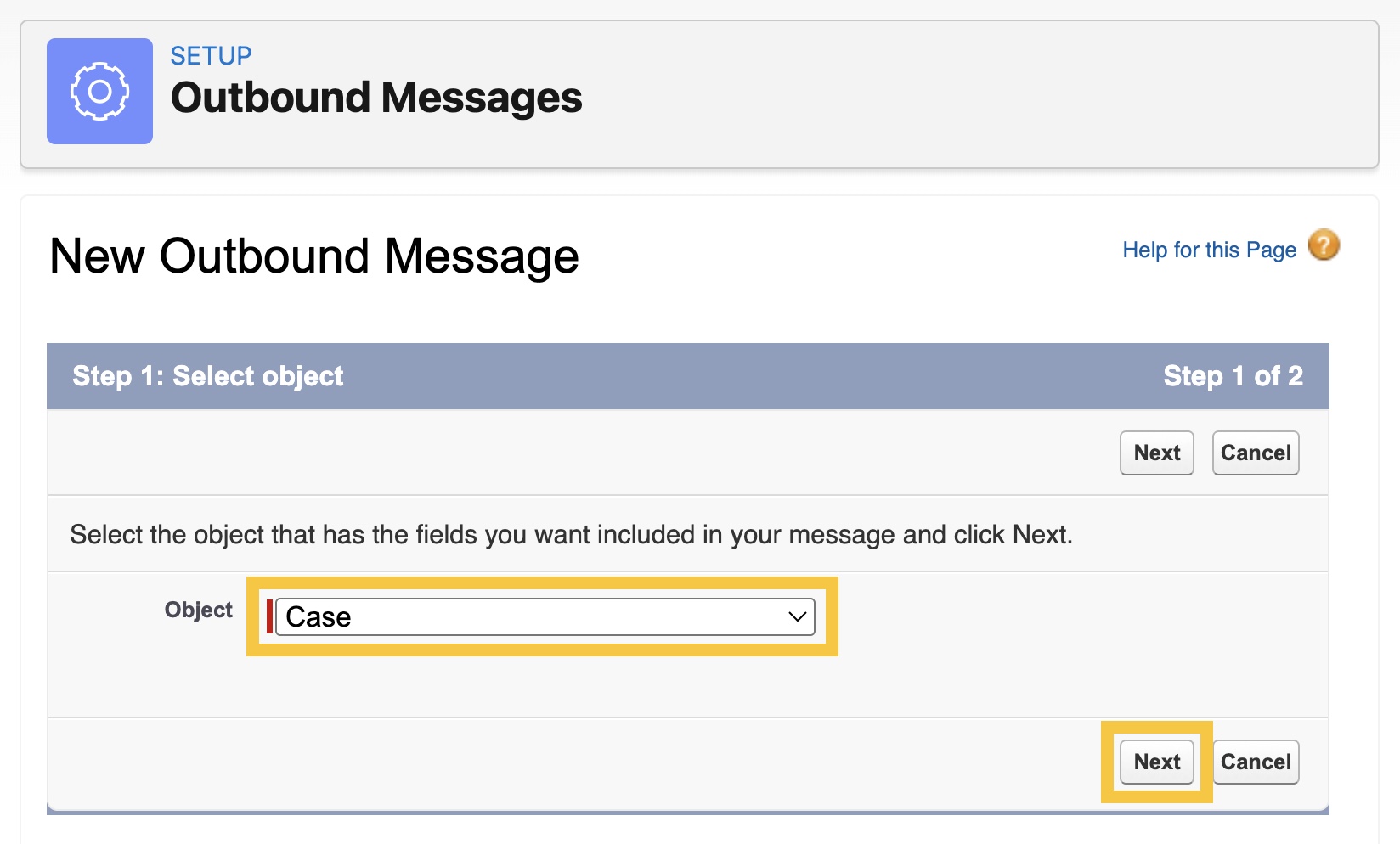
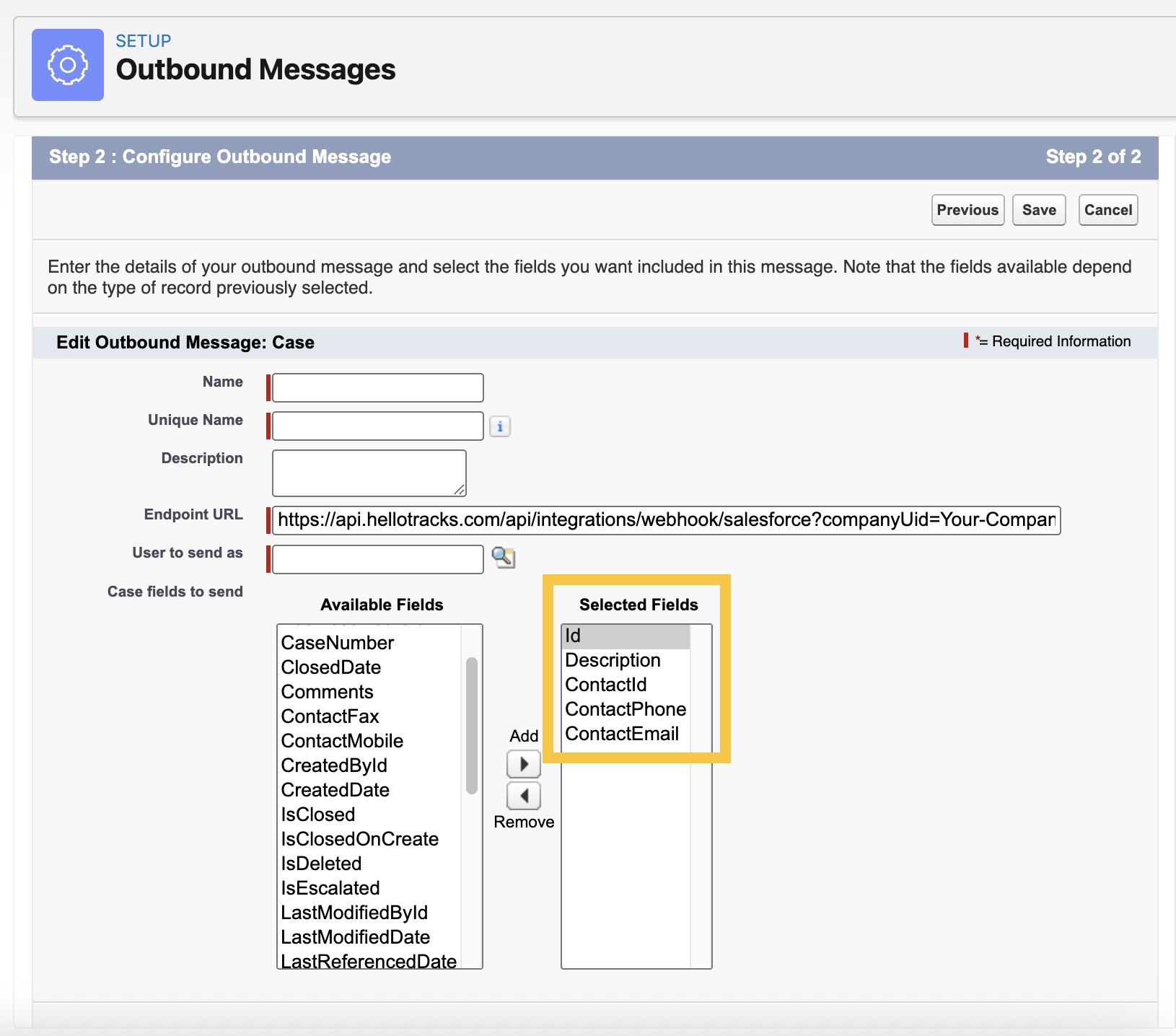
Step 13: Configure the following:
-
Endpoint URL format:
https://api.hellotracks.com/api/integrations/webhook/salesforce?companyUid=
Your-Company-ID&token=Your-Webhook-Secret
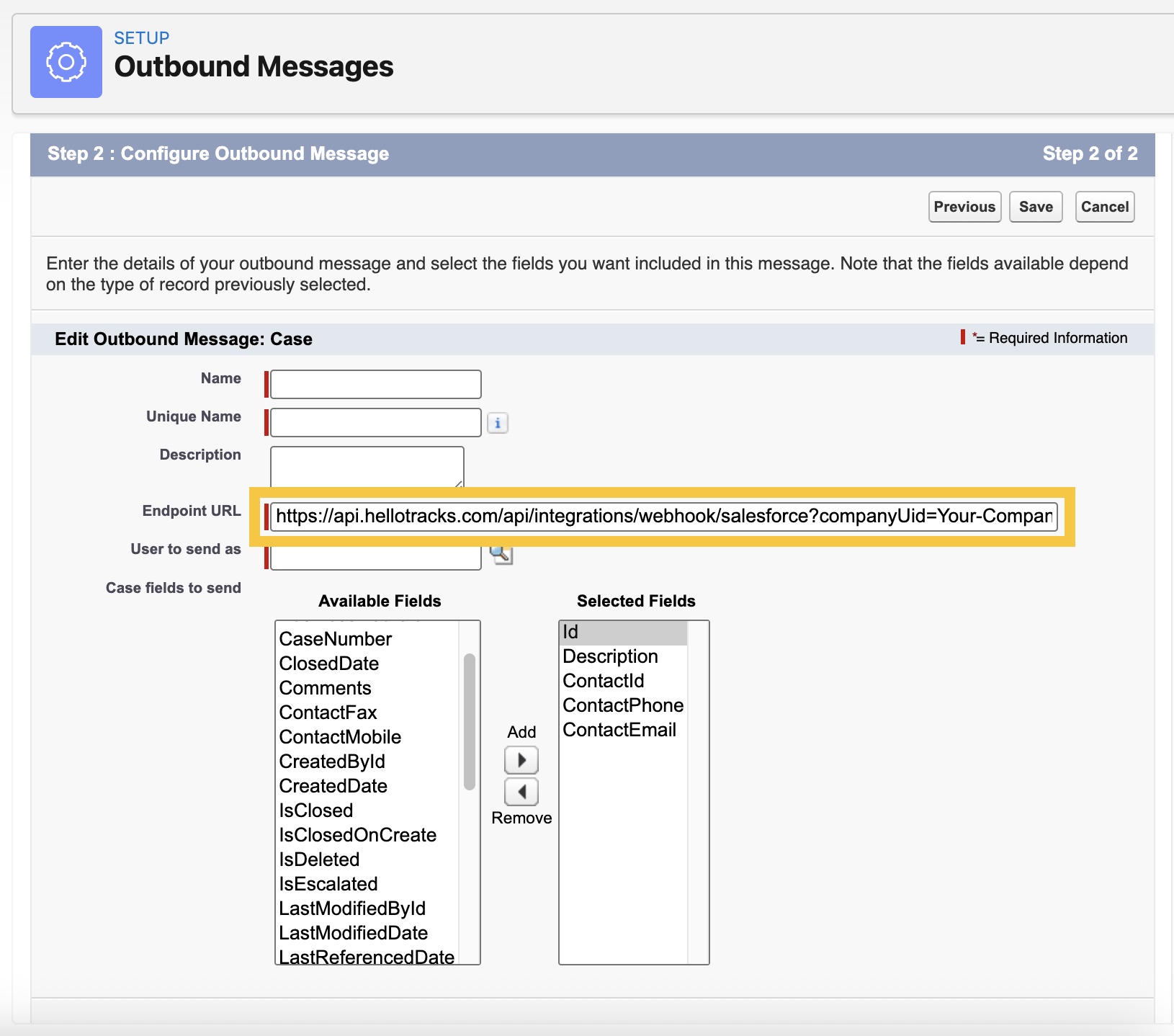
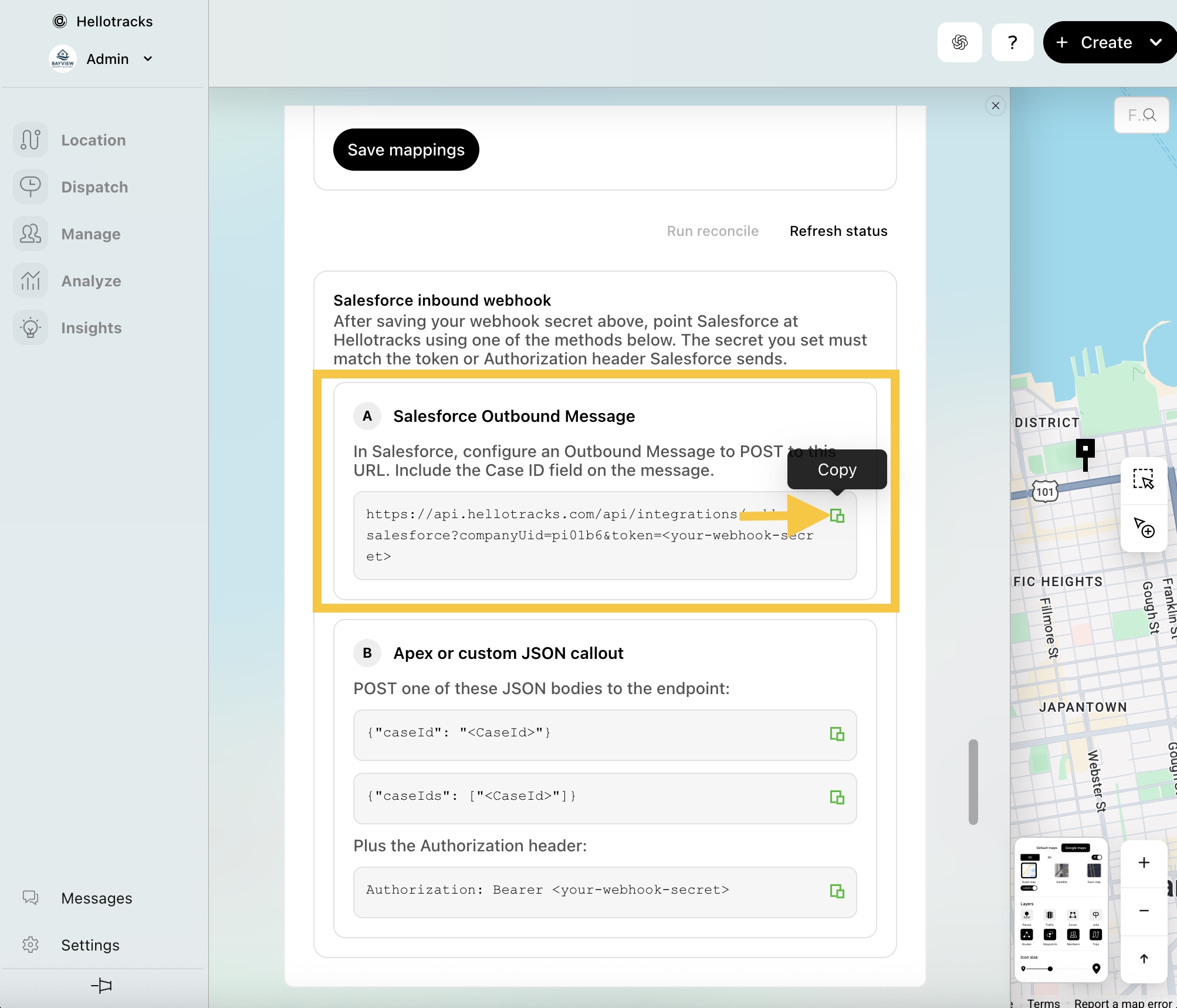
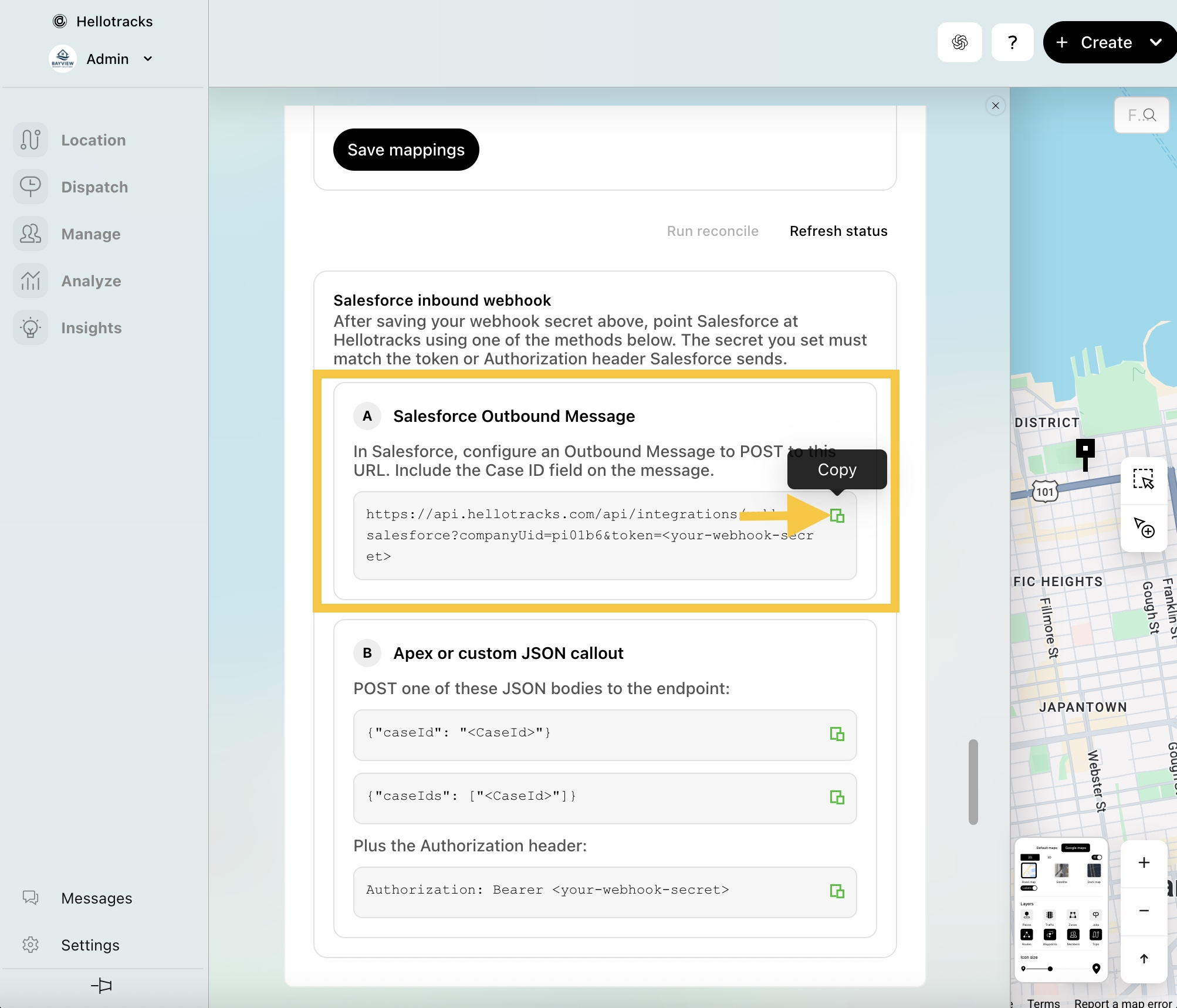
In Hellotracks, go to Settings and select API & Integrations. Under Salesforce, copy your Webhook URL and paste it into the Endpoint URL field, as shown above.

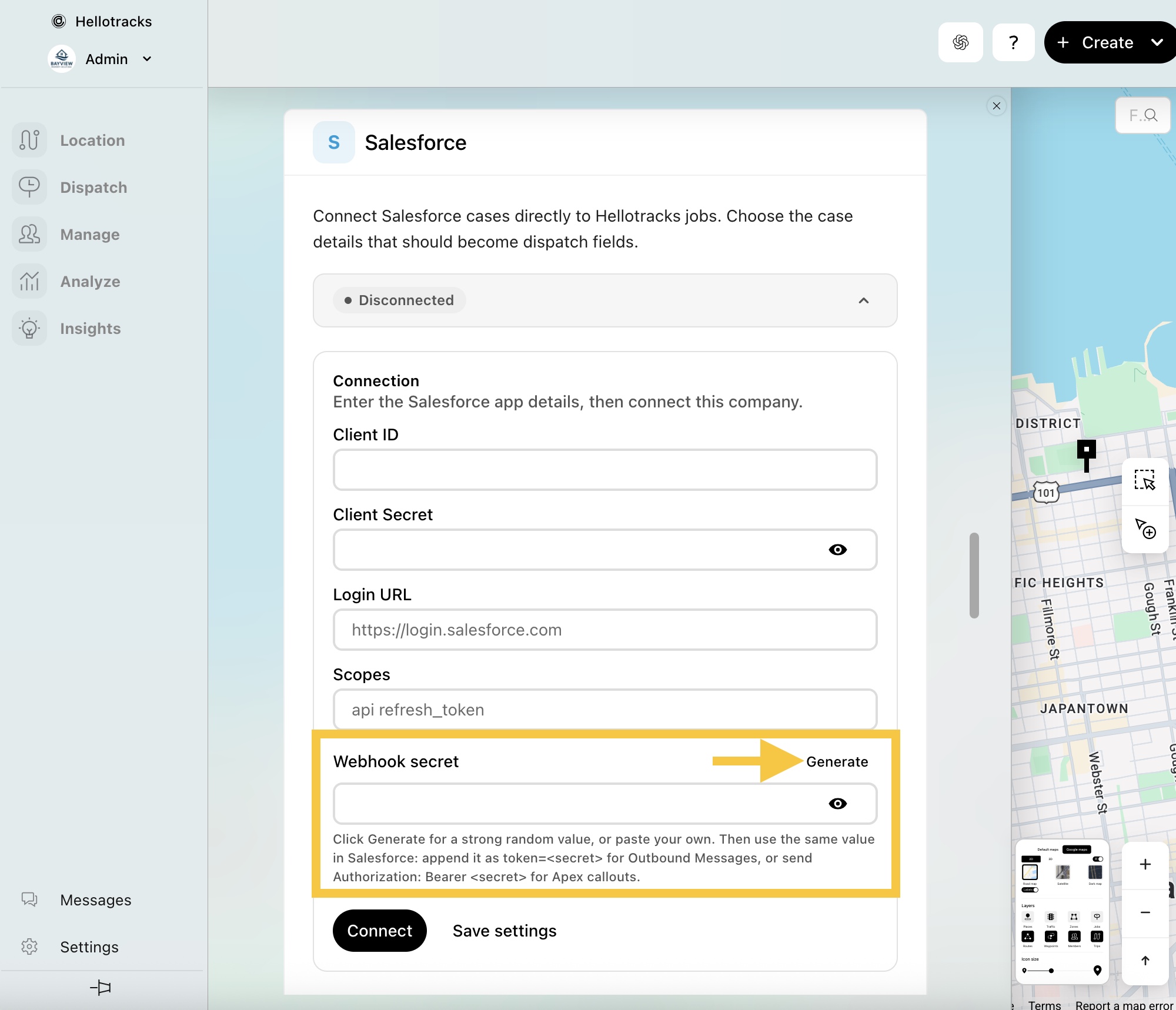
For the Webhook Secret, enter your own value or generate one in Hellotracks, then use it to replace Your-Webhook-Secret in the Endpoint URL.
- Under Case fields to send, select the fields you plan to use for field mapping, then move them to Selected Fields. Ensure Id is included.
Note: You can return here later to add additional Salesforce fields for mapping.
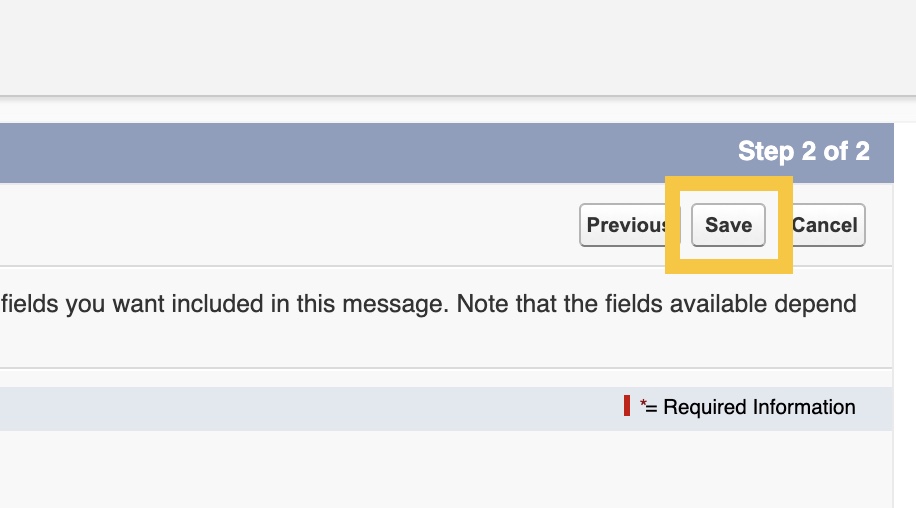
Step 14: Click Save.
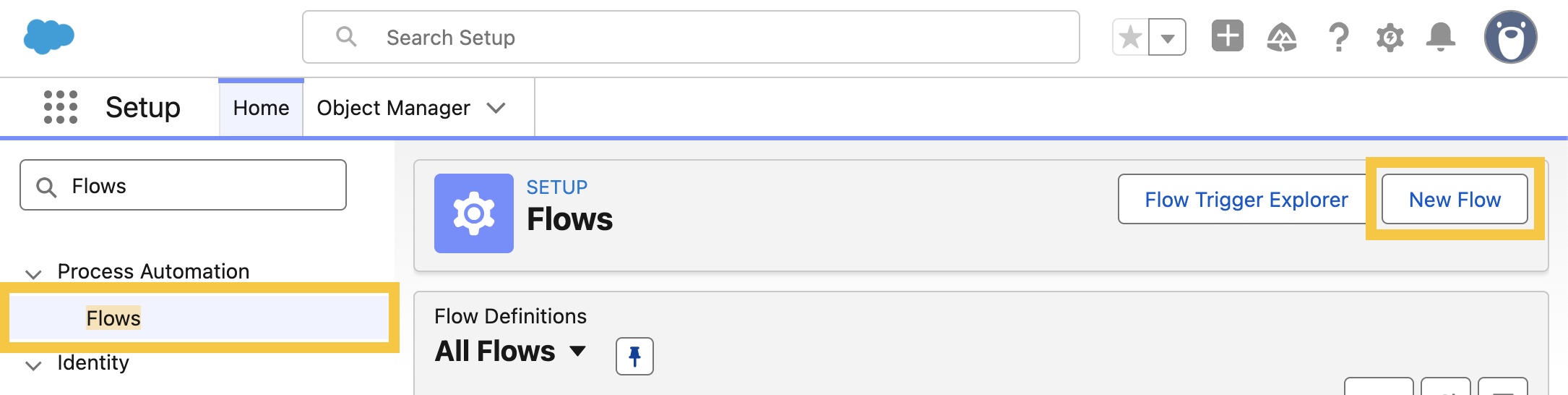
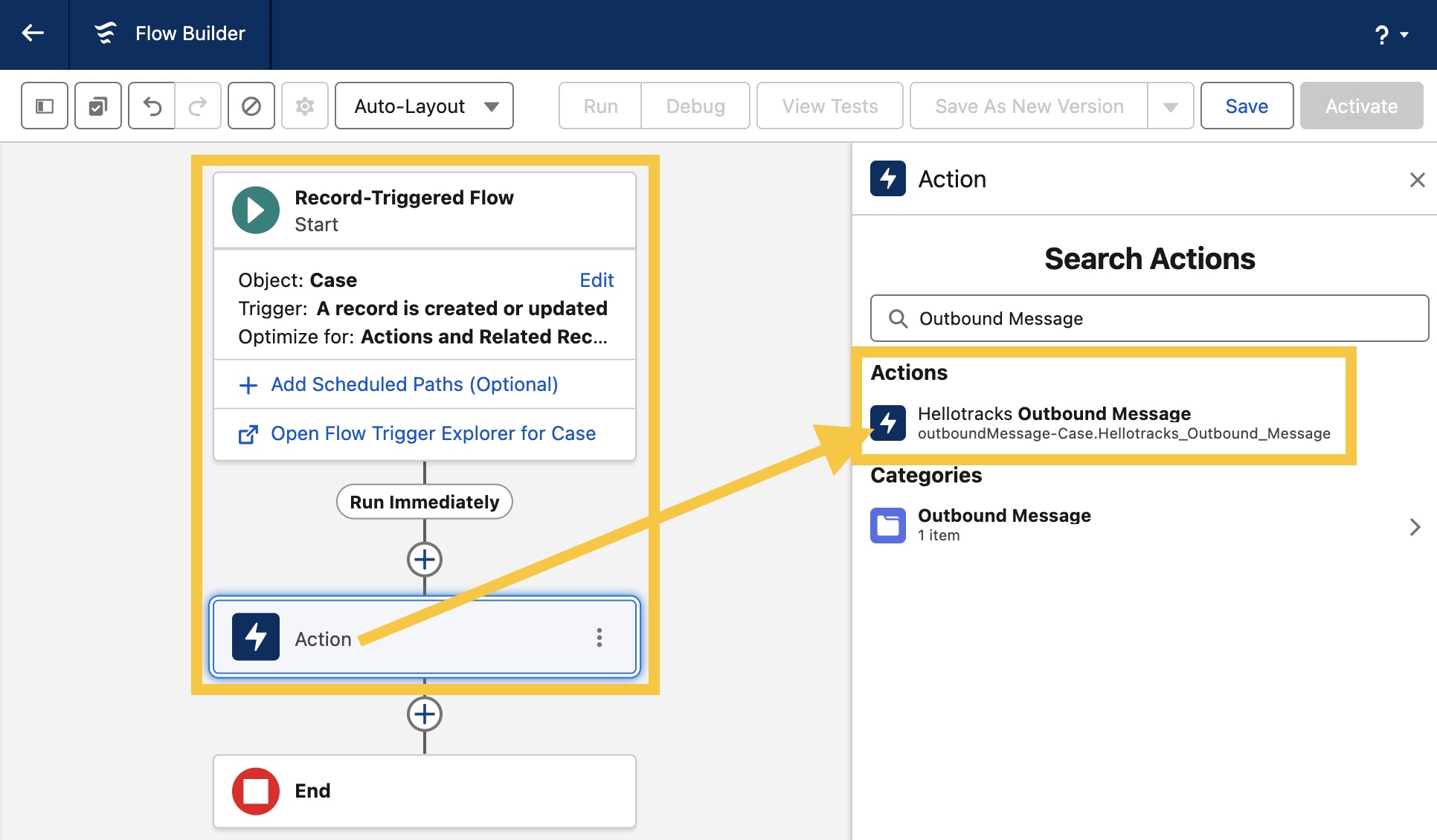
Step 15: Create a Flow (or Workflow Rule) to trigger the Outbound Message when a case is created or updated. To learn more about creating a Flow, refer to Salesforce Flow Builder documentation here.
Example of a Case Flow using the Hellotracks Outbound Message:
After completing the Outbound Message setup, proceed to 4. Connect Salesforce in Hellotracks.
3.2 (Optional) Set Up Webhooks via Apex or Custom JSON Callout
Use this advanced option if you require more control over the data or trigger logic.
Step 16: In Salesforce, create an Apex class or custom JSON callout to send HTTP POST requests.
Step 17: Use the same Salesforce webhook endpoint configured for the Outbound Message setup without the token parameter:
https://api.hellotracks.com/api/integrations/webhook/salesforce?companyUid=Your-Company-ID
In Hellotracks, go to Settings and select API & Integrations. Under Salesforce, copy your Webhook URL.
Step 18: Configure the Authorization header and JSON request body.
-
POST one of the following JSON bodies:
{"caseId":"<CaseId>"}or
{"caseIds":["<CaseId>"]}
-
Authorization header:
Authorization: Bearer <your-webhook-secret>
For the Webhook Secret, enter your own value or generate one in Hellotracks.
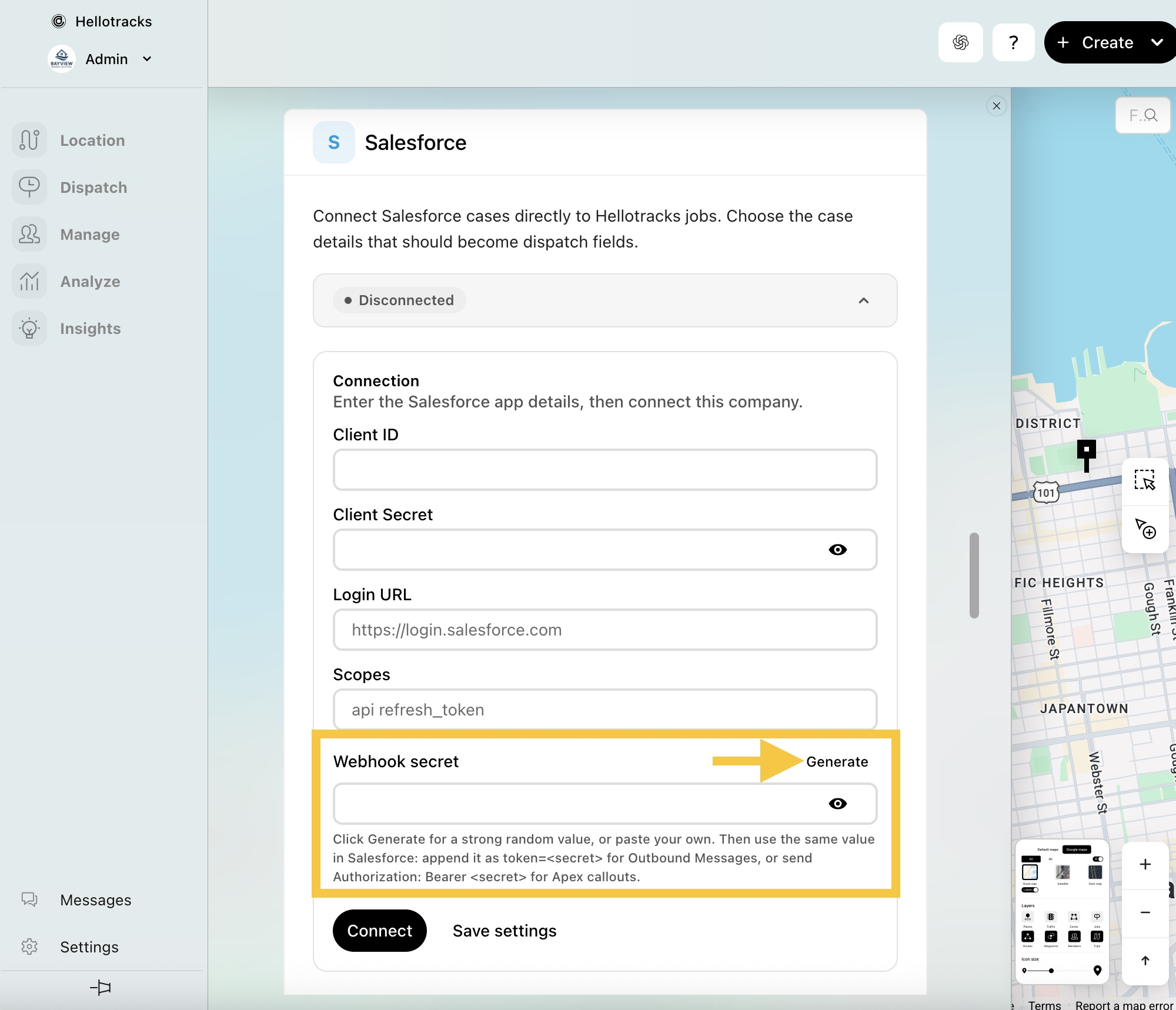
Step 19: Set up the Apex or custom JSON callout to run when a case is created or updated.
4. Connect Salesforce in Hellotracks
Step 20: In Hellotracks, go to Settings and select API & Integrations.
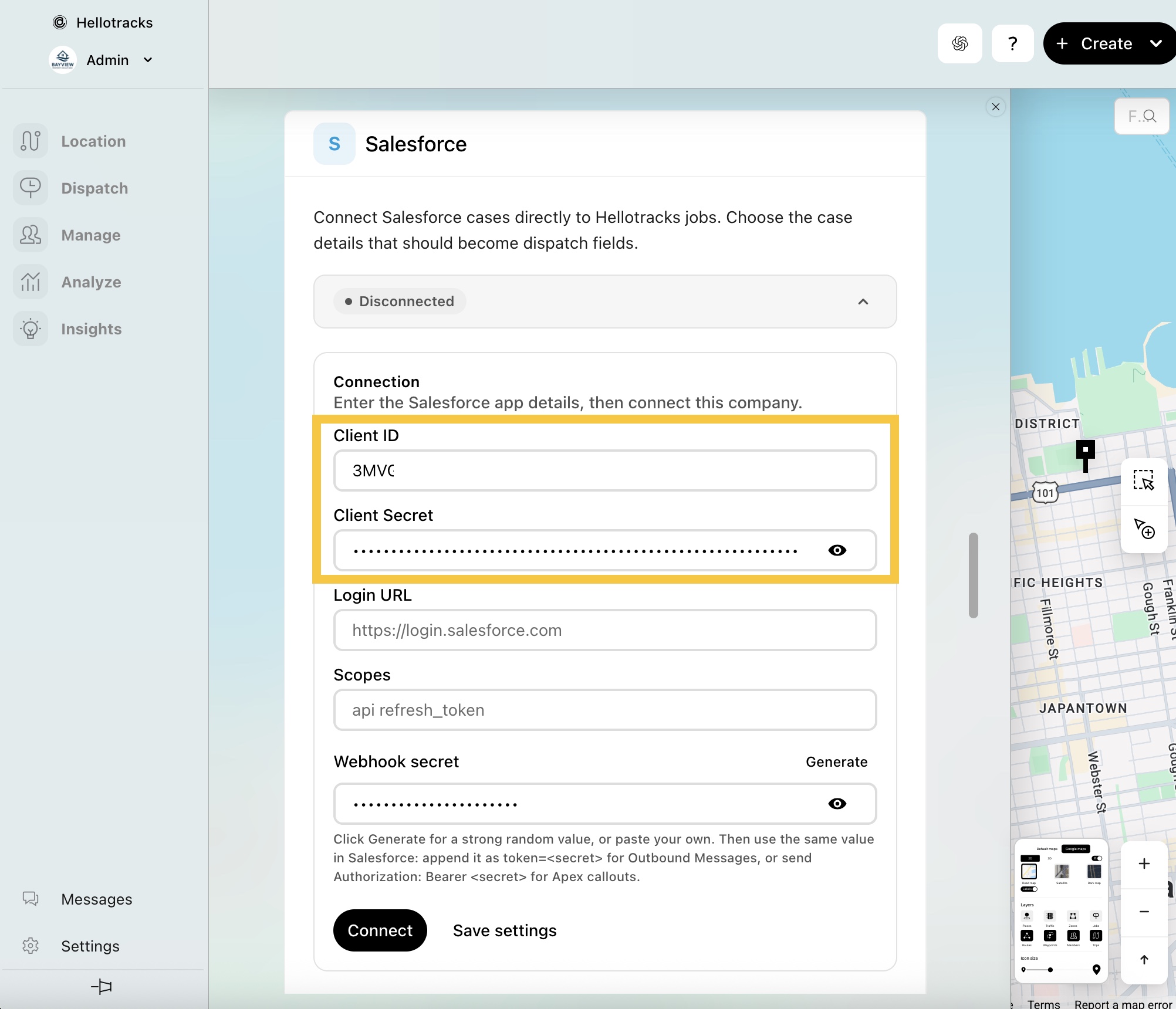
Step 21: Under Salesforce, enter the values copied from Salesforce in Step 9:
- Client ID (Consumer Key)
- Client Secret (Consumer Secret)
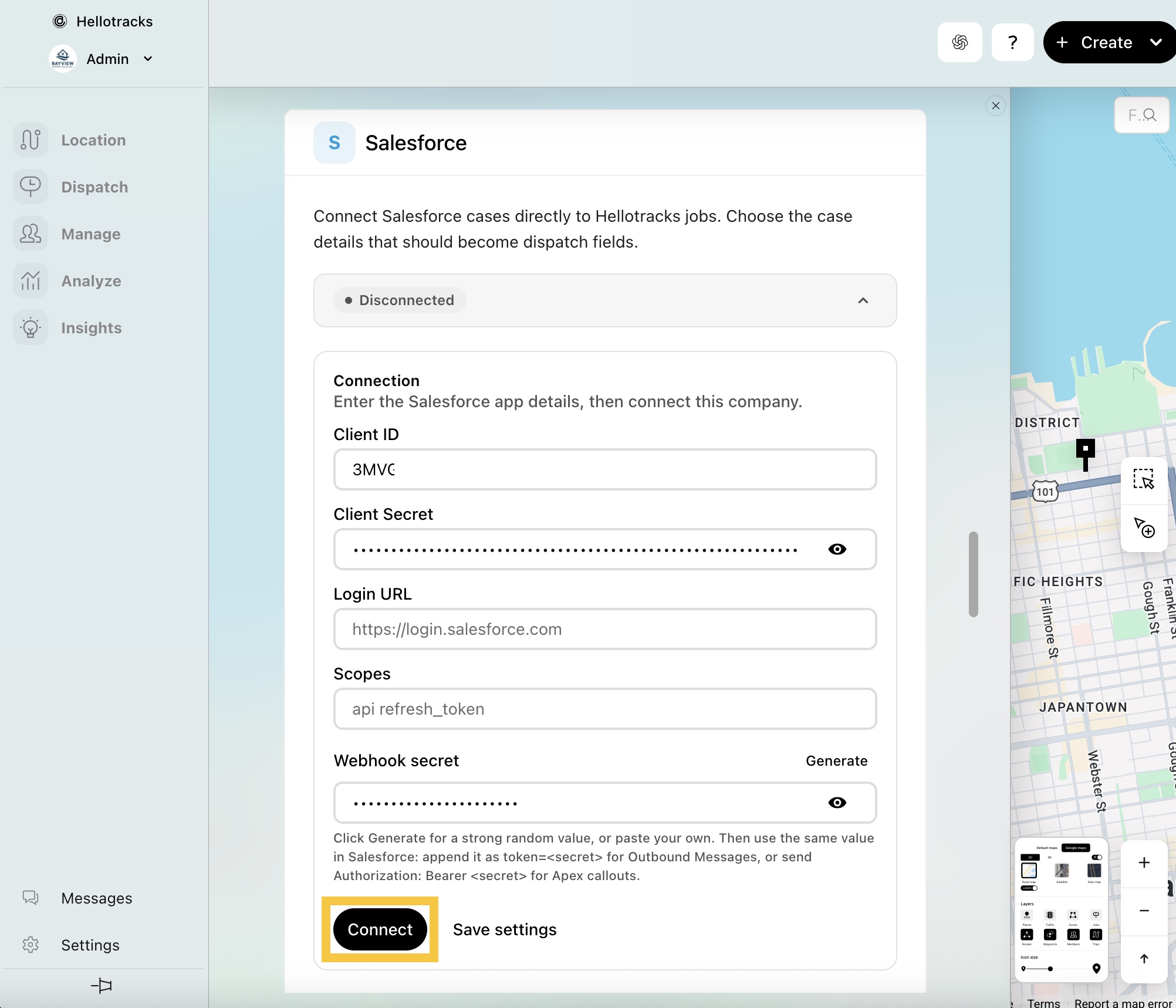
Step 22: Click Connect.
Once connected, configure your field mappings to define how Salesforce case fields map to Hellotracks job fields.
To learn how to map Salesforce case fields to Hellotracks jobs, click here.
If you have questions or difficulties with your Salesforce integration, please contact support via support@hellotracks.com.