How to Delete an Account
This guide explains how to proceed with account deletion in Hellotracks, depending on your role within the platform.
If you are a member of a Business account:
If you are a regular member (for example, a worker or operator) of a Hellotracks Business account, only an admin of that Business account can delete your profile. Please contact your company’s Hellotracks admin to request the deletion of your account.
If you are an admin on a Business account:
When you access your Hellotracks account in the web dashboard, you’re on a Business account. As an admin, you have two options for account deletion:
- Option 1: Deactivate the entire Business account.
- For detailed steps, please refer to our guide: How to: Deactivate my Business Account.
- Option 2: Delete your own admin account while keeping the Business account active.
- If you want to delete your own admin account but keep the Business account active (for example, to transfer ownership), you first need to make sure there is another admin.
Here are the steps:
Step 1: Log in to your Business account at https://live.hellotracks.com.
Step 2: Go to Manage in the main menu, then select Members.
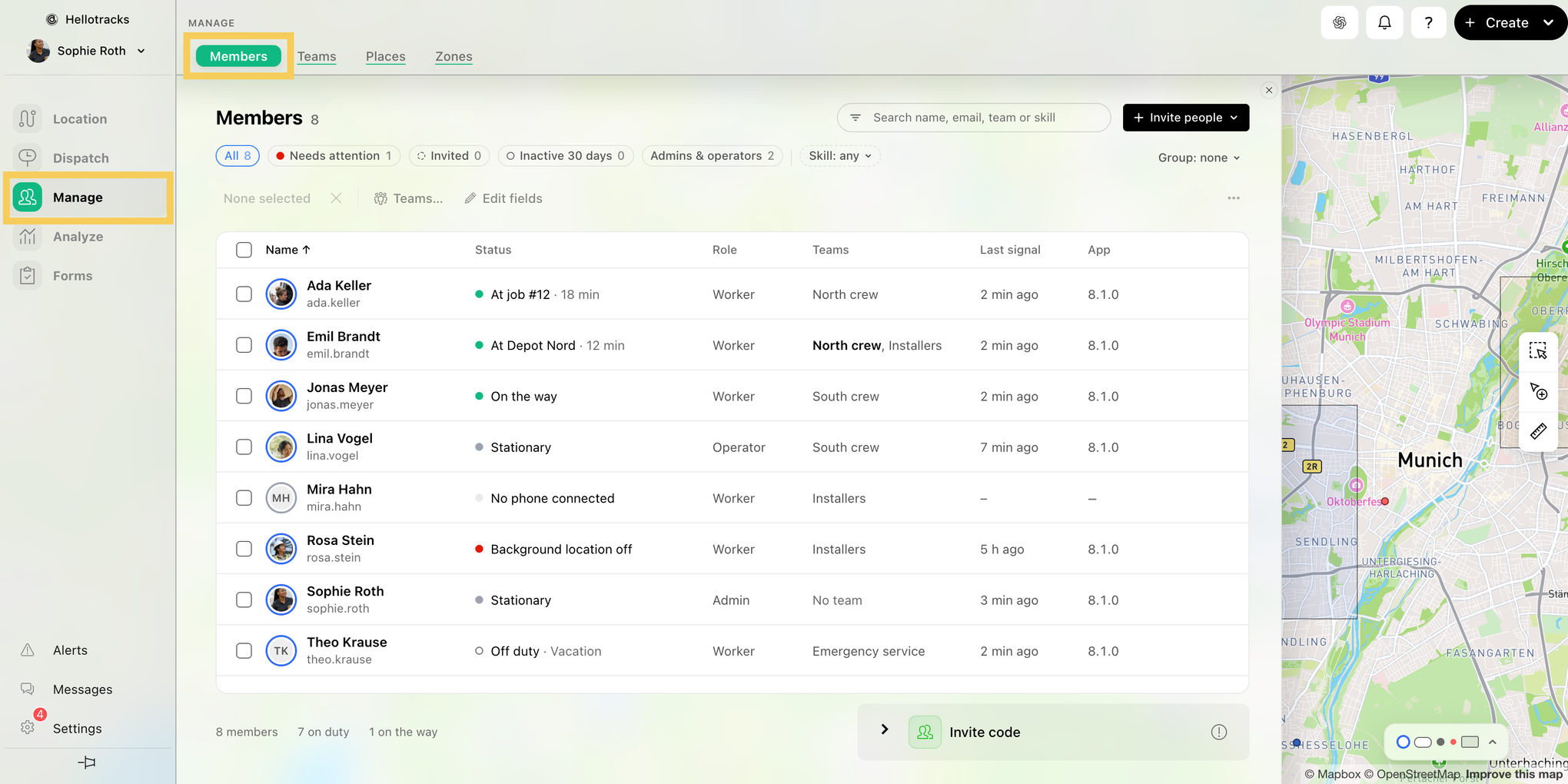
Step 3: If you are the only admin, first invite a new admin: click Invite people, then Invite people again.

Step 4: Enter the new admin’s name and email, then click Send invite. They get an email with a link to join.

Step 5: Click the new member in the list, then pick Admin from the Role menu in their sheet. (You can also pick Role: Admin right away when you invite them.)

Step 6: Once the new admin has joined, log out and log in as the new admin.
Step 7: Go to Members, click your original account, then click Remove… at the bottom of the sheet.

Step 8: Type DELETE in the box and click the Remove button with your name to confirm.

For more details on how to remove a member, see this guide: How to: Delete a Member