How to Set Up a Recurring Report
Recurring reports help reduce repetitive manual work by scheduling reports to be generated and sent automatically on a daily, weekly, or every two weeks schedule. For details about each available report type, see Types of Reports.
Step 1: Go to Analyze from the main menu and select Reports.
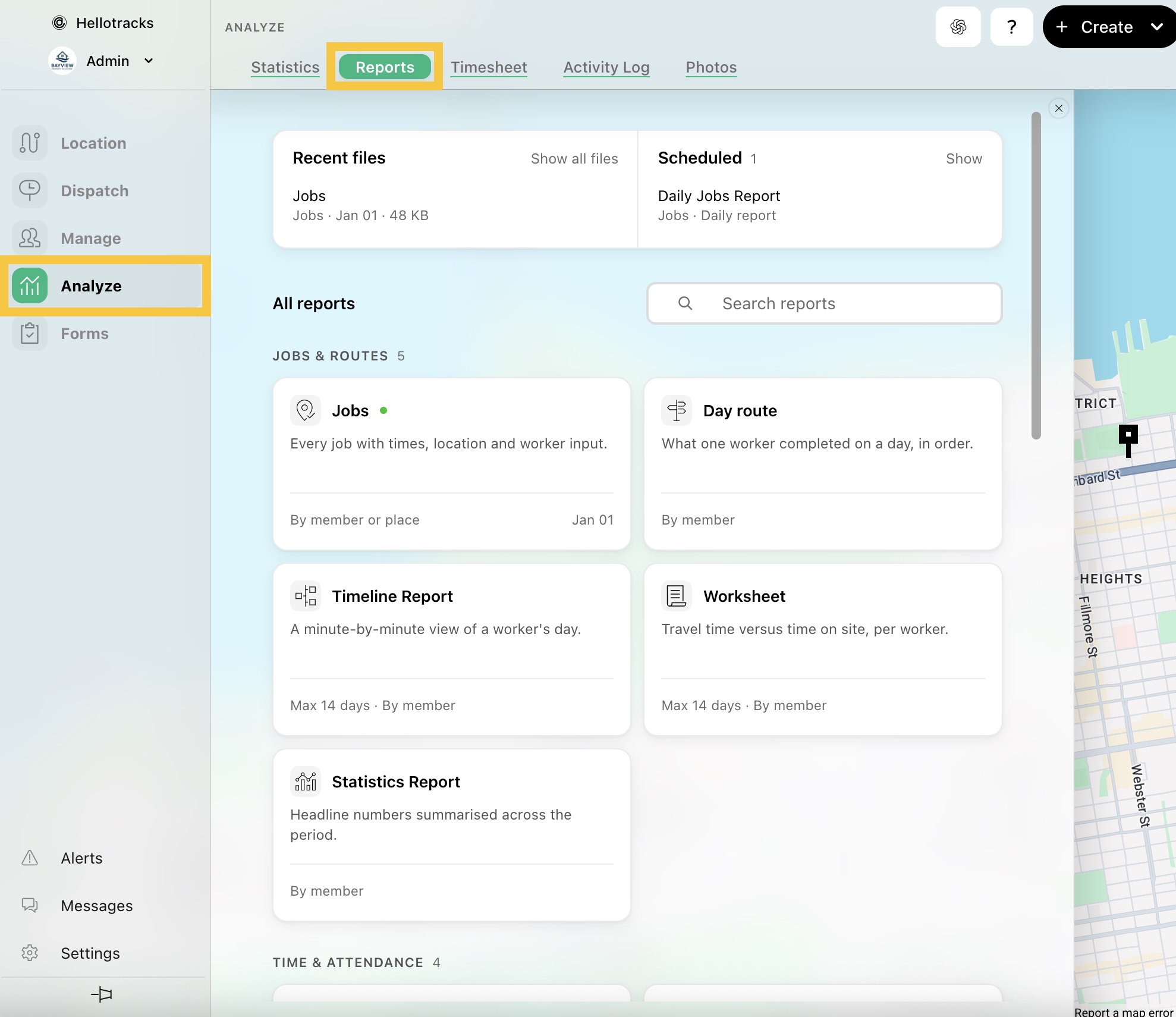
Step 2: In All reports, select the report type you want to create. To learn more about each report type, see Types of Reports.

Step 3: Check the box for Repeat on a schedule.

Step 4: Select the member(s) or Place(s) you want to include in the report, then click Accept.
These options vary by report type. If they don’t appear, skip this step.

Step 5: Select the format.
Available formats vary by report type, and may include PDF, xlsx, csv or geojson.

Step 6: Customize the columns by reordering, renaming, or removing them to define the data included in your report.
These options vary by report type. If they don’t appear, skip this step.

Step 7: Select the time frame: Daily, Weekly, or Every two weeks.

Step 8: Select when the report will be created:
- For a Daily report, select the day(s) of the week.
- For a Weekly report, select the day of the week.
- For an Every two weeks report, select the date when the first report will be created. The day the schedule is created is not included.

Step 9 (optional): Select the member(s) who should receive the notification when the report is created.

Step 10: Enter a title for your recurring report, then click Save.

Note: You can download recurring reports in Recent files. To learn how to download recurring reports, click here.