Try Hellotracks with a Practice Crew
A practice crew lets you try Hellotracks before anyone on your team installs the app. Five simulated people drive real streets around your company for 3 days, visit customers they make up, take the jobs you send them and finish them. You see a working day on your own map: people moving, arriving, checking in and coming back done.
Note: The practice people are not real. They never count as users and are never billed. Your workers don't see them in the app, and they don't send anything to your customers, integrations, Slack or email alerts. On the map and in your lists they carry a Practice chip.
Start a practice crew
Only Administrators can start a practice crew. There are two ways:
- On the setup card a new company sees first: under Nobody on the map yet? Try a practice crew first, click Start a practice crew.
- Any time later: click Create at the top right and choose Practice crew. It's there while no crew is running.

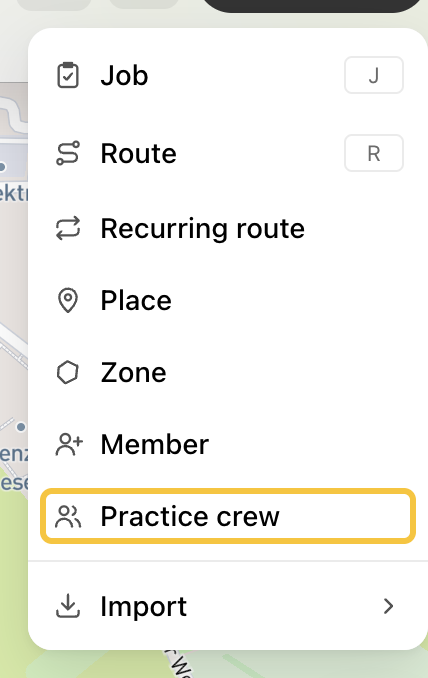
If your company has no address yet, Hellotracks first asks Where should the crew drive? The address you pick becomes your company address.
The crew starts right away. They work your company's working hours.
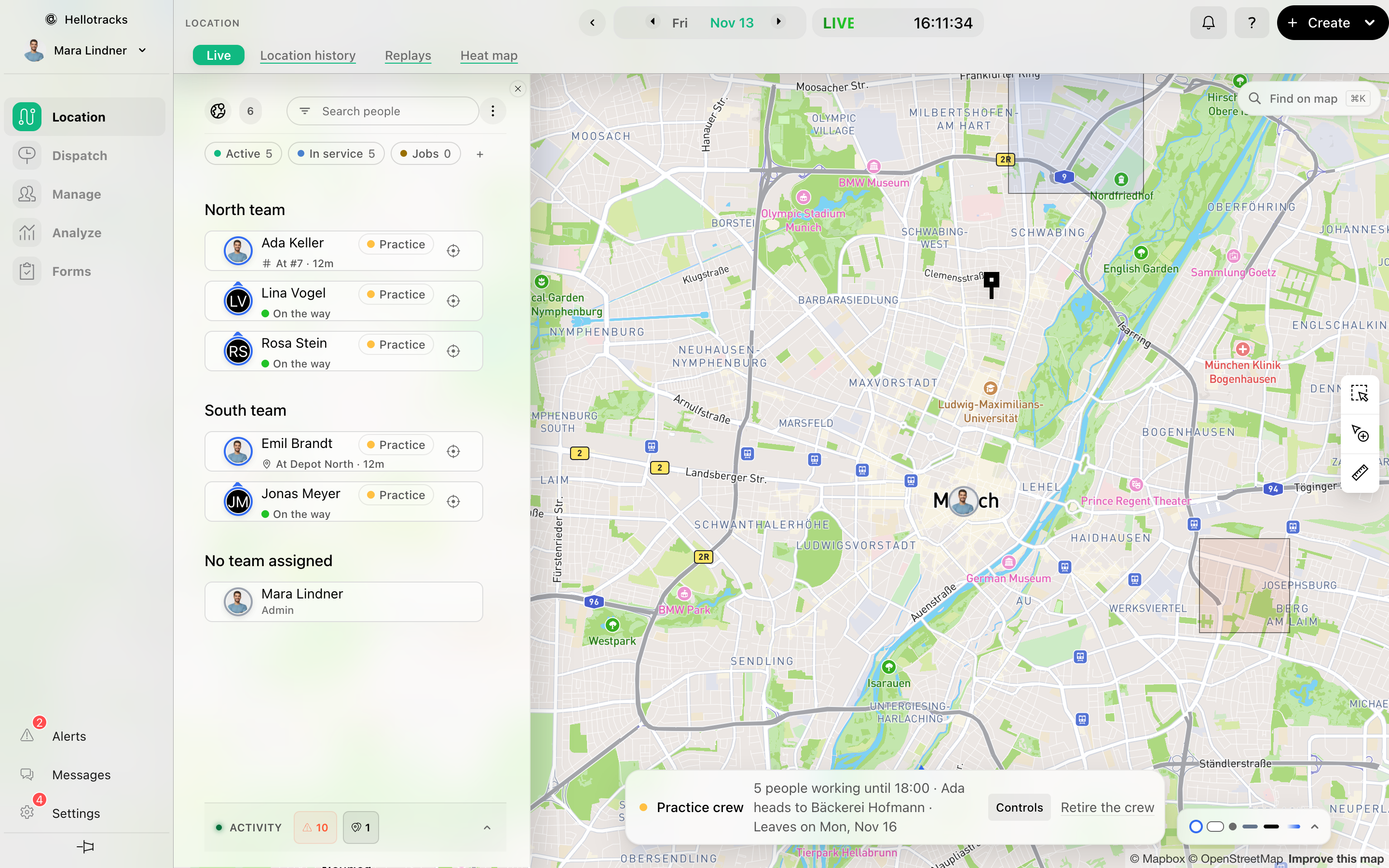
The practice bar
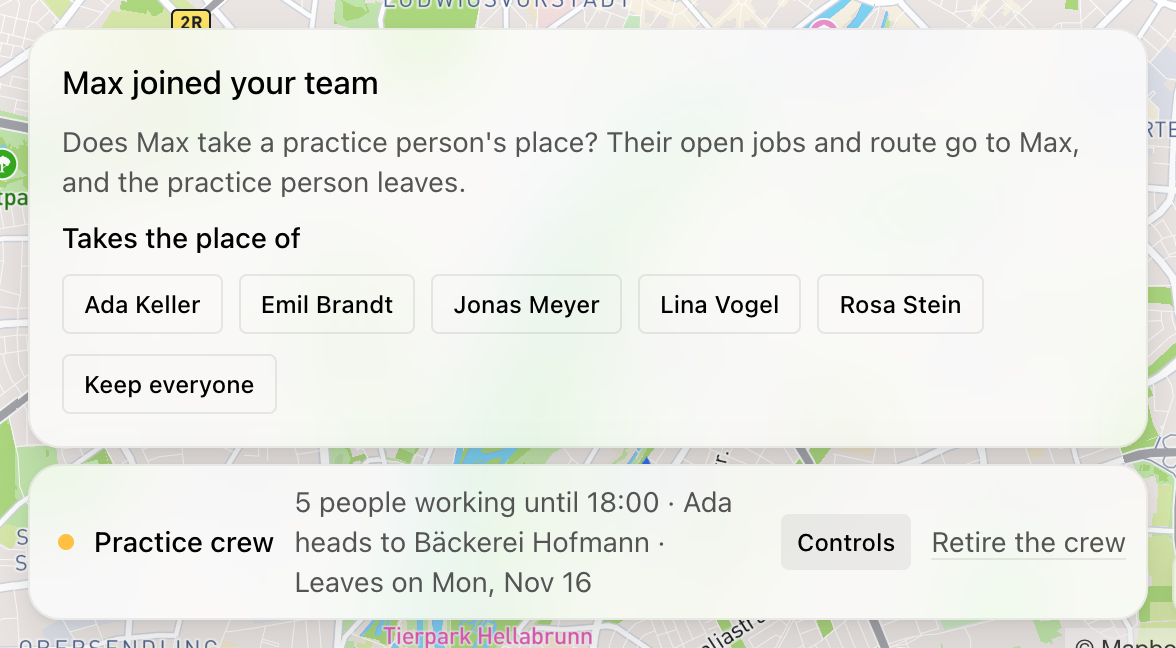
While the crew works, a bar at the bottom of the map says how many people work until when, who heads where, and when the crew leaves, for example Leaves on Mon, Nov 16. On the last day you can click Keep 3 more days. Outside their hours, Work now sends them out on a short extra shift.
If nobody looks at the map for two days, the crew pauses. It goes back to work as soon as you come back.
Controls
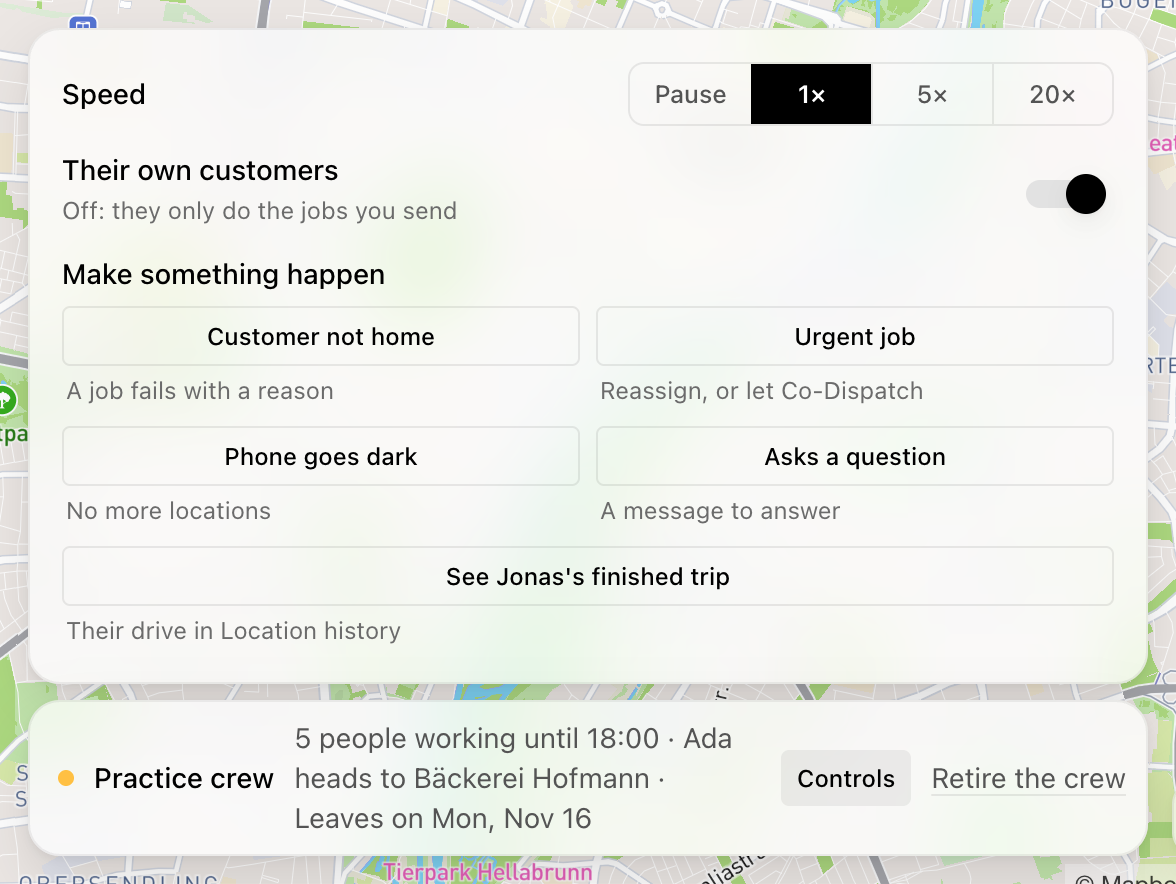
Click Controls on the practice bar:
- Speed: Pause, 1×, 5× or 20×.
- Their own customers: on, they make up customers of their own; off, they only do the jobs you send. With it off, Send them a job opens a new job for them.
- Make something happen: Customer not home (a job fails with a reason), Urgent job (reassign it, or let Co-Dispatch), Phone goes dark (no more locations) and Asks a question (a message to answer).
- See … finished trip: opens a drive in Location history.
Each one says where to watch the result, for example the person's day in Dispatch, Messages or the person's Device tab. Customer not home needs someone on a job: send a job first, or press Urgent job.
Send them your own jobs
Send the practice people jobs the same way as to anyone else: they get them, drive there in your order, check in and finish them. Your own jobs stay yours, also after the crew leaves.
Replace a practice person with a real person
When your first real teammates join, they can take over a practice person's place. There are two ways:
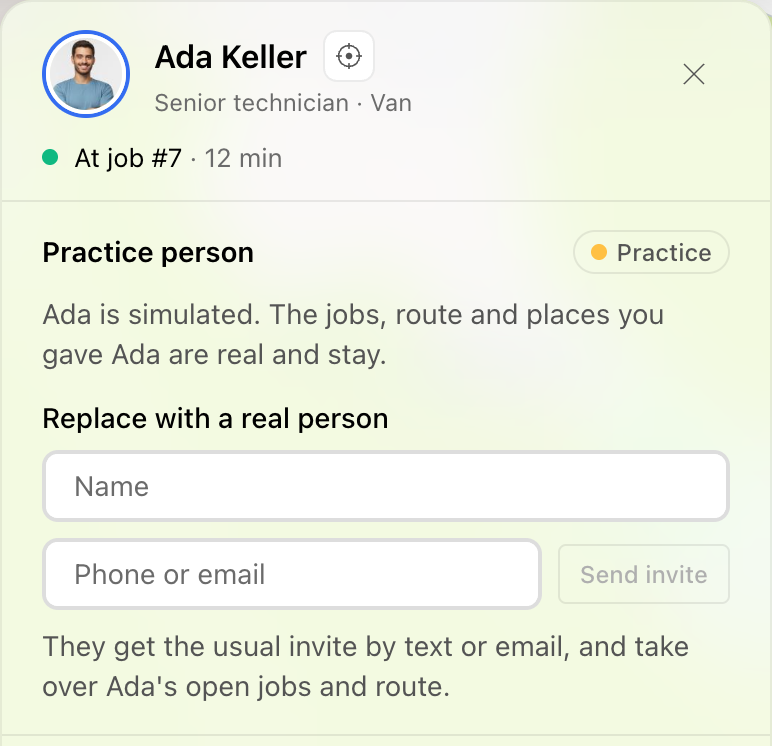
- Open a practice person, for example from the list on Live or from Manage → Members. Under Replace with a real person, enter the name and a phone number or email and click Send invite. They get the usual invite by text or email. If the person is already in your team, pick them under Or someone already in your team and click Hand over.
- When someone joins your team while the crew works, the map asks, for example, Max joined your team. Under Takes the place of, click the practice person they replace, or click Keep everyone.
The real person takes over that practice person's open jobs and route, and the practice person leaves.
Retire the crew
Click Retire the crew on the practice bar and confirm. The practice people leave with everything they recorded: drives, visits, forms and messages. The customers they made up go too. Your own jobs stay: open ones become unassigned, finished ones stay done. So do places, forms and job types.
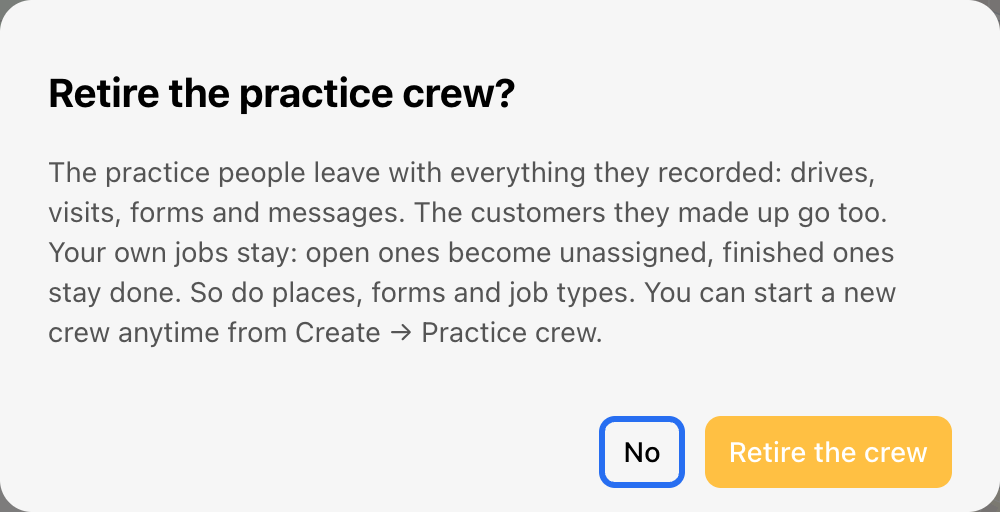
The crew also leaves on its own after its days are over, or once every practice person has been replaced. You can start a new crew anytime from Create → Practice crew.
Setup card: While the crew is out, the setup card asks Your practice crew is still out before the next step: click Keep practicing or Retire the crew. What the practice people do doesn't tick off setup steps.
To learn how the rest of the setup works, see First Steps.