Can I change my email address or username?
In Hellotracks, your username is what you use to log in. Your contact email is where you get notifications and other emails. They can be the same address, but they are separate fields.
Username
You can't change your own username in your profile. An admin can change usernames from Members, as long as the usernames are email addresses. This helps, for example, when your company moves to a new email domain.
- Everyone keeps their history.
- The old username still works for logging in.
- A username that isn't an email address (for example, jsmith) can't be changed. In that case, add the person again with the new username.
Contact email
Yes, you can change your contact email at any time in your profile. An admin can also change it for any member.
How to change usernames (admins)
Step 1: Go to Manage in the main menu, then select Members.
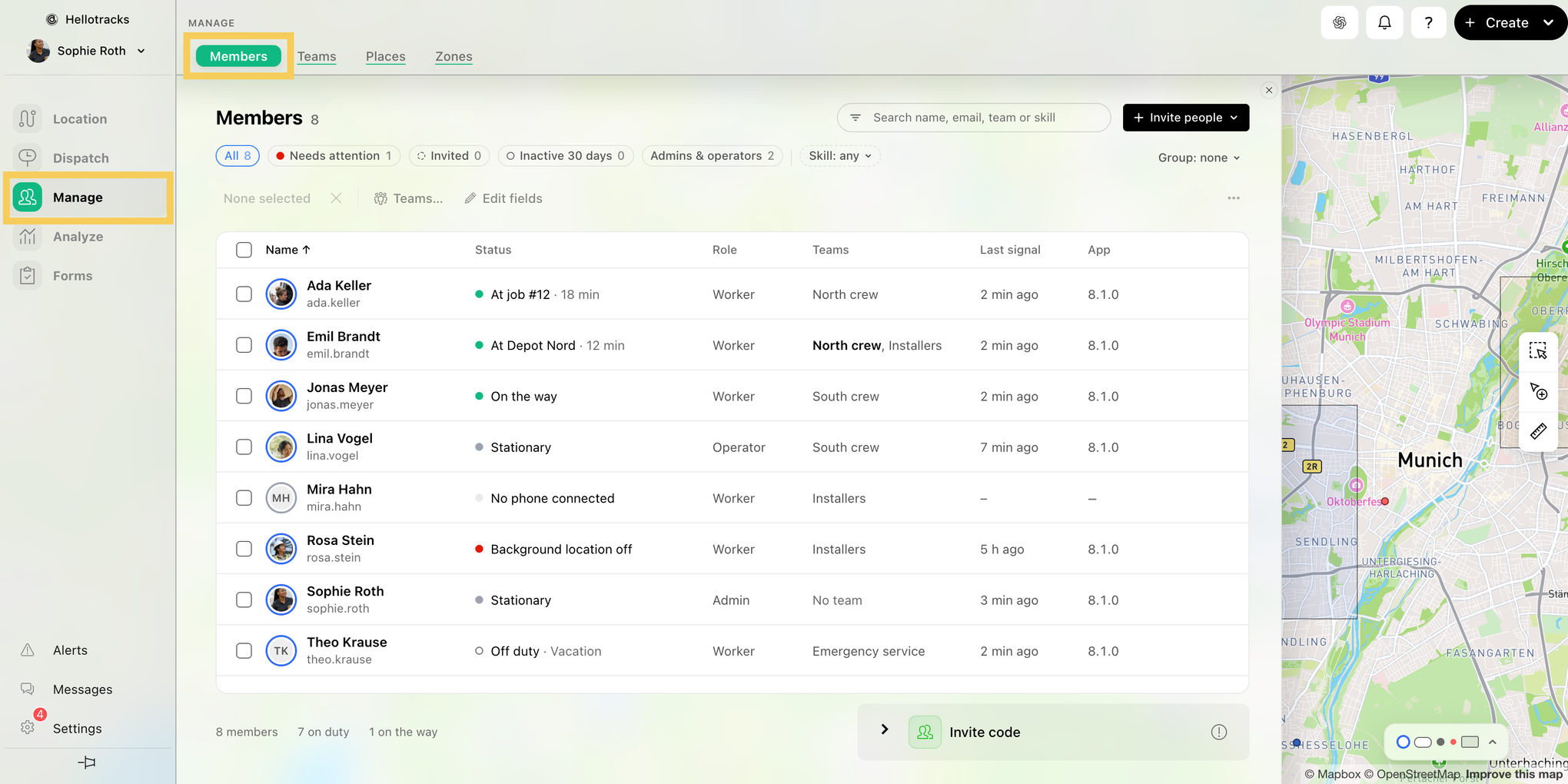
Step 2: Check the box next to each person whose username you want to change. To pick everyone, use the box at the top of the list.
Step 3: In the bar above the list, click the More actions icon (three dots), then click Change email domain of ….
Step 4: Choose how to change the usernames:
- To move everyone to a new domain: In From, pick the old domain. In To, enter the new domain, for example newdomain.com. Usernames and contact emails on the old domain move to the new one.
- To rename people one by one: Click Paste a list of old and new usernames instead. Enter one person per line: the old username first, then the new one. You can paste a table from a spreadsheet as it is.
The list below shows each person's new username. If a new username is already taken, that person is skipped.
Step 5: Click Change … people (for example, Change 12 people).
Note: Only admins see the More actions icon. If a person's contact email was the same as their old username, it changes too.
How to update your contact email
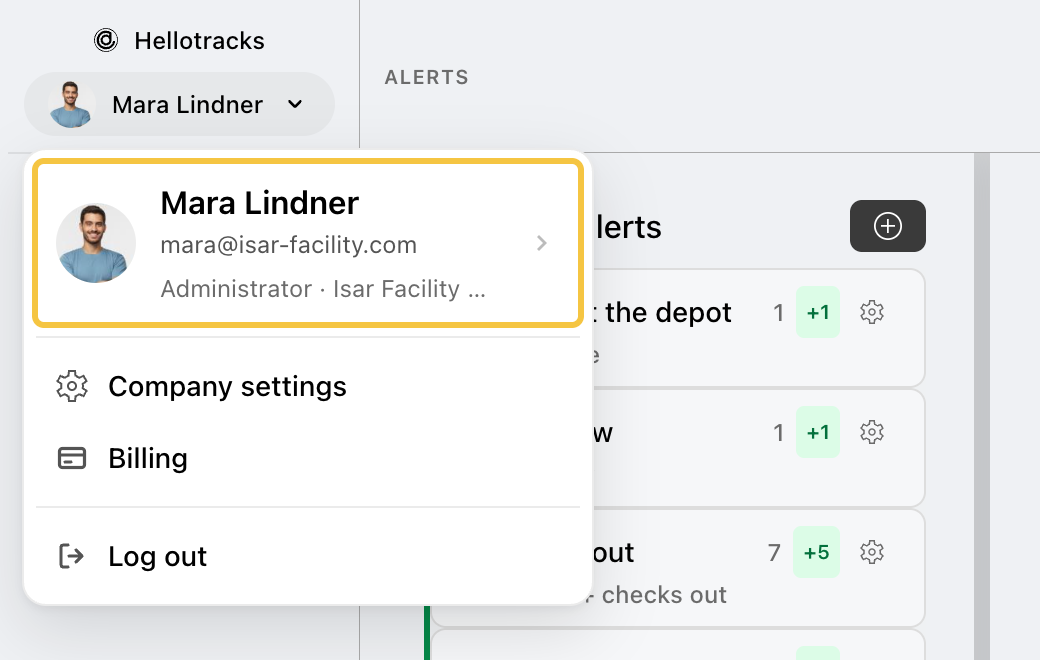
Step 1: Click your name at the top of the main menu, then click your name and photo at the top of the menu that opens. Or go to Settings at the bottom of the main menu and select My settings.
Step 2: In Profile, scroll down to Contact and enter your new address in Email.

Step 3: Click Save.

Step 4: Open your profile again and click Verify email under the Email field. Then open the email we send to your new address and confirm it.

Note: To change a member's contact email as an admin, go to Manage > Members, click the member, then click Profile & settings and follow steps 2 to 4.
Note: If you use two-factor authentication with codes by email or SMS, changing your email turns it off. Set it up again afterward. An authenticator app stays on.