How to Override a Member’s Working Hours for Specific Dates
This guide explains how to override a member’s working hours using Date-based shifts (next 14 days). Use this option to adjust the schedule for any date within the next 14 days without changing the member's default weekly schedule.
Step 1: Go to Manage from the main menu, then select Members.

Step 2: Click the Open Profile icon of the member.

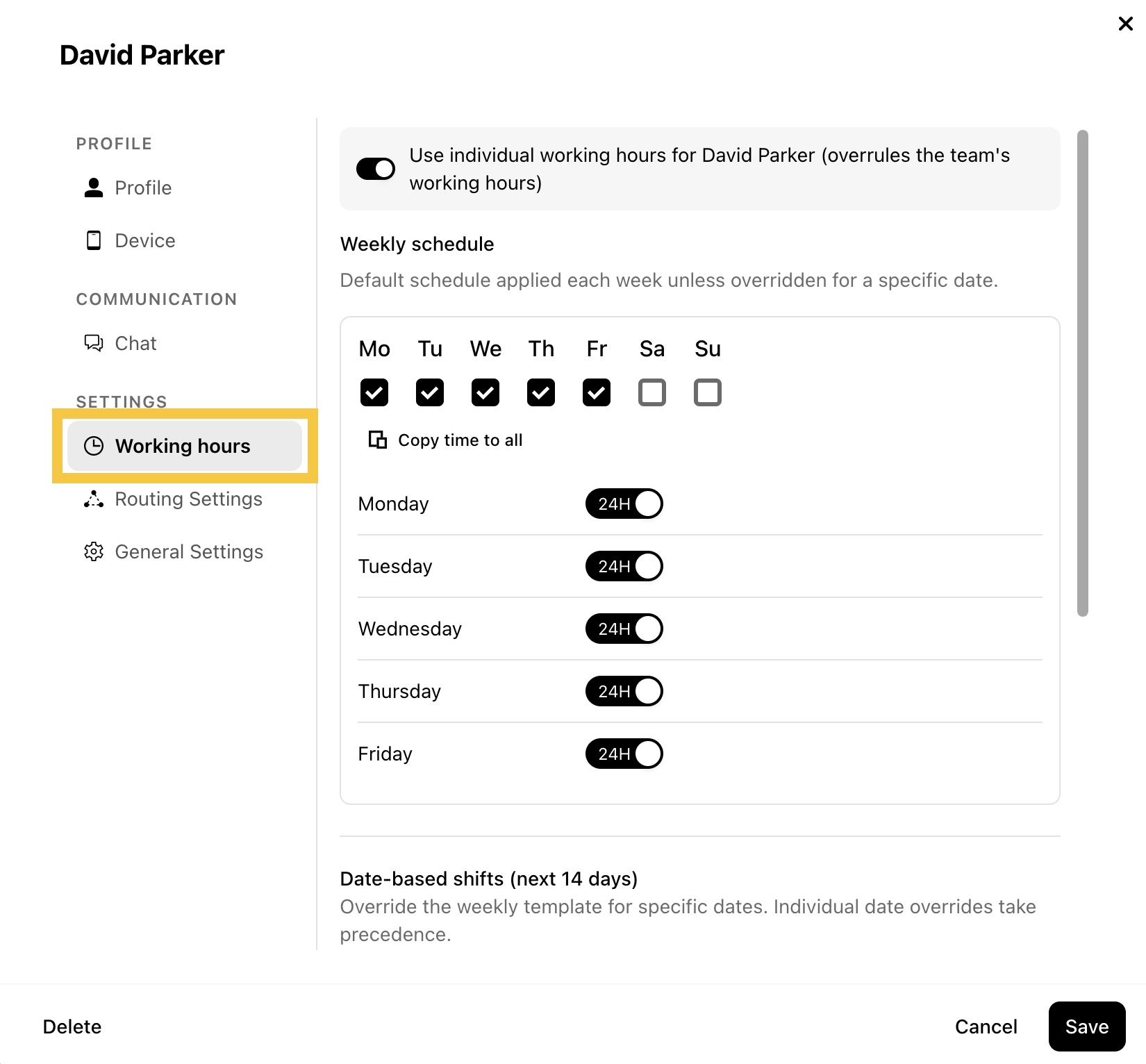
Step 3: Select Working hours.
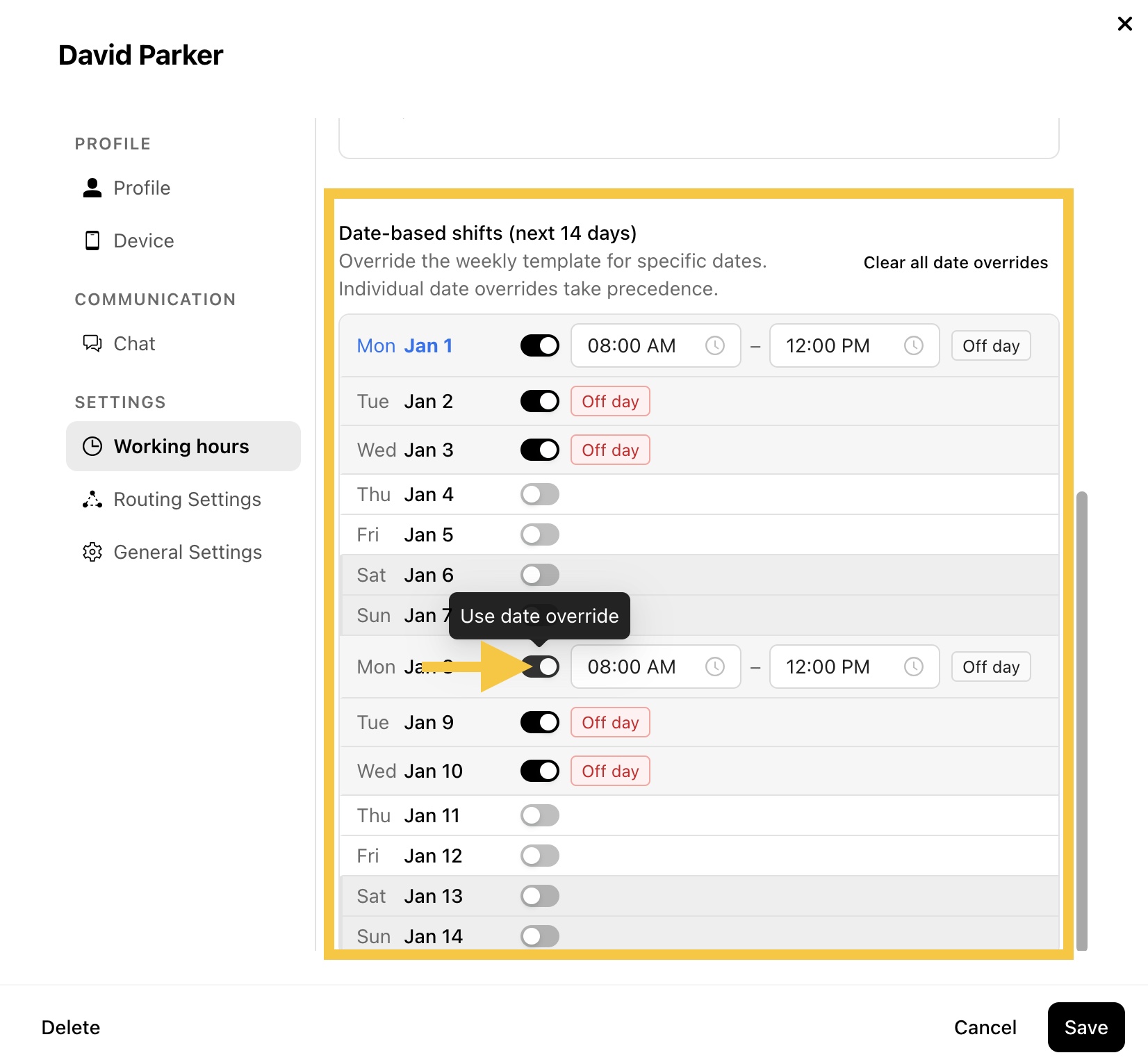
Step 4: In Date-based shifts (next 14 days), enable the date you want to override, then set the working hours for that day or select Off day.
Note: If Date-based shifts (next 14 days) is not visible, make sure Use individual working hours is enabled for the member.
Step 5: Click Save to apply your changes.