How to Set Up and Share Your Estimated Time of Arrival
This guide shows you how to send your customers an email with the worker’s estimated time of arrival (ETA). It has two parts:
- An Administrator sets up the ETA emails in the web dashboard.
- The worker taps On the way for a job in the mobile app.
You can also share a live ETA page link with your customer yourself.
In this guide:
1. Set up ETA emails (web dashboard)
An Administrator sets up ETA emails once for the whole company.
Step 1: Click your name at the top left and select Company settings.

Step 2: Select Jobs and scroll to ETA email notifications.

Step 3: Set up the notification:
- Select Send ETA notification to the job’s contact email address.
- Select one or more times for the notification to be sent, for example 30 min before arrival.
Tip: You can also change the ETA notification subject and ETA notification body. Use {eta}, {company}, {driver}, {title} and {etaPageUrl} to add details automatically. To reset the text, click Set to default. Below the body, you can choose to:
- Include image with current position and remaining route
- Include ETA page link
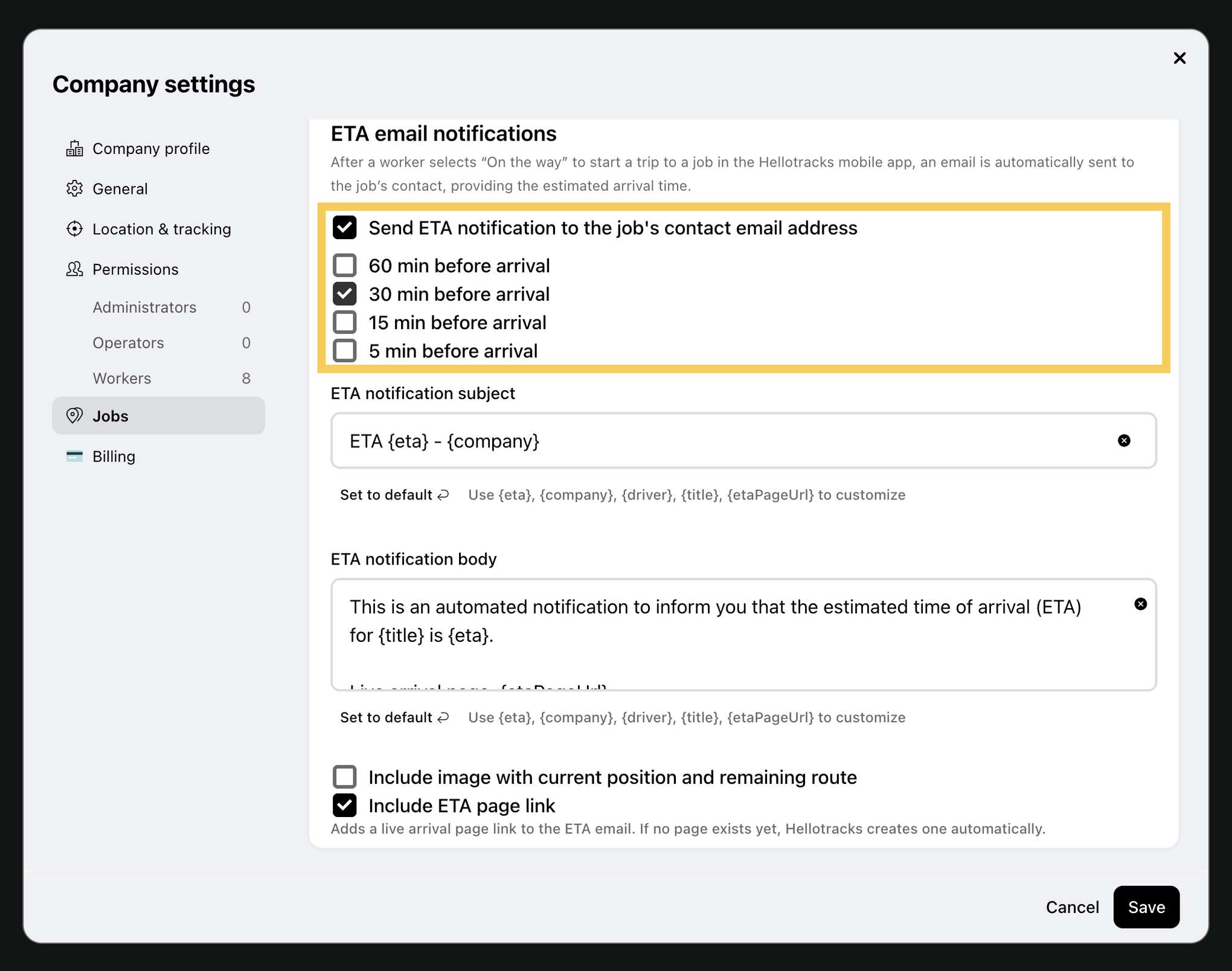
Step 4: Click Save at the bottom right to apply the new ETA notification settings.

Important: ETA emails are only sent to jobs with a contact email address. The dispatcher or operator usually adds it when creating or managing the job. To add one:
- Open the job and click Contact in the job sheet’s Customer section.
- Enter the Email and click Save.

-
Send the ETA (Mobile app)
Once ETA emails are set up, workers send the ETA from the job in the mobile app.
Step 1: Open the Hellotracks app and tap Jobs to see your scheduled jobs.

Step 2: Tap the job you are about to start.

Step 3: Tap the On the way button to send the ETA.

Hellotracks calculates the estimated time of arrival (ETA) and automatically emails it to the job's contact person, at the time set in Company settings > Jobs.
-
Share the ETA page link
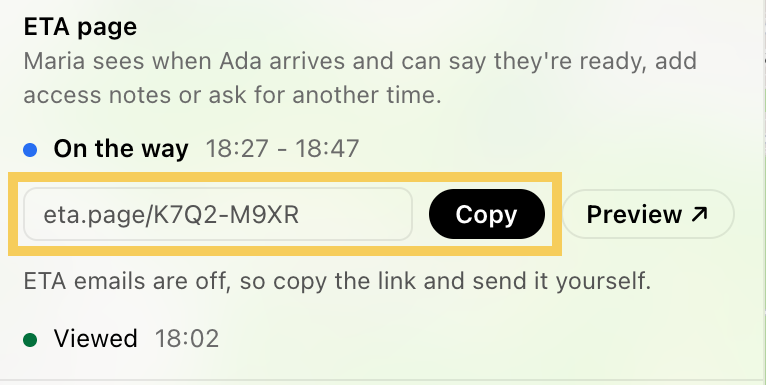
Each job has an ETA page, a live arrival page where your customer sees when the worker will arrive. From the page, they can say they’re ready, add access notes or ask for another time.
Administrators and Operators can also send customers the ETA page link directly, for example when ETA emails are off:
- Open the job and go to the Customer section.
- Next to the ETA page link, click Copy, then send the link to your customer.
Tip: To see what your customer sees, click Preview.
Note: To choose what new ETA pages show, go to Company settings › Jobs › ETA page defaults and select Show worker name or Show live map. You can still change this per job.