How to Log In on the Mobile App
This guide shows you how to log in to the Hellotracks mobile app with the email or username and password your account already has.
Step 1: Open the Hellotracks app on your Apple or Android device.
Step 2: On the first screen, tap Already have an account? Log in at the bottom.
Don't tap Get started: that creates a new account of its own, outside your company.

Step 3: On Welcome back, enter your Email or username and tap Continue. If you logged in on this phone before, just tap your name in the list. What you enter depends on how your Administrator or Operator set up your account:
- Via email: if you were added with an email address, your email address is your username.
- Via username: if you were added with a username, your Administrator or Operator gives you the username and password.
- Via invite code: if you joined with an invite code, use the email or username you created when you signed up.
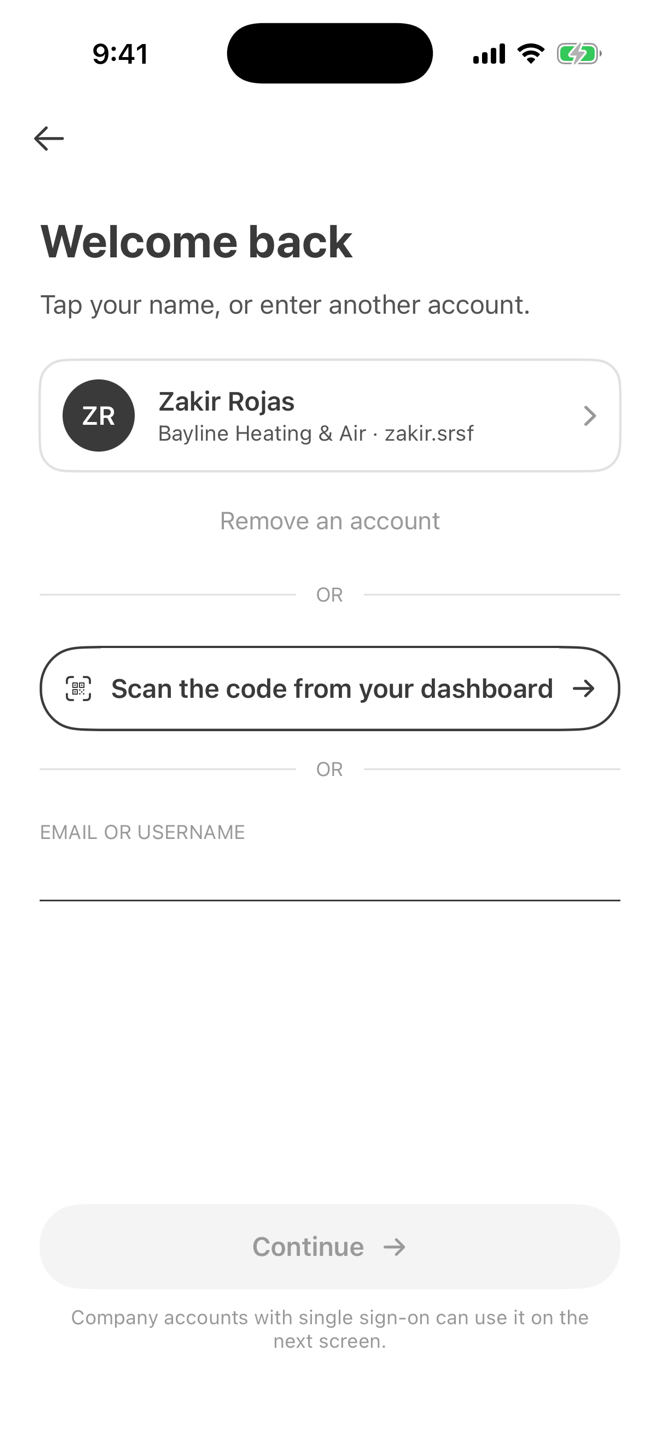
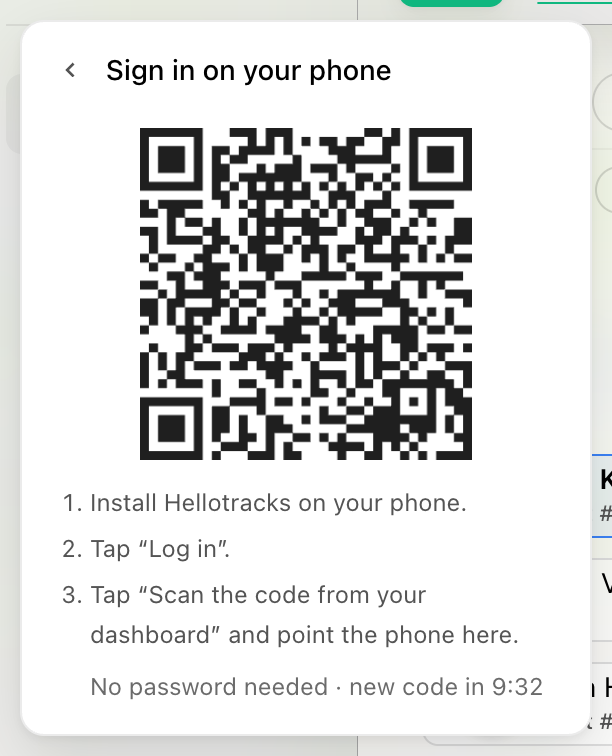
Already logged in on the web dashboard? Then your phone needs no password. On the dashboard, click your name at the top of the main menu and select Sign in on your phone. If your company is new, you also find the code under Track your own phone too on the setup card. In the app, tap Scan the code from your dashboard on Welcome back, point the phone at the code, then tap Continue as <your name>. Each code works once and for 10 minutes; the dashboard shows a new one by itself.
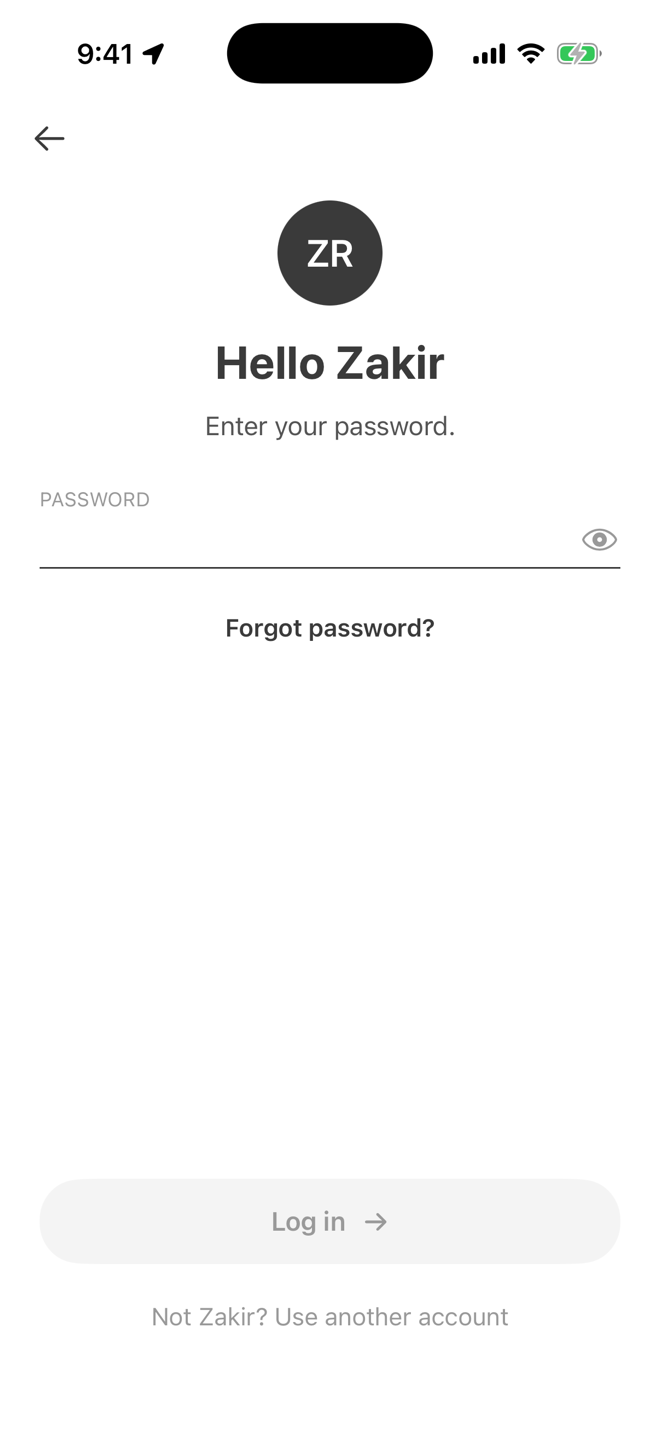
Step 4: Enter your Password and tap Log in. Forgot it? Tap Forgot password? under the field.
Step 5: The first time on a phone, the app then walks you through Set up your phone (location, notifications), so it works reliably.
Note: If your company uses single sign-on, tap Log in with single sign-on on the password screen. If you signed up with Google or Apple, tap Continue with Google or Continue with Apple (iPhone) on the first screen instead.