How to Map Monday.com Columns to Hellotracks Jobs
This guide explains how to map Monday.com board columns to the corresponding job fields in Hellotracks.
Before you start: Connect Monday.com in Hellotracks to load the available Monday.com columns for mapping. To learn how to connect Monday.com, click here.
In this guide:
-
Manage Monday.com Columns
Step 1: In Monday.com, open the board you connected to Hellotracks.
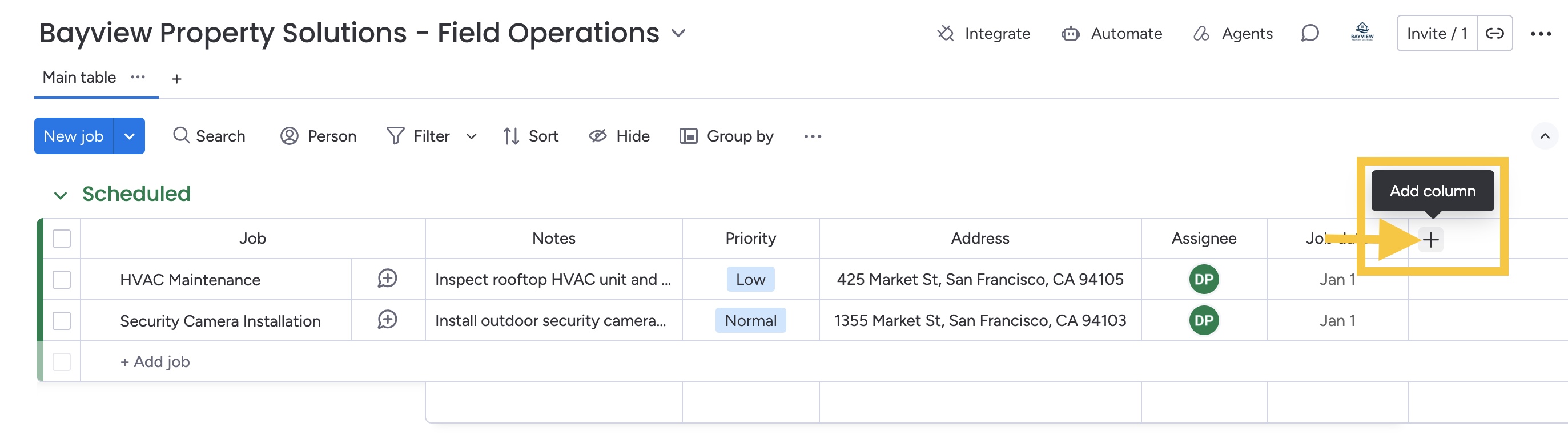
Step 2: Review the columns you want to use for mapping. Click + Add column to add any missing columns.
Examples of minimum required fields:
- Job - for the Hellotracks job title
- Address - for the Hellotracks job address / location
- Assignee - for the Hellotracks job assignee based on a matching member
- Job date - for the Hellotracks job date in YYYY-MM-DD format
-
Map Monday.com Columns in Hellotracks
Step 3: In Hellotracks, go to Settings and select API & Integrations.

Step 4: Under monday.com, choose which Monday.com columns should fill each Hellotracks job field.
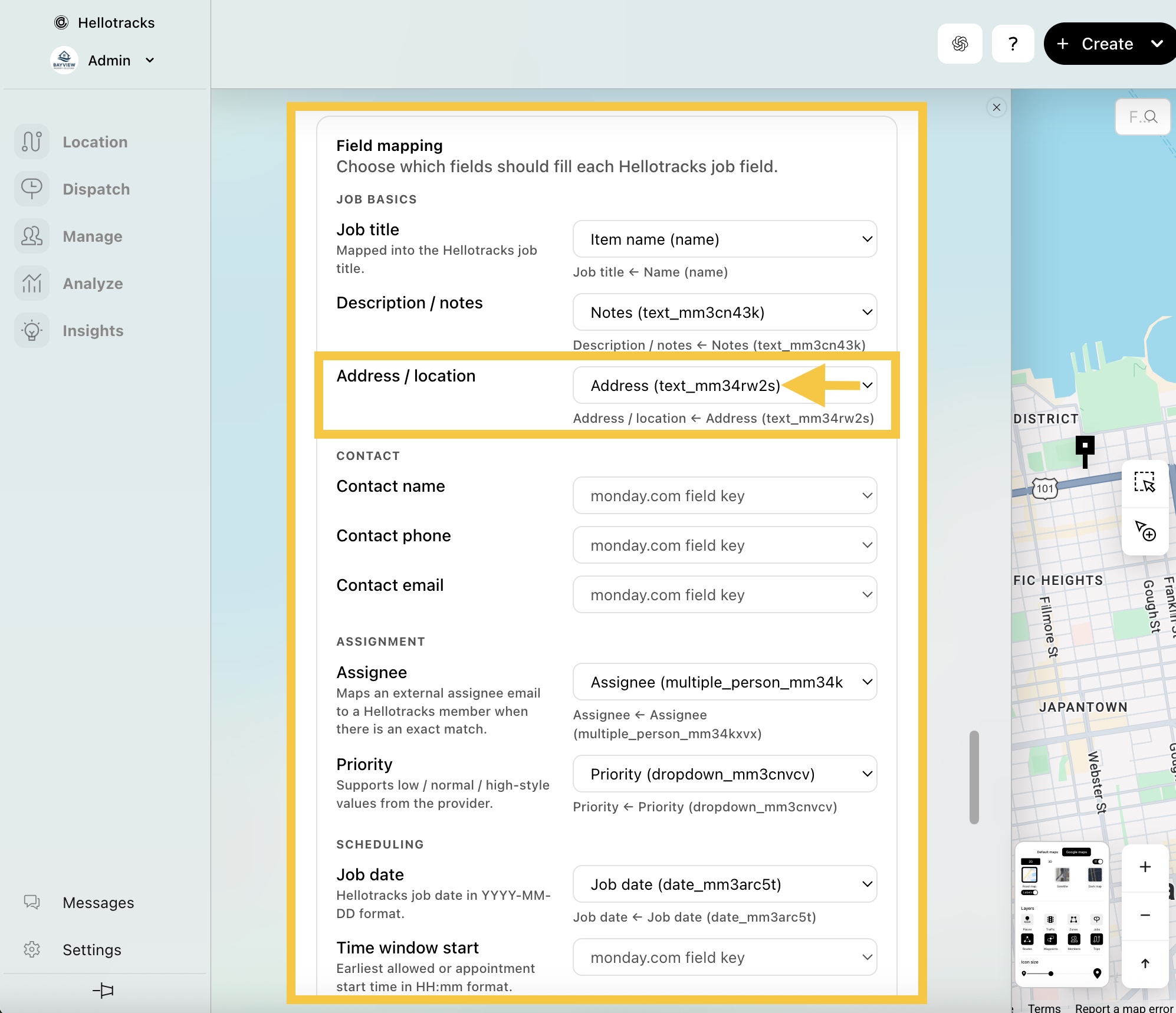
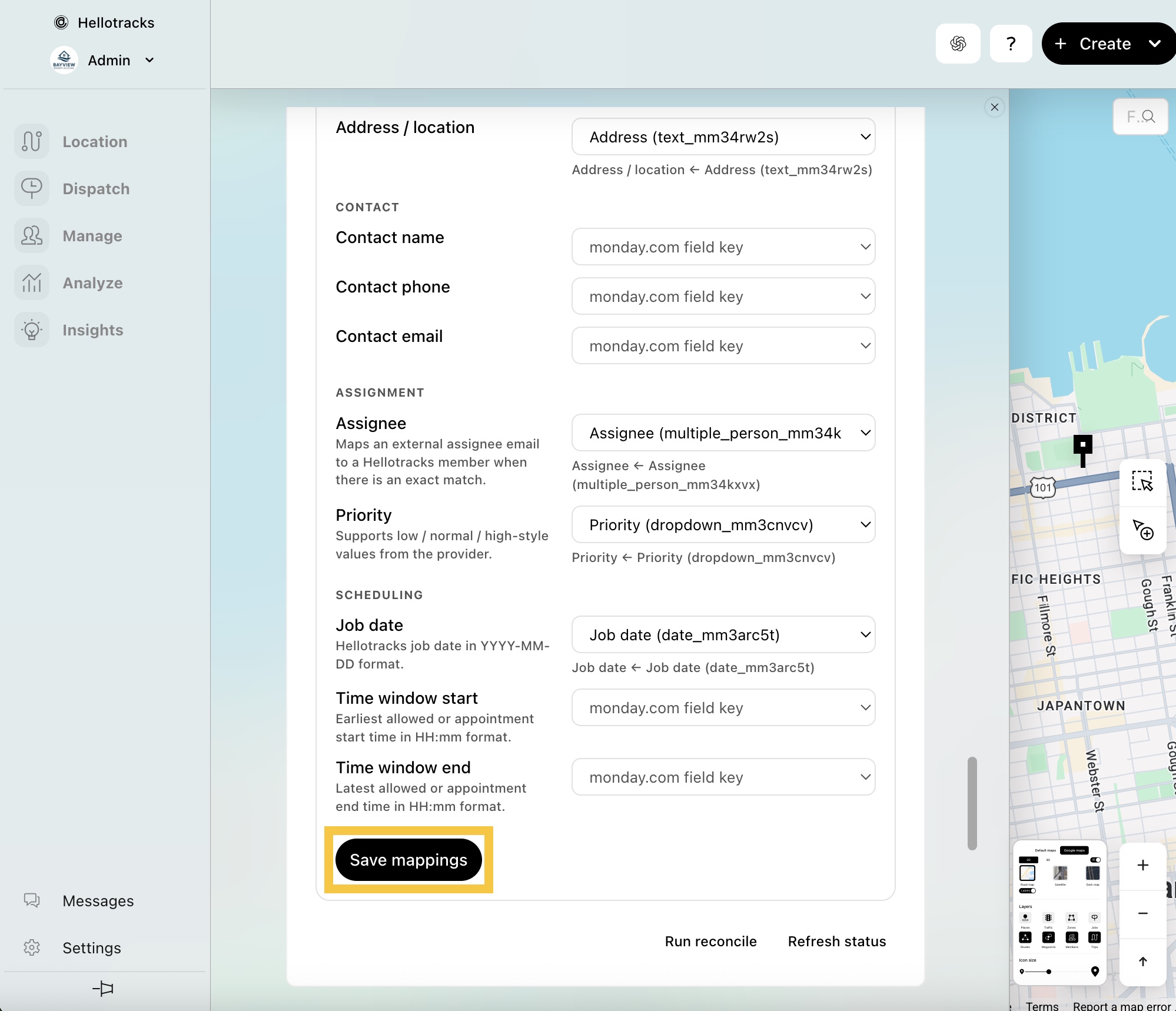
Step 5: Click Save mappings.
Once configured, creating or updating an item in Monday.com applies the mapped fields to the job in Hellotracks.
If you have questions or encounter issues with your Monday.com integration, please contact support at support@hellotracks.com.