How to Manage User Lifecycle with Microsoft Entra (SCIM)
This guide explains how to set up System for Cross-domain Identity Management (SCIM) with Microsoft Entra for your Hellotracks account. SCIM automates the provisioning and deprovisioning of user accounts, ensuring that user data is synchronized between Microsoft Entra and Hellotracks, streamlining your user management processes.
Key Features of Microsoft Entra SCIM Integration
Once configured, Microsoft Entra SCIM provides the following automated user management capabilities:
- Create Users: Users assigned to the Hellotracks enterprise application (Non-gallery) you created in Microsoft Entra are automatically added as members to your organization in Hellotracks.
- Deactivate Users: Deactivating a user or removing their assignment to the Hellotracks enterprise application (Non-gallery) in Microsoft Entra will logically delete the user in Hellotracks, removing their access.
- Update User Attributes: Changes made to a user's profile (attributes) in Microsoft Entra will be automatically pushed and synchronized to their corresponding profile in Hellotracks.
How to Find Your Hellotracks API-KEY
To set up SCIM, you will need your Hellotracks API-KEY. This API-KEY will be used as the API-TOKEN when configuring SCIM in the Microsoft Entra.
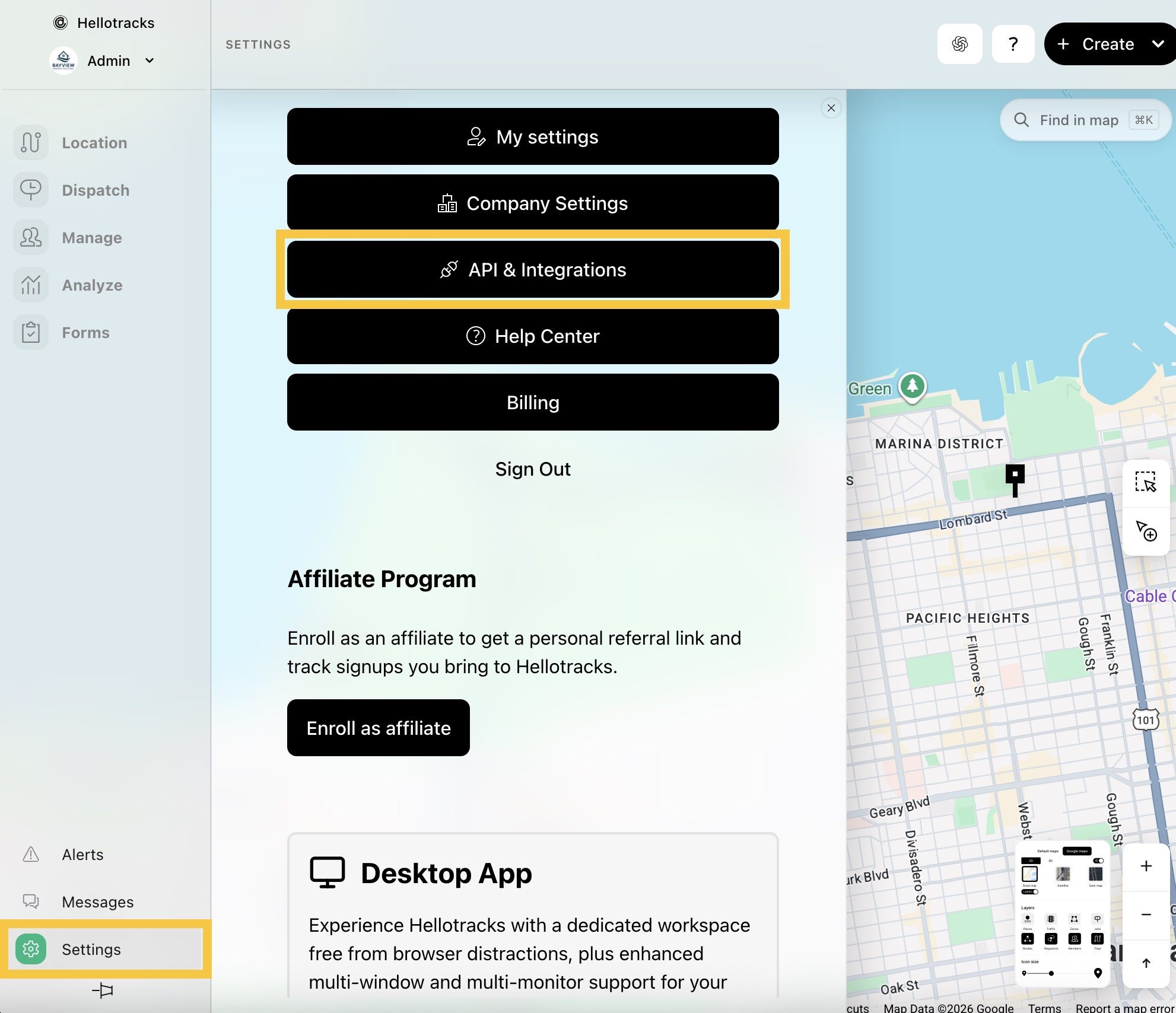
Step 1: Go to Settings at the bottom of the main menu, then select API & Integrations.
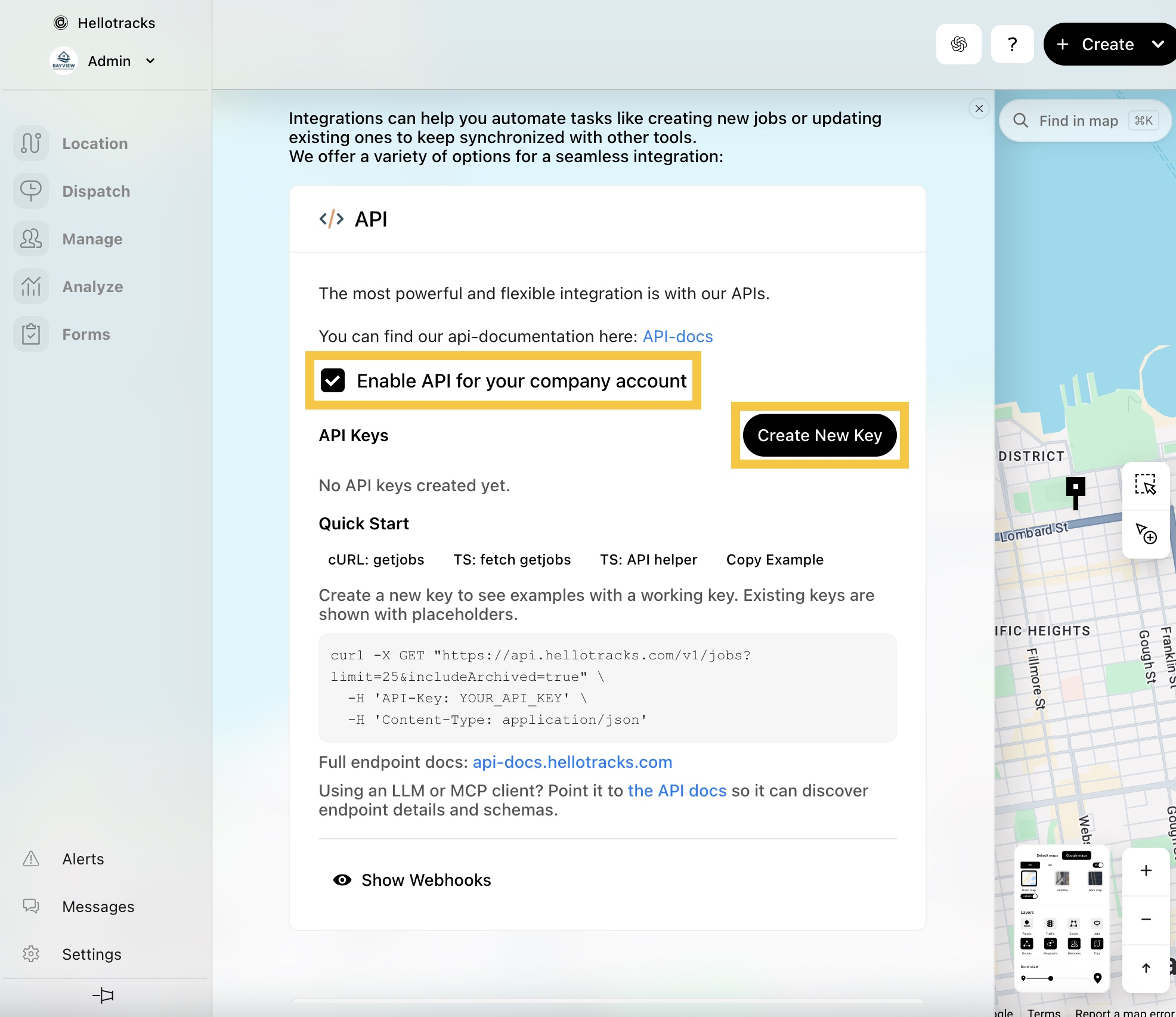
Step 2: Enable API for your company account. Once enabled, click Create New Key to get your API key (secret).
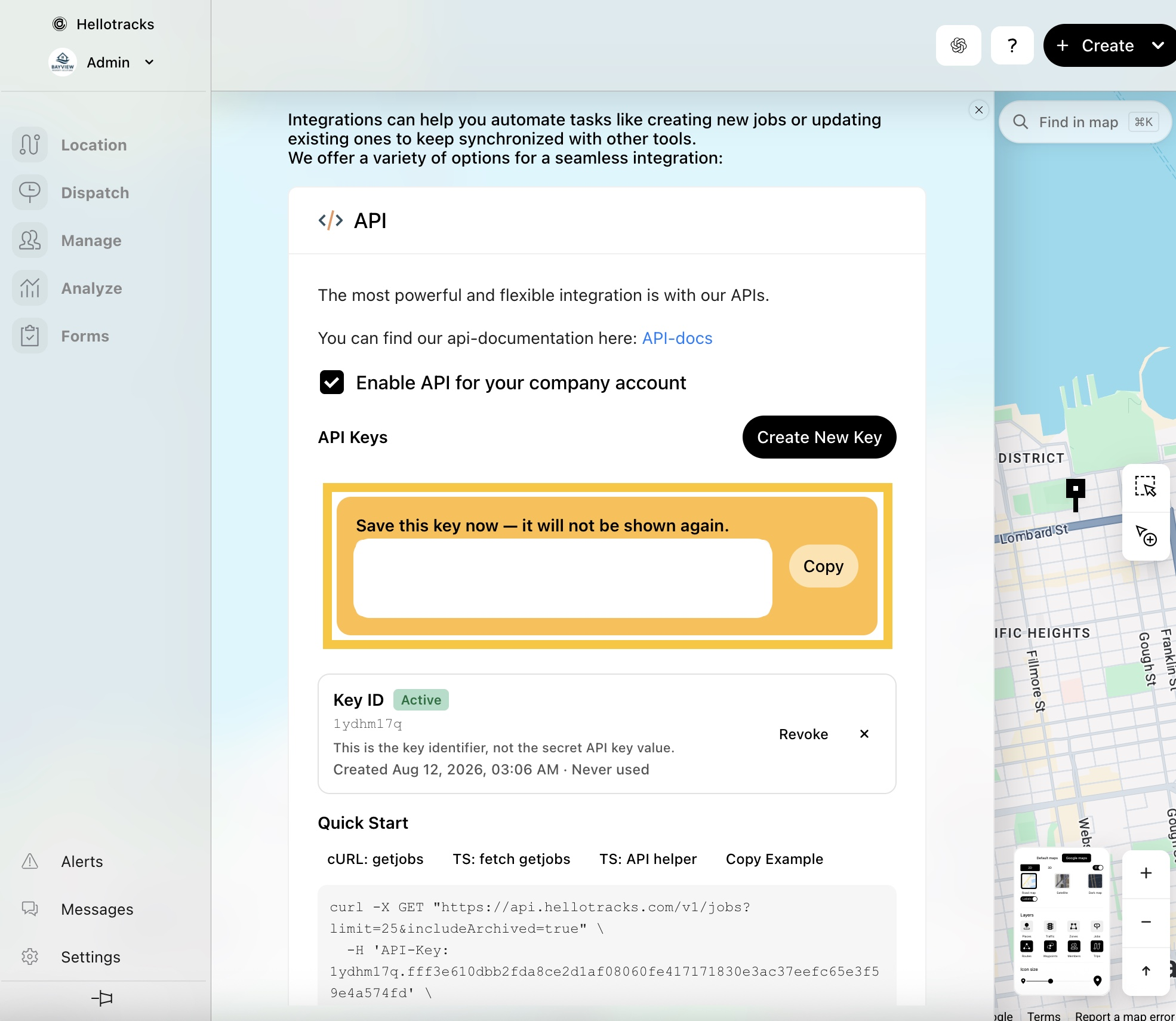
Step 3: Click Copy and securely store your API key (secret). It will not be shown again.
How to Configure Microsoft Entra SCIM
Now that you have your API-KEY, proceed with the Microsoft Entra configuration:
Step 1: In the Microsoft Entra admin center, go to Enterprise apps and click + New application.

Step 2: Select Create your own application.

Step 3: Enter a name (e.g., Hellotracks), and choose Integrate any other application you don’t find in the gallery (Non-gallery). Then, click Create.

This creates a custom Enterprise Application used for SCIM provisioning. After creation, you will be redirected to the application overview (or select it from Enterprise apps).
Open the Enterprise Application
Step 1: In the left menu, select Provisioning.

Step 2: Click Connect your application.

Step 3: Enter the SCIM details:
- Tenant URL: https://auth.hellotracks.com/scim/v2
- Secret Token: (paste your Hellotracks API-KEY)

Step 4: Click Test connection.

Step 5: Confirm the test is successful, then click Create.

You have successfully configured Microsoft Entra SCIM for Hellotracks. Your user lifecycle management is now automated!
If you have questions or difficulties with your Hellotracks/Microsoft Entra SCIM integration, please contact us at support@hellotracks.com.