How to Change Job Settings for Workers (Mobile App)
This guide shows Administrators how to change Job settings that control what Workers can do when managing their assigned Jobs in the mobile app.
Step 1: Click the dropdown menu next to your profile and select Company. Or, go to Settings at the bottom of the main menu and select Company Settings.

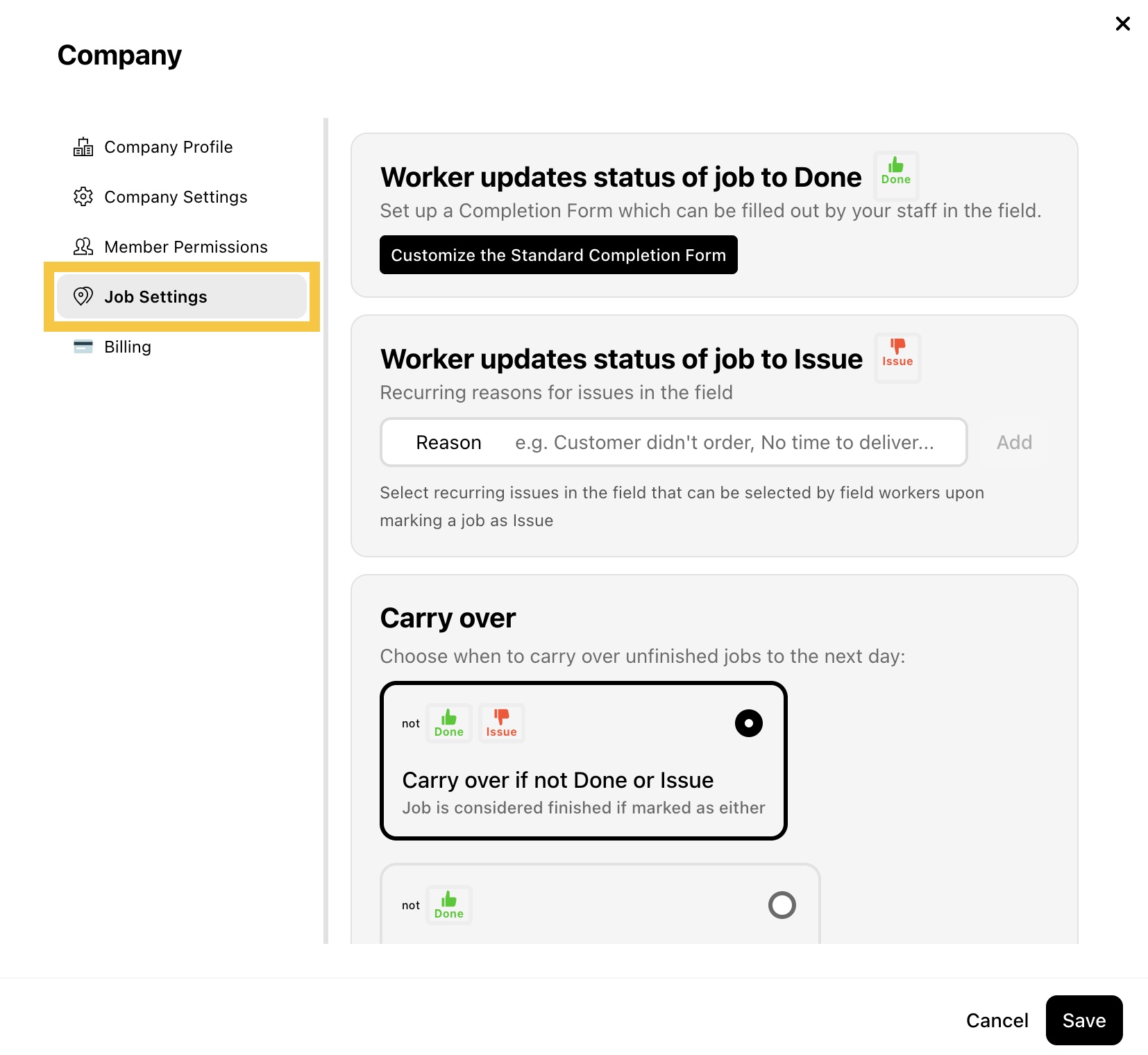
Step 2: Select Job Settings.
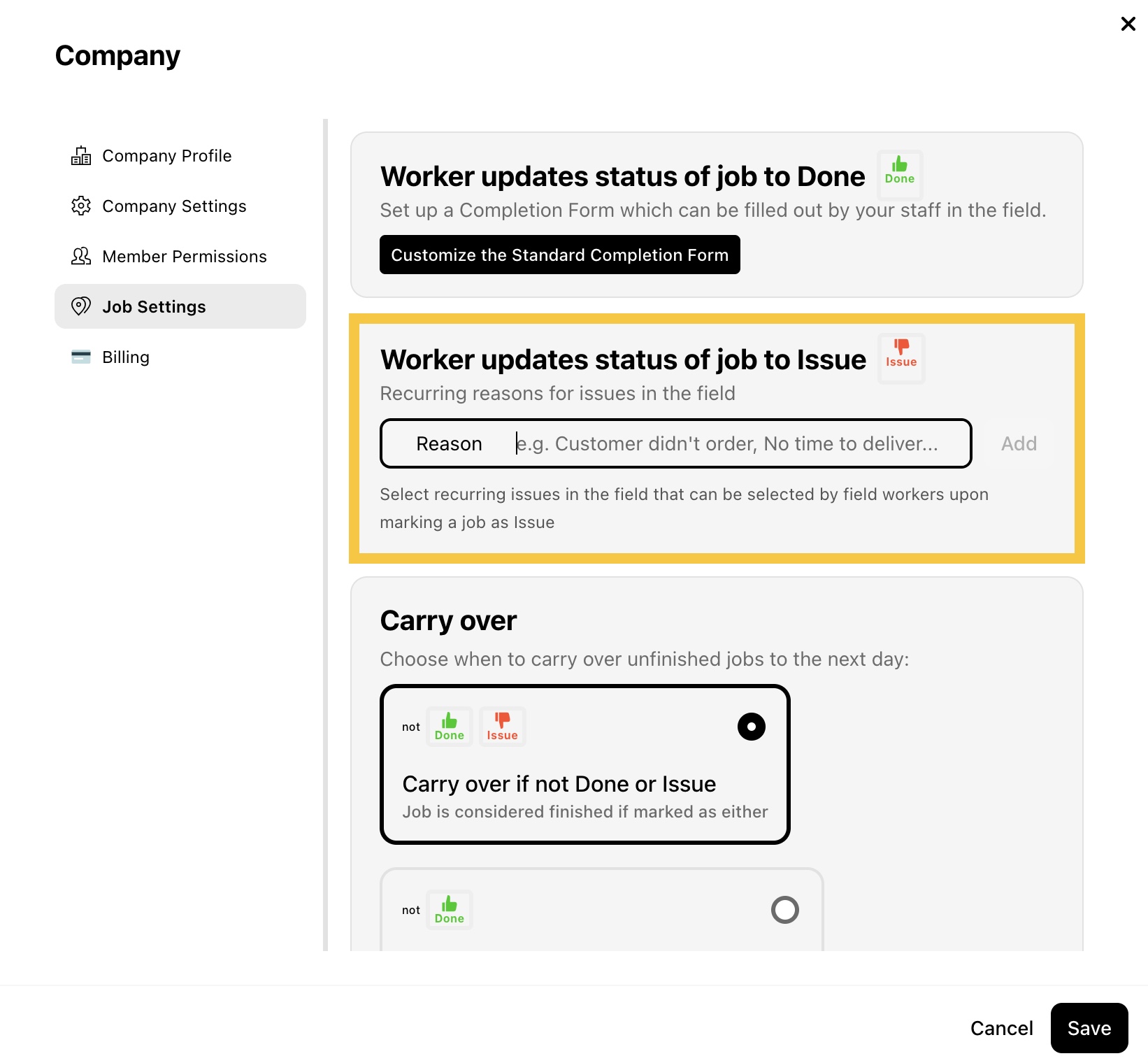
Step 3: In Worker updates status of job to Issue, add the predefined issue reasons (e.g., Customer didn't order, No time to deliver) that Workers can select when marking a Job as Issue in the mobile app, then click Add.
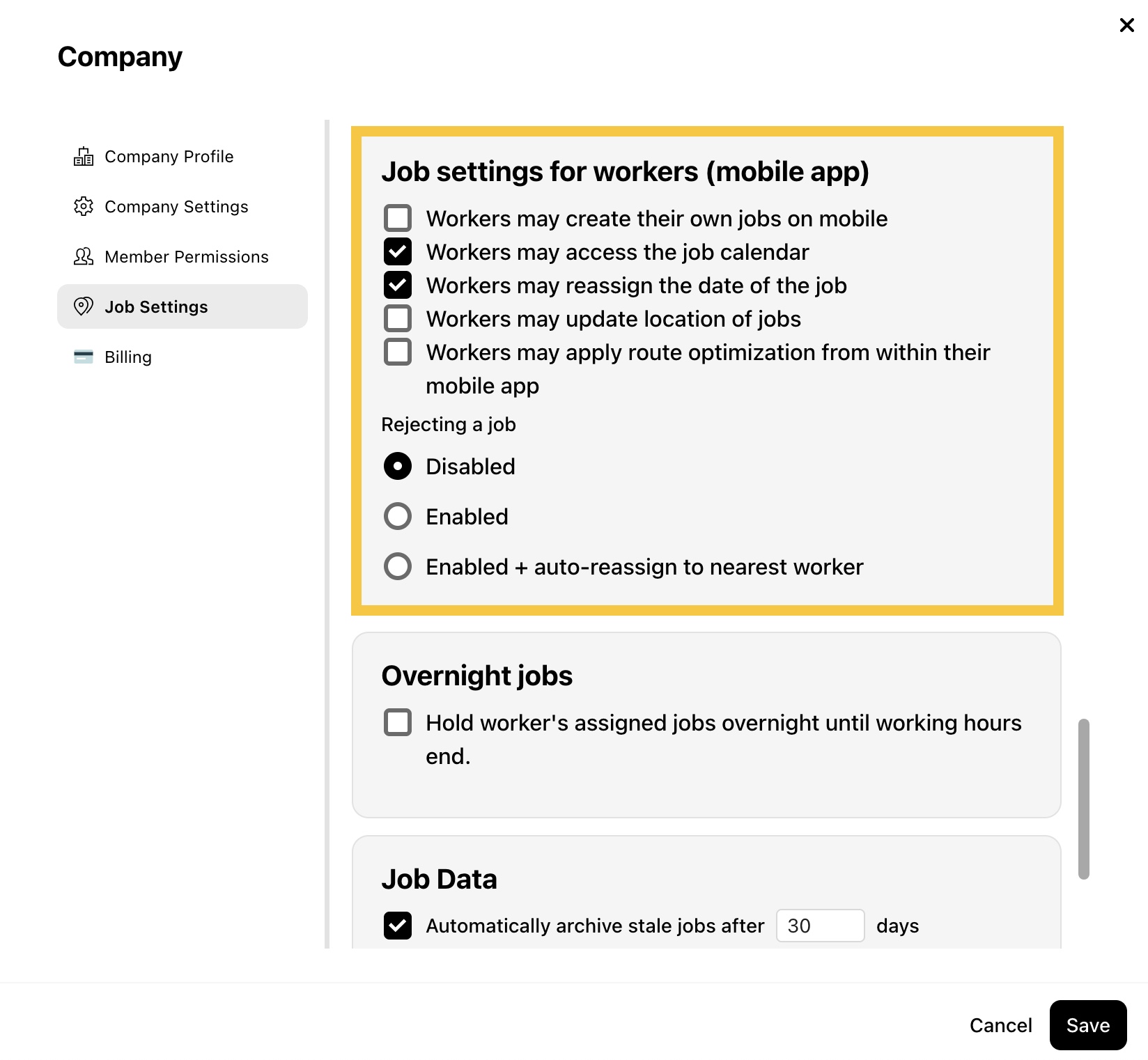
Step 4: In Job settings for workers (mobile app), manage the following settings:
- Workers may create their own job on mobile
This controls Workers’ ability to create Jobs within the mobile app.
- Workers may access the job calendar
This controls Workers’ ability to view their assigned Jobs on dates beyond today in the mobile app.
- Workers may reassign the date of the job
This controls Workers’ ability to reschedule their assigned Jobs.
- Workers may update location of jobs
This controls Workers’ ability to update the Job location to their current location from the mobile app.
- Workers may apply route optimization from within their mobile app
This controls Workers’ ability to automatically reorder their assigned Jobs to follow the most efficient route.
- Rejecting a job
This controls Workers’ ability to reject their assigned Jobs (and optionally auto-reassign them to the nearest Worker).
Step 5: Click Save to apply your changes.